
InDesign creator
You create and review lots of yearbook pages in desktop software and want to check in advance that the operating system, memory and screen suit the way you work. Adobe recommends 16 GB RAM for InDesign.


Start with the software: Adobe lists 8 GB RAM as the minimum and 16 GB as the recommended amount for InDesign, while Canva Help Center says a stable internet connection is important when using Canva in a browser. Then compare the screen space and connections with your shared workspace and how often you’ll need to take the laptop with you. A large built-in screen doesn’t automatically make for a well set-up workspace.
You create and review lots of yearbook pages in desktop software and want to check in advance that the operating system, memory and screen suit the way you work. Adobe recommends 16 GB RAM for InDesign.
You work at the same office workstation for extended periods and want to connect your laptop to a separate screen or keyboard and set up your workspace properly. According to Arboportaal, specific rules apply to employees who spend more than 2 hours a day working with a screen.
You take your yearbook work between workstations and are weighing up a more compact device against the space available on its built-in screen and the connections you need.
Choose this workflow if: your team lays out the yearbook in the desktop version of InDesign. Check the supported operating system version, processor and memory for the exact laptop configuration.
Bear in mind: Adobe’s system requirements for InDesign are more specific than those for a browser-based workflow. A recommended screen resolution doesn’t guarantee colour reproduction that matches the printed result.
Choose this workflow if: your team designs in Canva using a supported browser. Canva recommends a stable internet connection to help avoid problems saving your work.
Bear in mind: using a browser doesn’t automatically make a laptop suitable for InDesign. Make sure the PDF export and settings also meet your printer’s requirements.
| Consideration | What should you check? | Who is this important for? |
|---|---|---|
| Software and memory | Note down the software and version, then check the operating system, processor and RAM for the exact configuration. | If I want to be sure the laptop is suitable for the agreed layout software, I check the requirements before comparing models. Around 36% of consumers put software compatibility first. |
| Screen and desk connections | Check how much screen space you need and whether the laptop connects to your existing monitor, keyboard or dock. | If I often review pages at the shared desk, I want to know whether I can use the existing equipment and set up the workspace again. Around 29% of consumers give the shared workspace top priority. |
| Taking it between workstations | Compare the stated weight and screen size, and check which connections or adapters you’ll need. | When I work on text and corrections in different places, I weigh portability against the space available on the built-in screen. Around 21% of consumers prioritise taking their laptop between workstations. |
| Browser workflow and print file | Check the browser and internet connection, and ask the printer which PDF format and settings they need. | If our team continues to work in Canva, my main concern is making sure the browser workflow and export for the printer match what we’ve agreed. Around 14% of consumers prioritise this straightforward browser workflow. |
The desktop version of InDesign and Canva in a browser have different system requirements. A laptop that suits one workflow won’t necessarily meet the requirements of the other.
Before comparing configurations, confirm which software and version your team will use.
At a shared workstation, the connections and the option to use a separate screen and keyboard can be just as important as the laptop screen. According to Arboportaal, specific rules apply to employees who spend more than 2 hours a day working with a screen.
Make a note of the office equipment already available and check the ports and display support on the exact model.
An export setting won’t fix a blurry original photo. If an image needs to extend to the trim edge, you’ll need to include bleed in the design.
Check the original photos, bleed and required export settings with the printer before submitting the final file.
Insufficient preparation can mean extra correction work before printing.
Choosing one shared device doesn’t automatically take care of the permissions and security needed for identifiable images.
Agree with the school who can access the files, what permissions are needed and how the yearbook will be distributed.
The IdeaPad Slim 5 Gen 10 configuration 83HY008QMH is worth comparing if you want plenty of screen space built in.
The ProBook 4 G1i configuration A23QQEA#ABH shows the kinds of specifications you might find in a business-focused 16-inch Windows laptop.
The 13-inch MacBook Air with M5 is a more compact macOS option if it works with your school’s software and existing equipment.
The Dell 14 Plus DB14250 is a 14-inch Windows option to consider if you’re looking for a more compact size.
The Vivobook 16X OLED K3605 range is worth comparing if image editing is also part of your work on the yearbook.
These laptop options suit the Windows workflow for yearbook layout. Before buying, check that the exact configuration works with your software and the connections available at the shared workspace.
 No image available
An option if you’re looking for a 16-inch built-in screen and a Windows laptop. Check that the exact configuration meets your software requirements.
16-inch WUXGA OLED screen; Snapdragon X processor; 16 GB LPDDR5X; 512 GB SSD; Windows 11 Home.
 No image available
One to compare if the listed processor, memory and storage suit your chosen yearbook workflow. Also check the software compatibility of this configuration.
Intel Core i3-1000NG4; 16 GB DDR4 RAM; 1 TB SSD.
 No image available
One to compare if the listed memory and storage configuration suits the way you work. Check the layout software requirements for the exact configuration.
16 GB DDR4 RAM; 512 GB SSD; 3050E processor.
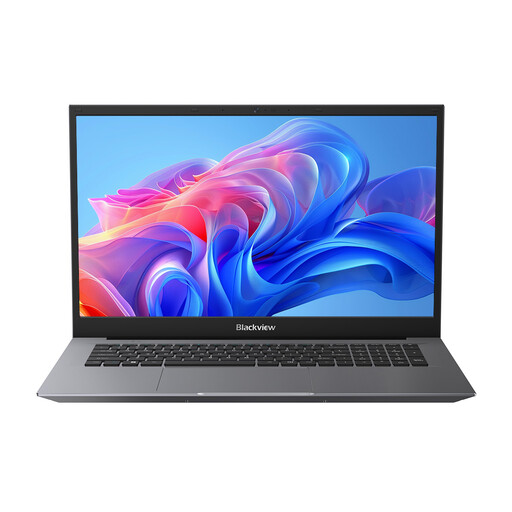 No image available
One to compare if you’re looking for a large built-in screen. Check that the exact configuration and software are suitable for your project.
18.5-inch LCD screen (16:9); Intel Pentium Silver N6000; 16 GB DDR4 RAM; 512 GB SSD; Windows 11 Pro.
 No image available
One to compare if you’re looking for a Windows laptop with a 15.6-inch screen. Check that it has the connections you need for your shared workspace.
15.6-inch FHD screen; Intel Core i5-13420H; 16 GB DDR5; 512 GB SSD; Windows 11 Pro.
Not according to the desktop requirements listed by Adobe: these cover Windows and macOS configurations, not ChromeOS. If you need InDesign, check the supported configuration before buying. Canva in a browser has different requirements.
Check that you can adjust the workspace and connect a separate screen or keyboard. According to Arboportaal, employees who spend more than 2 hours a day working with a screen must have a separate screen and keyboard. This requirement doesn’t automatically apply to every volunteer yearbook editor.
Ask the printer which format and export settings they need. Canva offers PDF Standard and PDF Print; Adobe explains that bleed is needed when an image has to extend to the trim edge. Also check the quality of the original photos: an export setting won’t make a blurry photo sharp.
For a consumer purchase in the Netherlands, the seller is your point of contact for the statutory guarantee. According to the Dutch government, the Netherlands has no fixed statutory guarantee period; a manufacturer’s guarantee or an additional guarantee is separate from your statutory rights. Check the terms separately if the school is buying for business use.
Agree on consent and security arrangements with the school in advance. The Dutch Data Protection Authority says parental consent is needed for a pupil under 16. Before using any photos, make sure the consent covers the yearbook and how it will be distributed.