
Yearbook team with few power sockets
You want a permanent, organised place to work on the layout and need to check which devices require a separate power supply. Remember to count a separate screen and any other equipment.


If you don’t yet have a suitable screen and want a permanent place to work on the layout, an all-in-one is a logical choice. If you already have a suitable screen, you could also consider a mini PC, although the monitor will still need its own power supply. A tower is best suited to situations where flexibility matters more than a compact setup. Whatever you choose, check the requirements of your layout software and count every device that needs power.
You want a permanent, organised place to work on the layout and need to check which devices require a separate power supply. Remember to count a separate screen and any other equipment.
You want to keep using your current monitor and are looking for a computer with suitable connections. Also check that your software and the school’s workflow are compatible with the operating system.
You want to match the memory and storage to your chosen layout software and project files. Adobe lists 8 GB of RAM as the minimum for InDesign and recommends 16 GB; other system requirements depend on the version and configuration you use.
A good fit when: you want to choose a computer and screen together for a permanent workstation.
The trade-off: the screen size and resolution are fixed for the configuration you choose.
A good fit when: you already have a suitable monitor and want to choose the computer separately.
The trade-off: the monitor remains a separate device that needs its own power supply; also check which cables and input devices you need.
A good fit when: you want to prioritise upgrading the computer in future or using a specific monitor.
The trade-off: the computer and screen are separate parts of your power setup; check the upgrade options for each model.
When choosing a desktop for a school yearbook, consider the number of power sockets needed, the software requirements, the screen and the complete workstation.
| What to consider | What to look for when buying | Who is this important for? |
|---|---|---|
| Power sockets and setup | Count the computer, screen and any other devices that need power. Don’t treat the stated maximum power supply rating as measured energy consumption, and keep ventilation openings clear. | If there are few power sockets available at school, I want to know in advance how many devices need power. Around 33% of consumers prioritise the number of power sockets required. |
| Software and capacity | Check the requirements for your software version, operating system, RAM and storage. For InDesign 21.3 and later on Windows, Adobe lists 8 GB of RAM as the minimum, recommends 16 GB and recommends an SSD. | If I’m working with large photo files, I want the chosen layout software and PC configuration to be a good match. Around 27% of consumers prioritise the software capacity they need. |
| Screen and workstation | Compare screen size, resolution and placement options. For the Windows version of InDesign mentioned above, Adobe recommends 1920 × 1080; that resolution alone doesn’t tell you whether a screen is suitable for colour-critical print proofing. | If I’m reviewing pages for long periods, I want a screen that suits my workstation and the way I work on layouts. Around 20% of consumers prioritise the screen and layout workstation. |
| Complete workstation | Check which accessories are included with each configuration and which suitable screens or input devices you already have. If the school is making the purchase, don’t automatically assume that consumer rights apply. | If we already have a monitor or input devices, I want to know what else we need for a complete workstation. Around 20% of consumers first check which components they need for the overall setup. |
A compact computer doesn’t automatically replace the power supply for a separate screen. The monitor and other peripherals may also need power.
Before you buy, make a list of the screens, cables and other devices you want to use.
The Aspire C all-in-one is an option if you want to choose your computer and screen together.
The IdeaCentre AIO range offers an all-in-one option; check the exact configuration.
Mac mini is a compact macOS option for a team that can use a suitable separate screen.
The OmniStudio 27-cy0670nd is an all-in-one alternative if you want to choose your computer and screen at the same time.
These all-in-one desktops combine a computer and screen for a permanent layout workstation. Check that the screen specifications and configuration suit your yearbook software.
 No image available
The integrated screen makes this configuration a good choice if you want to select your computer and monitor together for a permanent layout workstation.
23.8-inch Full HD IPS screen, Intel Core 5 120U, 16 GB DDR5, 1 TB PCIe NVMe SSD and Windows 11 Home. The screen is integrated; keep the ventilation openings clear.
 No image available
This all-in-one is a good fit if you want an integrated 27-inch screen and plan to match the configuration to the software you use.
27-inch QHD IPS screen, Intel Core Ultra 5 125H, 16 GB DDR5 and 1 TB SSD. The screen size and resolution are fixed for this configuration.
 No image available
This integrated desktop is an option if you want to choose a 27-inch QHD screen together with your computer.
Intel Core Ultra 7 155H, 32 GB DDR5, 1 TB SSD and Windows 11 Pro. The screen is part of this configuration.
 No image available
The integrated screen offers a ready-made setup for teams that want to choose their computer and monitor together.
27-inch QHD screen with 120 Hz, Intel Core Ultra 7 255H, 16 GB LPDDR5X and 1 TB SSD. The screen size and resolution are part of this configuration; don’t cover the ventilation grilles.
 No image available
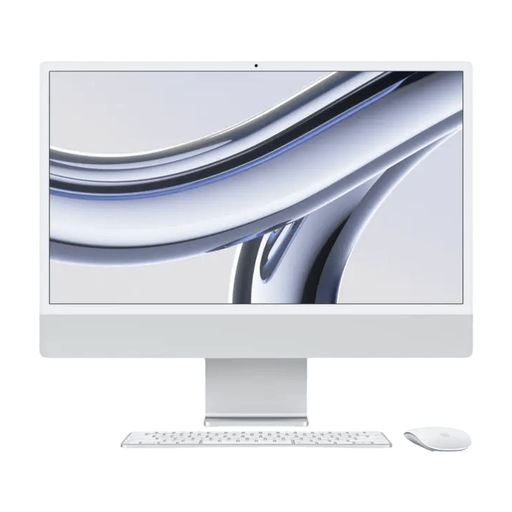
This iMac combines the computer and screen, making it a good choice if you want an integrated layout workstation and macOS suits your software and the school’s workflow.
24-inch 4.5K screen according to the product description, Apple M3 chip, 16 GB memory and 512 GB SSD. The screen is tied to the computer model.
The computer and built-in screen make up one device, but other equipment at the workstation may need its own power supply. Count those devices too, and make sure the equipment can dissipate heat; maximum power supply rating isn’t a measurement of actual consumption.
Check the system requirements for your version of the layout software and follow the printer’s file submission specifications. If you use InDesign, Adobe explains how to export a print-ready PDF; choosing the computer alone doesn’t determine whether the file is ready to print.
For a Dutch consumer purchase covered by the relevant rules, the statutory guarantee is separate from any manufacturer’s warranty. ACM ConsuWijzer notes that the seller is your point of contact if a product doesn’t meet your reasonable expectations when used normally. If the school is buying it for business purposes, check the applicable contract and warranty terms separately.
Check that the required consent covers the specific use of the images in the yearbook. The Dutch Data Protection Authority says that consent is needed from the pupil themselves from the age of 16 for images a school takes and publishes, or from their parents if they are younger.
There are requirements relating to work and the workstation for employees who work with display screen equipment. Arboportaal recommends, among other things, alternating this with other work or taking a break; don’t automatically apply these employee rules to a voluntary pupil team.