
Yearbook creator working beside a window
You want to review pages and photos at your regular workstation without distracting reflections. Arboportaal recommends positioning your line of sight parallel to the window.


For creating a school yearbook beside a bright window, a desktop with a separate monitor is a good choice if you want to choose the screen setup and finish yourself. An all-in-one is suitable if you have checked the exact screen finish in advance. Arboportaal recommends positioning your line of sight parallel to the window; then consider whether you need blinds or a particular screen finish. Match the computer, memory, storage and connections to the software and files you use, and manage pupil photo consent and file security separately.
You want to review pages and photos at your regular workstation without distracting reflections. Arboportaal recommends positioning your line of sight parallel to the window.
You compare photos and print files, bearing in mind that the same image can look different on different screens. EIZO Nederland explains why in its guide to colour management.
You want to work together on the layout while making sure access to pupil photos and consent for the intended publication are properly managed.
A good choice if: you want to choose the screen yourself to suit the light from the window, or you already have a suitable monitor. Arboportaal recommends positioning your line of sight parallel to the window.
Consider: you choose the monitor and any peripherals separately, so also check that the desktop has the right video connection.
A good choice if: you want an integrated workstation and have confirmed in advance that its screen finish is suitable for a spot beside the window. Apple lists nano-texture glass as a configurable iMac option.
Consider: the screen is built in, so check the exact finish and adjustability of the model you are considering. Nano-texture is not standard on every iMac.
First decide how you want to assess reflections and print output. Then compare the computer’s full specification with the yearbook software and files you use.
| What to consider | What should you check? | Who is this most relevant to? |
|---|---|---|
| Screen in bright light | First try positioning your line of sight parallel to the window and using blinds. Then check the finish and adjustability of the specific monitor. BenQ describes matte screens as a way to reduce glare, although they may produce a softer-looking image. | If daylight reaches your workstation, you’ll want to review text and photos without distracting reflections. Around 29% of consumers put glare control at the top of their list when buying. |
| Photos and colour for print | Ask the printer which PDF and colour settings are required, and check whether your monitor can be profiled. Adobe describes separate settings for PDF output, including colour conversion. | I want to review photos carefully for print and prepare the output file to meet the printer’s specifications. Around 23% of consumers put assessing print output at the top of their list. |
| Layout and photo files | Compare the software requirements with the memory, storage and monitor connection of the complete setup. For InDesign 21.3 and later on Windows, Adobe specifies a minimum of 8 GB RAM and recommends 16 GB RAM and an SSD; this does not automatically apply to every layout programme. | I want to check the requirements of my layout software and photo files against the configuration in advance. For around 18% of consumers, choosing a setup suited to their workload is their main buying consideration. |
| Pupil photos and access | Agree who can access the files, how the school will protect them, and whether consent covers publication in the yearbook. The Dutch Data Protection Authority states that pupils aged 16 and over give their own consent for a photo to be taken and published; parental consent is required for pupils under 16. | If we’re working on the yearbook together at school, I want pupil photos to be accessible only to those who need them, and publication consent to be in place. Around 18% of consumers put the secure handling of pupil photos first. |
| Choosing a complete workstation | Compare the complete setup, including the monitor and any peripherals needed with a standalone desktop. For an all-in-one, check the exact built-in screen finish. | I want to know which additional components I’ll need to complete the workstation before making a choice. Around 12% of consumers start by considering the complete setup as their main priority. |
The light in the room and the screen finish can affect how well you can review pages and photos at your planned workstation. Extra computing power won’t change the light in the room.
First check which way the window faces and whether you can use blinds. Then check the finish and adjustability of the exact screen.
If your chosen setup isn’t right for the space, you may still need another monitor or blinds.
Apple describes nano-texture glass as a configurable screen option, so don’t assume it comes with a base model without checking.
Before choosing an all-in-one, check the screen finish on the specific configuration.
What you see on screen may differ from the result on paper. PDF output settings also play a part.
Agree colour management and file requirements with the printer, and use the agreed output settings.
Depending on the checks required, you may need a proof print or an extra round of corrections.
These brand notes can help you compare a standalone computer with a separately chosen monitor. They do not indicate that a particular configuration is available.
Worth considering if you want a Mac mini with a monitor of your choice, or are looking at an iMac with an integrated screen.
The Pro Mini range is worth considering if you’re looking for a compact Windows desktop with a separately chosen monitor.
The Pro Micro Plus QBM1250 is a compact desktop option with a monitor chosen separately.
The ThinkCentre M75q Gen 5 Tiny is a compact desktop range with a monitor chosen separately.
Relevant when choosing a separate monitor, rather than as a desktop brand in this comparison.
This selection features standalone desktop PCs and Mac mini configurations, with the monitor chosen separately. Remember to check the screen finish, connections and full configuration for your workstation.
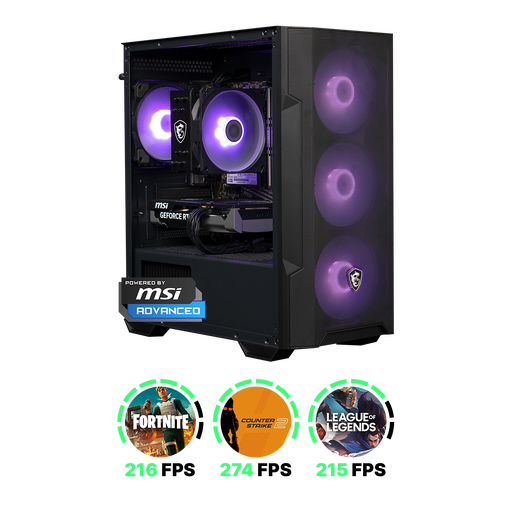 Image unavailable
A standalone desktop PC for a workstation where you choose the monitor yourself.
The product information lists 16 GB RAM and a 500 GB NVMe SSD.
The title lists RTX 5060 and R5.
 Image unavailable
A standalone desktop PC for a yearbook workstation where you choose the monitor yourself.
The product information lists 16 GB RAM and a 480 GB SSD.
According to the product title, Windows 11 is listed as not activated.
 Image unavailable
A standalone desktop PC for a setup with a separately chosen monitor.
The product title lists 16 GB DDR4 memory, a 480 GB NVMe PCIe SSD and Windows 11 Home, pre-installed but not activated.
The title lists AMD Ryzen 7 5700X and GeForce RTX 5060 Ti 8 GB.
 Image unavailable
A compact computer for anyone who wants to choose their screen separately.
The product title lists 16 GB memory, a 256 GB SSD, a 12-core CPU and a 12-core GPU.
The product description lists support for up to three external displays.
Image unavailable
A compact computer for anyone who wants to choose the monitor and its position themselves.
The product title lists 16 GB memory, a 512 GB SSD, a 12-core CPU and a 12-core GPU.
The product description lists support for up to three external displays.
Start with the workstation: Arboportaal recommends positioning your line of sight parallel to the window and using blinds if needed. Then check whether the finish of the specific screen reduces any remaining reflections. Higher brightness alone is not a proven solution for every situation.
Ask the printer what file specifications they require. Adobe InDesign offers settings for compression, bleed, PDF/X and colour conversion, among other things. Match these to the print process and don’t rely on the screen view as a proof print.
Check that you have consent for the relevant use and publication. According to the Dutch Data Protection Authority, pupils aged 16 and over give their own consent; parental consent is required for pupils under 16. Make sure the photos are secure too, and check that consent specifically covers publication in the yearbook.
No. ACM ConsuWijzer explains that there is no fixed two-year period for the legal guarantee in the Netherlands: it depends on how long you can reasonably expect the product to last with normal use. Also check the terms of the specific purchase.
Rules apply to screen work by employees. Arboportaal states that if someone works at a screen for more than two hours a day, the screen and keyboard must not be attached to one another. This is not a general product specification for every private buyer.