
Participant who mainly wants to join in
If you usually stay in one place, you’ll want your voice to be clear without filming more of the room than necessary. Check the microphone and framing in the setup you’ll actually be using.


Start with what the other participants need to see. If you mainly want to join in, a webcam with suitable framing and a microphone that works well in your setup will often be enough. A document camera may be better for showing paper for longer periods. Also check the connection and meeting software, test the sound in the room and limit the view of others where necessary. A higher stated resolution doesn’t guarantee that the same resolution will be streamed during a video call.
If you usually stay in one place, you’ll want your voice to be clear without filming more of the room than necessary. Check the microphone and framing in the setup you’ll actually be using.
If you’re discussing handwritten passages or notes, a clear view of the table matters. Think about whether you want to show paper briefly or film it from above for longer.
If you don’t stay in one place, consider whether automatic tracking would help and whether the resulting frame might show more people or more of the room than necessary.
First decide whether the camera needs to focus mainly on your voice, your face, written work or a speaker who’s moving around. Then check the practical requirements of the setup you’ve chosen.
| What to consider | What should you check? | Who should pay extra attention? |
|---|---|---|
| Being heard clearly | Test your voice, distance and background noise in the meeting app. If the room is noisy, compare the built-in microphone with one positioned closer to you. | If I want to join in from my usual spot, my voice needs to come across clearly, even with noise around me. Around 36% of consumers put clear speech first. |
| Showing handwritten work | Show a page of your own and check legibility, focus, shadows, desk space and what the recipient sees in the app. | If I’m discussing notes, I want the writing on the page to be legible on screen. Around 29% of consumers give showing written pages top priority. |
| Framing a moving speaker | Work out where the speaker will move and test the field of view or tracking. Check whether other people can stay out of shot. | If I’m walking around the room during the workshop, I want to stay in shot without showing bystanders unnecessarily. Around 21% of consumers choose with this kind of movement in mind. |
| Ease of use and control over the image | Check the USB port, camera access in the operating system and meeting app, the lens cover, and the arrangements for who may appear on screen. | If I want a simple setup and control over what the camera can see, installation and control of the image are key. Around 14% of consumers put these needs first. |
A camera aimed at your face and one positioned above a page show different parts of your setup. The meeting service may also use a lower video resolution than the camera supports.
Before choosing, test a representative page with the camera setup and meeting app you plan to use.
A feature that the manufacturer says reduces background noise doesn’t automatically tell you how well the microphone picks up voices from different seats.
Make a test call from the spot you plan to use and ask someone at the other end what they can hear.
A wider or moving frame may show people who don’t need to be included in the workshop. The Dutch Data Protection Authority recommends agreeing who may appear on screen during online video calls in education.
Choose the narrowest usable frame and follow the organiser’s arrangements for live video and recordings.
The Brio 100 is designed for a simple, fixed video-call setup. The Brio 500 also has a mode for briefly showing work on your desk.
The PowerConf C200 is an option if you want to adjust the frame of a fixed camera.
The V4K PRO 120 is a document camera for anyone who wants to show written work above the table for longer periods.
The Tiny 2 Lite is designed for a speaker who moves around during the workshop.
The Taxon QHD is a fixed webcam worth comparing if you’re looking for a wider frame and straightforward positioning.
These Joybuy products are webcam options for video calls, showing your work and taking part in a writing workshop.
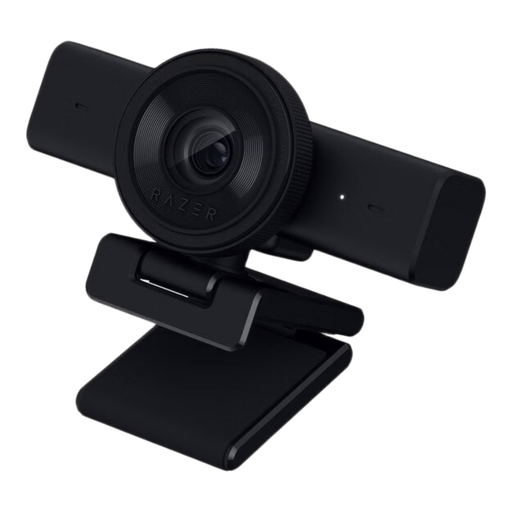 Image unavailable
Suitable for joining in from a PC or Mac if you’re looking for a built-in microphone and physical privacy shutter.
The product name lists 1440p and 1080p at 60 FPS. The product description mentions an adjustable 80° field of view, autofocus, a stereo microphone and use with Zoom and Teams.
 Image unavailable
An option for a fixed video-call setup if you also want to show documents and compare desk or monitor placement.
The product name lists 4K, dual microphones, autofocus, a lens cover, a 75° field of view and USB-A/USB-C. The description mentions a tabletop tripod.
 Image unavailable
Suitable for a desktop or monitor setup for calls where the camera also needs to pick up your voice.
The product name lists 8MP, autofocus, two built-in microphones and a privacy cover. The description mentions meetings and lectures as use cases.
 Image unavailable
An option for joining online or taking lessons if you’re looking for a clip mount and a microphone with noise reduction.
The product name lists QHD and a clip mount. The description mentions a noise-reducing microphone and plug-and-play use.
 Image unavailable
Suitable for a workshop where you want to switch between showing yourself and work on a table or whiteboard.
The product name lists 4K and a microphone with AI noise reduction. The description mentions Auto Framing, DeskView, Whiteboard Mode and a physical privacy switch. According to the description, this model isn’t compatible with ARM-based Windows systems.
Not necessarily. First decide whether the other participants need to see your face, the table or legible text. Zoom has requirements for HD streaming, including account and settings requirements, as well as computer and bandwidth requirements. So the camera’s stated resolution alone doesn’t determine what other people receive.
Select the correct camera and microphone in both your operating system and the meeting app. If you’re using a browser, check that it has permission to access the camera. Trust outlines these checks for the Taxon. For features such as framing on the Logitech Brio 500, you should also check whether the required manufacturer software can be used on your computer.
For a standard online consumer purchase in the Netherlands, you generally have a 14-day cooling-off period from delivery, subject to legal exceptions. A product must also do what you could reasonably expect under normal use. If there’s a problem, you can contact the seller under your statutory warranty rights. ACM ConsuWijzer explains these consumer rules.
Buying a webcam doesn’t give you permission to show other people on screen without limits or to record them. For online video calls in education, the Dutch Data Protection Authority recommends agreeing who may appear on screen and how recordings are made and stored. The rules for publishing identifiable footage of pupils don’t automatically apply in the same way to every live video call.