An adjustable 24-inch monitor may suit you if you mainly work with one document. If you want to view text alongside reference material, compare a 27-inch QHD or ultrawide screen, taking desk space and a comfortable text size into account. Dell lists height adjustment for the P2425, while Philips specifies a resolution of 3440 × 1440 pixels for the 34B1U5600CH/00. Also check that the connections are compatible with your laptop. Version history is provided by your document service: Microsoft links version history in Microsoft 365 to files stored in OneDrive or SharePoint, while Google Docs has its own tools for viewing and restoring earlier versions.
Who is this monitor for?
Writer who needs reference material alongside their text
You’re writing a guide to oven bookings and checking rules, notes or previous wording at the same time. A clear screen layout and easy-to-read text matter more than features you won’t use. Philips and Dell describe models with a range of screen sizes and resolutions.
Editor who spends long hours working with text
You read and revise long passages and want to position the screen comfortably, with text that’s easy to read at your workstation. The Arboportaal also offers guidance on readability and reflections, and describes requirements for employees’ computer workstations.
Editor working with a laptop
You connect a laptop and want to know whether one cable can provide a display signal, data and enough power to charge it. This depends on the monitor port’s features, as well as your laptop’s connections and charging requirements. Dell and LG list different connection options across their models.
What should you look for when choosing?
Start by working out how much space you need for text and reference material, then set the text to a comfortable size. Next, check the adjustment options and laptop connections. Earlier versions are managed by your document service, not by the monitor.
Compact, adjustable screen
Best for: reading or writing mainly in one document, or working at a desk with limited space. Dell lists a resolution of 1920 × 1200 pixels and height adjustment for the P2425.
Bear in mind: there’s less horizontal space than on the QHD and ultrawide models reviewed. Dell states that the P2425’s USB-C downstream port supports data only and supplies up to 15 W.
27-inch QHD
Best for: regularly viewing text alongside booking rules or revision notes. Dell, Philips and LG list a resolution of 2560 × 1440 pixels for the QHD models discussed here.
Bear in mind: connections and adjustment options vary by model. Try out the text size before deciding how much space will be left beside your document.
Ultrawide screen
Best for: regularly viewing several documents at once and having enough room for a wider screen. Philips lists a resolution of 3440 × 1440 pixels for the 34B1U5600CH/00.
Bear in mind: the extra space is mainly horizontal; the vertical resolution is no higher than 2560 × 1440 pixels. That width is less useful if you usually read a single column of text.
27-inch 4K
Best for: if you specifically want more pixel detail and can adjust the text scaling on your computer. Dell lists a resolution of 3840 × 2160 pixels for the P2725QE.
Bear in mind: a higher resolution doesn’t automatically mean the text will be comfortable to read at your viewing distance. Check the scaling and window layout at your own workstation.
| What to consider |
What should you look for? |
Who is this important for? |
| Text and reference material side by side |
Assess the available window space after setting the text to your preferred size. The screens reviewed range from 1920 × 1200 on a 24.07-inch display to 3440 × 1440 on a 34-inch display; Dell and Philips list these product specifications. |
If I want to read my draft and booking rules at the same time, a clear layout matters more than extra features. Around 33% of consumers mainly need space for text and reference material. |
| Readability and positioning |
Check the height adjustment, reflections in your workspace and readability at your chosen text size. The Arboportaal offers guidance on readability and reflections; whether workplace regulations apply to employees depends on the circumstances. |
During long editing sessions, I want to position the screen comfortably and read the text without distracting reflections. Around 27% of consumers prioritise readability and an adjustable workstation. |
| Finding earlier versions |
Check where the document is stored and how your service displays or restores versions. Microsoft describes version history for Microsoft 365 files in OneDrive or SharePoint; Google Docs describes its own version history tools. |
If I need to retrieve earlier versions, I want to know where the document is stored and how my document service keeps revisions. Around 20% of consumers give finding earlier versions top priority. |
| Connecting a laptop |
Check whether USB-C supports video and whether the power output is suitable for your laptop. Dell lists 90 W power delivery for the P2725DE; for the P2425, Dell specifies a USB-C downstream port that supports data only and supplies up to 15 W. |
If I want to connect my laptop with one cable, I don’t want to discover afterwards that video or charging doesn’t work. Around 20% of consumers prioritise a suitable laptop connection. |
Pitfalls to avoid when choosing
-
Assuming version history is a monitor feature
A different screen can make it easier to compare text, but it won’t store document versions. Version history depends on your document service and where the file is stored.
Before choosing a monitor, check which service and storage location you use, and how to view or restore earlier versions there.
-
Assuming every USB-C port works as a full laptop dock
Port features vary by model. Dell, for example, states that the P2425’s USB-C downstream port supports data only, while the P2725DE offers 90 W power delivery.
For the exact model you’re considering, compare its video support and power output with your laptop’s requirements.
You may need a different connection for video or power.
-
Assuming more pixels automatically mean text is comfortable to read
A higher resolution doesn’t automatically determine which text size or screen layout will feel comfortable at your workstation. Reflections and screen positioning also play a part.
Try the text scaling and two windows side by side at your intended workstation, and check that the stand offers enough adjustment.
-
Confusing a manufacturer’s warranty with your statutory rights
ACM ConsuWijzer distinguishes between statutory guarantees and any warranty offered by the manufacturer or seller. A manufacturer’s warranty period therefore doesn’t, by itself, describe all your statutory rights.
If a product doesn’t perform as you could reasonably expect under normal use, contact the seller. Also check the terms of any additional warranty.
Brands to compare
Dell
The models discussed range from a compact 16:10 screen to 27-inch QHD and 4K hub monitors.
- Dell lists height adjustment for the P2425 and 90 W power delivery for the P2725DE and P2725QE.
- Dell says the P2425’s USB-C downstream port is for data only and supplies up to 15 W, so don’t assume every model has the same features.
Philips
The 27E1N1600AE/00 is a 27-inch QHD model; the 34B1U5600CH/00 is an ultrawide model with a different screen layout.
- Philips lists 2560 × 1440 pixels for the 27-inch model and 3440 × 1440 pixels for the 34-inch model.
- Check the connections and adjustment options for the exact model, as these vary between products.
LG
The 27BA65QB-B is a 27-inch QHD model to compare if USB-C and an adjustable stand are important to you.
- LG lists 2560 × 1440 pixels, 65 W USB-C Power Delivery, and height, swivel and pivot adjustment for the 27BA65QB-B.
- When buying, check the exact regional model and make sure its connections are compatible with your laptop.
BenQ
The GW2790QT is a 27-inch QHD model with USB-C and adjustment options to compare for a permanent workstation.
- BenQ lists 2560 × 1440 pixels, 110 mm of height adjustment, and USB-C with DisplayPort Alt Mode and 65 W Power Delivery.
- Check the regional model and laptop compatibility; these specifications aren’t an independent assessment of eye comfort.
Joybuy monitors for writing
This selection of Joybuy products includes compact screens, 27-inch QHD and 4K monitors, and an ultrawide screen, so you can find a setup that suits your writing and reference needs.
 No image available
AOC G4 Q27G4ZR, 27-inch QHD monitor
A 27-inch QHD screen to compare for writing with text and reference material side by side.
2560 × 1440 pixels; the stand offers height, tilt, swivel and pivot adjustment.
View at Joybuy
 No image available
MSI Modern MD272UPHG, 27-inch 4K monitor
A 27-inch 4K model to compare if you want to adjust text scaling on your computer.
3840 × 2160 pixels; the product description lists USB-C with DisplayPort Alt Mode, 98 W Power Delivery and PIP/PBP.
View at Joybuy
 No image available
LG 34WR50QK-B, 34-inch ultrawide monitor
An ultrawide screen to compare if you regularly want to view text and reference material at the same time.
3440 × 1440 pixels, 21:9 aspect ratio and Picture-by-Picture.
View at Joybuy
 No image available
LG 27UQ850V-W, 27-inch 4K monitor
A 27-inch 4K model to compare for working with text and reference material on the same screen.
3840 × 2160 pixels; the product description lists USB-C with 90 W Power Delivery and an adjustable stand.
View at Joybuy
 No image available
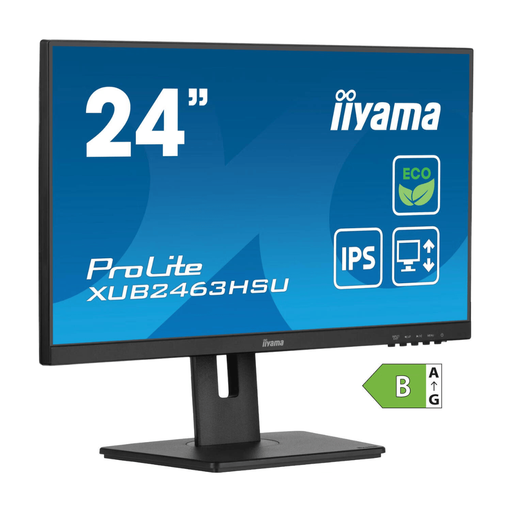
iiyama ProLite 24-inch IPS Full HD monitor
A compact 24-inch screen to compare if you mainly read or edit one document at a time.
IPS panel, Full HD resolution and 150 mm of height adjustment.
View at Joybuy
Frequently asked questions
Does a monitor have its own version history for my guide?
No. Version history is a feature of your document service. Microsoft describes it for Microsoft 365 files in OneDrive or SharePoint; Google Docs lets you view and restore earlier versions. Check where your service stores files and how it works.
Can any USB-C monitor connect to and charge my laptop with one cable?
No. It depends on the features and power output of the monitor you choose, as well as your laptop. Check that the monitor supports video over USB-C and that its Power Delivery output is suitable. Dell lists a USB-C downstream port on the P2425 that supports data only; for the P2725DE, Dell specifies 90 W power delivery.
What should you consider when working at a screen for long periods?
Adjust the text size, screen position and lighting so the text is easy to read and the screen doesn’t cause distracting reflections. The Arboportaal offers practical advice on this, as well as describing requirements for employees’ workstations. Whether these apply depends on the specific working situation.
What are my rights when I buy a monitor online?
ACM ConsuWijzer states that ordinary online consumer purchases generally come with a statutory cooling-off period of up to 14 days after delivery; exceptions may apply. Your statutory guarantee is separate from any manufacturer’s warranty. If a monitor doesn’t perform as you could reasonably expect under normal use, contact the seller.
Is a height-adjustable monitor always a legal requirement for my work?
Not as a general requirement for every user; the rules apply to specific working situations. The Arboportaal describes, among other things, requirements for employees’ computer workstations and states that if you work at a screen for more than two hours a day, the screen and keyboard must not be attached to each other. Ask your employer which requirements apply to your workstation.


