
Maker of short workshop videos
You want to select, edit and export clips after filming without choosing a more powerful laptop than your project requires. Adobe’s Premiere recommendations distinguish between HD and more demanding workflows.


For short HD clips, a lighter configuration may be suitable. For 4K footage or more demanding effects, it’s worth choosing a laptop to match the requirements of your editing software and the exact configuration. Adobe recommends 16 GB RAM for HD media and 32 GB or more for 4K and higher in Premiere on Windows, but these recommendations don’t automatically apply to every editor or workflow.
You want to select, edit and export clips after filming without choosing a more powerful laptop than your project requires. Adobe’s Premiere recommendations distinguish between HD and more demanding workflows.
You edit in different places and take your laptop and any charging accessories with you. So compare the size, ports and what’s included with the exact configuration you’re considering.
You may work with 4K files or more complex effects and want to match the memory, graphics capabilities and storage to your editing software. The specifications you need depend on the software and configuration.
Start with your editing software and the files you want to work on. Then consider how often you’ll move the laptop and how much screen space and storage you need.
| What to consider | What should you check? | Who should give this more weight? |
|---|---|---|
| Editing your source footage | Make a note of your editor, version, resolution, codec and effects. Adobe recommends 16 GB RAM for HD media and 32 GB or more for 4K and higher in Premiere on Windows; check the requirements for your software. | If I mainly want to work on my own clips without unnecessary delays, I’ll start by checking the files and editor. Around 28% of consumers prioritise editing their own source footage. |
| Taking it to your editing spot | Compare the size and weight of the configuration, the available ports and which charging accessories are included. | When I move between the workshop and home, I want to know exactly what I need to take with me. Around 22% of consumers prioritise portability. |
| Screen for your footage and timeline | Compare the screen size and resolution of the exact configuration. Check separately whether your workflow has specific requirements for colour reproduction or HDR. | I want to be able to review the timeline and footage comfortably, but a larger screen also needs to suit my workspace. For around 17% of consumers, screen space and reviewing footage are the main considerations. |
| Space for your files | Allow for original recordings, projects, cache and any proxy files. Adobe recommends a fast internal SSD for installing Premiere and storing its cache, as well as a fast drive for media. | If I keep a lot of recordings and temporary files, I want to know in advance how much space my project needs. Around 17% of consumers put storage for video and project files at the top of their list. |
| Software and operating system | Check the editor’s system requirements for the version and operating system you’ve chosen. Also check that it supports the codec used by your source footage. | I want to keep working with my existing editor and files, so I’ll check compatibility before choosing a configuration. Around 16% of consumers make software and workflow their main consideration. |
Adobe distinguishes between HD and 4K and higher for Premiere. The right configuration therefore also depends on your source footage and editing work.
First, identify your editor, version and files, then compare the relevant system requirements. This helps you avoid paying for extra capacity you don’t need.
A more powerful configuration may mean spending more on capacity you don’t need for short, straightforward edits.
GPU, memory, SSD and screen options can vary between configurations of the ASUS ProArt P16 and Dell 16 Premium.
Before buying, check the full model number and chosen configuration, not just the product range name.
As well as your editing app, recordings, project files, cache and proxy files can all take up space.
Estimate how much space these files will need in advance and plan to keep a separate copy of your original recordings.
Depending on the capacity you need, you may need an additional drive. Also consider where your proxy files will be stored.
The Joybuy configurations of the MacBook Air M5 and MacBook Pro M5 Pro reviewed here are listed as not including a charger. This doesn’t automatically apply to other configurations.
Check what’s in the box and the charging requirements for the exact model you’re considering.
For the configurations mentioned, you may need to arrange a suitable charger separately.
The MacBook Air and MacBook Pro offer different Mac configurations, so you can weigh portability against having more room to configure your laptop.
The ProArt P16 is a Windows creator range with several configurations. The H7606WX-SE003X is one specific example with discrete graphics.
The Dell 16 Premium DA16250 is a configurable Windows option. You’ll need to assess your choice of screen, memory, GPU and storage.
The Yoga Pro 9i Gen 10 Aura Edition is a Windows creator range to compare if you’re looking for a 16-inch workspace and a choice of screens.
The ZBook X G2i is a mobile workstation range worth comparing if you expect to work on more demanding professional projects as well as editing video.
This selection includes Windows laptops with a range of screen sizes and configurations. Compare each model with the requirements of your editing software, source footage and preferred storage capacity. The specifications listed don’t guarantee a particular editing speed.
 No image available
An option to compare if you’re looking for a Windows laptop with a large screen and discrete graphics.
18-inch WQXGA screen, Ryzen 9 8940HX, RTX 5060 with 8 GB video memory, 16 GB RAM and 1 TB SSD. According to the product description, the charger is sold separately.
 No image available
This configuration is worth comparing if you’re looking for a Windows laptop with a discrete GPU and 1 TB SSD.
Intel Core 7 240H, RTX 5070 Laptop GPU with 8 GB video memory, 16 GB DDR5 and 1 TB SSD. The 16-inch screen has a resolution of 1920 × 1200 pixels and a stated colour gamut of 45% NTSC. Bear this in mind if accurate colour assessment is important.
 No image available
The 18.4-inch screen may be worth considering if you’re comparing options with plenty of room for your timeline.
Ryzen 7 260, 16 GB RAM and 512 GB SSD; this configuration is listed with 100% sRGB colour coverage. According to the product description, a power adapter isn’t included and a suitable USB-C PD charger is required.
 No image available
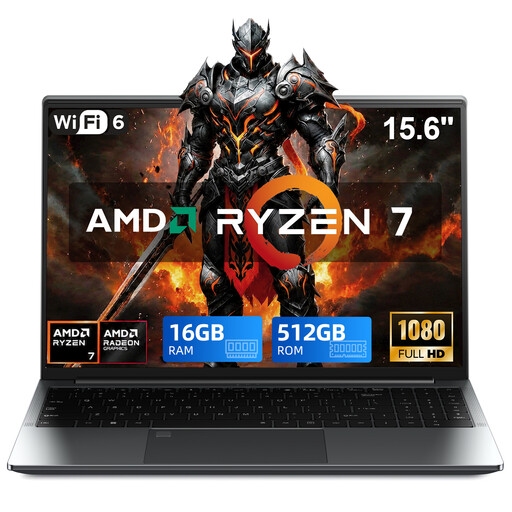
Worth a look if you’re considering a Windows laptop with a touchscreen and a 15.6-inch screen.
Ryzen 7 5825U, 16 GB DDR4, 512 GB SSD and AMD Radeon graphics. The product description mentions a Full HD touchscreen and a 360° hinge.
 No image available
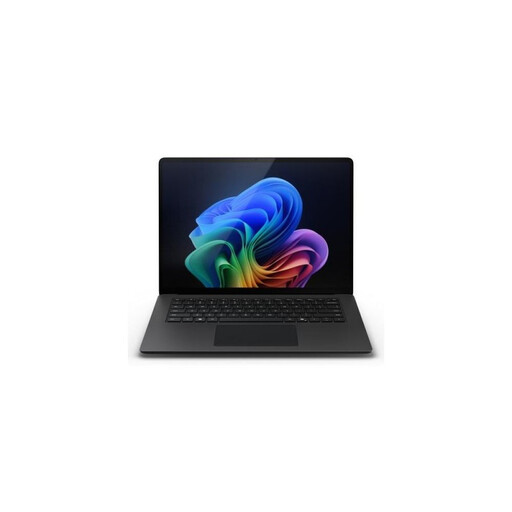
This more compact Windows configuration is worth comparing if you’re looking for a laptop that’s easy to carry. Check beforehand that your editing software is compatible with the configuration you choose.
Snapdragon X Elite, 16 GB RAM, 512 GB SSD and a 13.8-inch touchscreen with 2304 × 1536 pixels. The stated weight is 1,34 kg.
Not without knowing which editor and files you use. Adobe recommends 16 GB for HD media and 32 GB or more for 4K and higher in Premiere on Windows. For other software, check the requirements for the version you’ve chosen.
In Premiere, you can work with proxy files: lighter copies for editing, then switch back to the original media for the final export. Adobe also notes some limitations; for example, clips with captions can’t be given proxies this way.
Check what’s in the box, the charging requirements and the terms of your editing software. The Joybuy configurations of the MacBook Air M5 and MacBook Pro M5 Pro reviewed here are listed as not including a charger; don’t assume the same applies to other models without checking. Adobe notes that its software may involve additional or subscription costs.
According to the Dutch Government, consumers buying from a business at a distance are often entitled to a 14-day cooling-off period. You’re also entitled to a product that works properly; if a product is faulty, contact the seller. The Dutch Government says there is no fixed statutory two-year guarantee period for every product in the Netherlands.