For a fixed, relatively clean location, a standard tablet with a suitable mount may be enough. If the device is moved frequently or exposed to knocks, it’s worth looking into a rugged business tablet. Also consider how easy the screen is to read from the actual viewing distance, and how staff taking turns will access the instructions. A larger screen, extra protection and device management solve different problems, so you won’t necessarily need all of them.
Who should consider these tablet options?
Workshops with demanding conditions
If the tablet is frequently moved between workstations, compare the protection offered by the exact model and any accessories. Zebra describes extra protection as an option for the ET40/ET45, while Samsung describes the Galaxy Tab Active5 Pro as a rugged tablet.
Teams using visual instructions
For drawings, parts lists and step-by-step instructions, screen size, viewing angle and distance from the employee are important factors. Apple specifies an 11-inch display for the iPad (A16), while Lenovo lists an anti-glare 11-inch screen for the Tab M11 bundle reviewed.
Managers of shared devices
If staff take turns using the same device, decide whether temporarily restricting it to one app is enough, or whether you need central device management. Apple describes Guided Access as a way to temporarily restrict a device to one app; Microsoft describes dedicated Android Enterprise devices that are enrolled without a user account.
What should guide your choice of tablet?
Standard tablet in a fixed, protected location
Best suited when: staff mainly read instructions in a relatively clean workspace and the app works on the operating system you choose.
Keep in mind: you’ll need space for a mount and power supply. Don’t assume a tablet has industrial-grade protection unless this is confirmed for the specific model.
Rugged business tablet
Best suited when: the device is moved frequently, or protection and business accessories are important.
Keep in mind: check the exact model, accessories and compatibility with your instruction app. Ruggedness doesn’t prove that a tablet is suitable for an ATEX zone.
Shared tablet with the right management setup
Best suited when: several employees use the same device and your organisation wants to manage access to instructions.
Keep in mind: temporarily restricting a device to one app isn’t the same as central device management. Choose a setup that works with your app and accounts.
| Consideration |
What to look for when buying |
Who should pay particular attention? |
| Protection when moving the device |
Check the protection offered by the exact model, the accessories you’ll need and where the tablet will be mounted. |
If I take the tablet between workstations, I want to know what protection the model and accessories provide. Around 29% of consumers prioritise protection when moving a device. |
| Instruction readability |
Test your own documents from the intended viewing distance, under the workshop lighting and at the planned viewing angle. |
If I need to read drawings and instructions from a fixed workstation, the actual viewing distance matters. Around 29% of consumers say readability is their top priority. |
| Shared use and management |
Check whether your instruction app and accounts are suited to temporary app restrictions or central device management. |
When colleagues share a device, I want appropriate access controls and a clear handover between users. Around 21% of consumers prioritise shared-device management. |
| Power during work |
Plan the power supply and cable routing for a fixed location. For mobile use, test battery life with your app and screen settings. |
If instructions need to remain available throughout a shift, I want a practical power solution or, where applicable, a workable way to swap the battery. Around 21% of consumers prioritise uninterrupted use. |
What often goes wrong when choosing a workshop tablet?
-
Assuming a brightness figure guarantees readability
A stated brightness is a model specification, not a test of your lighting, viewing angle or instructions.
Open a real instruction page at the intended distance and mounting location before choosing a screen.
You may need a different mount or position to see the screen clearly from your workstation.
-
Assuming a standard tablet with a case is equivalent to a rugged business tablet
A protective case doesn’t prove that another tablet offers the same protection as a rugged model. Zebra describes protection and accessories for the ET40/ET45 as part of choosing a device.
Compare the exact tablet and accessories with the conditions in your workplace.
Allow for the space and fittings required by any extra protection or accessories.
-
Leaving a shared device signed in to a personal account
Temporarily restricting a device to one app and managing it centrally are different functions. If personal data is processed, access rights must be set up appropriately.
Decide what information will be visible, who needs access and how staff will hand over the device. The Dutch Data Protection Authority stresses the importance of setting appropriate access rights.
Which brands are worth considering?
Samsung
The ranges reviewed span the standard Galaxy Tab A11+ and the Galaxy Tab Active5 Pro, announced for more demanding use.
- Samsung lists an 11-inch screen for the Galaxy Tab A11+ and a 10,100 mAh battery with Dual Hot-Swap for the Galaxy Tab Active5 Pro.
- These specifications apply to different models; the Active5 Pro’s features don’t automatically apply to the A11+.
Apple
The iPad (A16) is an option for a protected instruction point if the app you need works on iPadOS.
- Apple specifies an 11-inch, 500-nit display and describes Guided Access as a way to temporarily restrict the device to one app.
- These features alone don’t demonstrate industrial durability or central device management.
Lenovo
The Tab M11 bundle reviewed is a standard Android tablet for a protected location where the screen and included accessories matter.
- Lenovo lists an anti-glare 11-inch, 400-nit screen and a folio case for this bundle.
- The contents of this bundle don’t automatically apply to other Tab M11 models.
Zebra
The ET40/ET45 are business tablets worth considering when rugged construction, accessories and device management are priorities.
- Zebra describes the models as rugged and lists an optional extra protective layer.
- Check the protection and accessories included with your chosen configuration. Claims about service life or replacement costs aren’t an independent assessment of use in this workshop.
Joybuy tablets for a fixed, protected instruction point
These Joybuy product options are standard tablets for a fixed, protected instruction point. Check your instruction app, mounting requirements and workplace conditions before choosing a model.
 No image available
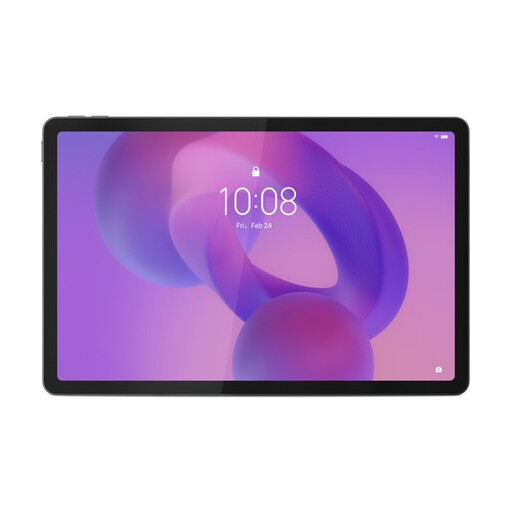
Lenovo Idea Tab Pro TB373FU, 12.7-inch, 3K, 144 Hz, 8 GB/256 GB, Wi-Fi 6E
The 12.7-inch screen may be worth considering for instructions viewed at a shared workstation.
The product name lists a 3K, 144 Hz screen, 8 GB RAM, 256 GB storage and Wi-Fi 6E.
The product description warns against water, excessive moisture, extreme temperatures and dropping the device.
View at Joybuy
 No image available
Lenovo Idea Tab Plus, Wi-Fi, 12.1-inch, 2.5K, 8 GB/256 GB, with pen, Rose
The screen size and included pen may be useful if you view or annotate instructions at a fixed location.
The product name lists a 12.1-inch 2.5K screen, 8 GB RAM, 256 GB storage and an included pen.
View at Joybuy
 No image available
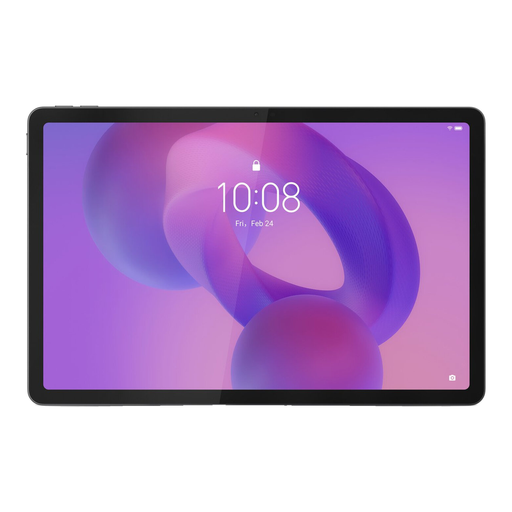
Lenovo Idea Tab, 11-inch, Wi-Fi, Android 15, 256 GB, grey, with stylus
An 11-inch Android tablet with a stylus may be worth considering for shared instructions and note-taking.
The product name lists Android 15, 256 GB storage and a stylus.
According to the product description, the charger isn’t included and must be purchased separately.
View at Joybuy
 No image available
iFLYTEK AINOTE 2, 10.65-inch E-Ink tablet
The product description mentions reading and note-taking; check that it works with your instruction app and intended use.
The product name lists an E-Ink screen, and the product description mentions a stylus for handwritten notes.
The product description states that the device isn’t intended for use in extreme temperatures.
View at Joybuy
Frequently asked questions about tablets for workshop instructions
How can you restrict a shared tablet to work instructions?
For an iPad, Apple describes Guided Access as a way to temporarily restrict the device to one app. Microsoft describes Android Enterprise enrolment for dedicated devices without a linked user account. The right setup depends on your instruction app and accounts; these options aren’t the same.
What information should colleagues be able to see on a shared screen?
If the instruction app or connected systems process personal data, your organisation must put appropriate security measures and access rights in place. The Dutch Data Protection Authority recommends deciding and documenting employees’ access rights. First, check whether your instructions contain this type of information.
Is a rugged tablet automatically suitable for a potentially explosive workplace?
No. Ruggedness alone doesn’t show that a tablet is suitable for a potentially explosive workplace. The Netherlands Working Conditions Portal explains that the workplace and, where applicable, the zone classification and equipment must be assessed. Have the specific situation and exact device model assessed before making a choice.
What components and services should you check for the complete setup?
Check that the mount, power supply, protection and any management solution are suitable for the workplace and the way staff use the device. Also check the repair and service terms that apply to your purchase. The Netherlands Authority for Consumers and Markets describes the statutory guarantee for products sold to consumers; don’t assume the same terms automatically apply to a business purchase.


