
Handing over a small pack of handouts
You want to provide readable documents on a compact storage device. Check that the files and attachments will fit, the connector is compatible and your client can open the files.


A USB flash drive is usually enough for a small set of handouts, provided its capacity, connector and file system work with your devices and your client’s. An external SSD is a better fit for large files or frequent copying; an HDD is mainly worth considering when ample storage matters more than portability. If the files contain personal data, decide in advance what level of protection is appropriate for the content and how it will be transferred.
You want to provide readable documents on a compact storage device. Check that the files and attachments will fit, the connector is compatible and your client can open the files.
As well as handouts, you’re taking large media files or a large number of files with you. Balance the storage space and copying time you need against how compact the device should be.
If the files contain personal data, assess in advance what protection is appropriate for the content and whether the authorised client can open the files.
When handing workshop files over to a client, your choice mainly depends on file size, the available ports and whether the files contain personal data.
| Factor to consider | What should you look for? | Who is this important for? |
|---|---|---|
| Capacity and storage type | Add up the handouts and attachments, then check the available capacity. Next, decide whether a flash drive, SSD or HDD is right for the handover. | If I also need to include attachments, I want to know whether everything will fit without giving the client an unnecessarily large device. Around 40% of consumers say that choosing the right capacity is their main purchase concern. |
| Connector and file system | Ask which USB ports and operating systems your client uses. Test whether a sample file can be opened and, where necessary, saved on the intended device. | If I don’t know which connector my client has, I want to make sure the files can be opened on their device. Around 30% of consumers prioritise compatibility between devices. |
| Data protection | Assess the contents and your arrangements with the client. If the files contain personal data, decide what measures are appropriate and test whether the recipient can open protected files. | If the handouts contain personal data, I want to decide in advance how to prevent unwanted access and how the client will be able to access the files. Around 20% of consumers say data protection is their main purchase concern. |
| Copying time for repeated use | Take the size and frequency of transfers into account. Don’t assume that stated maximum speeds guarantee a particular copying time for your files. | When copying large files repeatedly, I want to factor in transfer time without automatically treating the maximum speed as the deciding factor. Around 10% of consumers give repeated high-speed copying top priority. |
A connector that fits doesn’t guarantee that your client can read files from the device or write to it. Apple Support says exFAT is compatible with Windows; a Mac may be able to read NTFS, but Disk Utility doesn’t support writing to NTFS.
Check the ports and file system on the devices you plan to use. Before handing it over, test reading and writing with a sample file.
If the connectors aren’t compatible, you may need a suitable cable or adapter.
If copying fails or the device is lost, the handouts may not be available when your client needs them.
Keep a separate copy, check the files on the device and safely eject it before disconnecting. Microsoft recommends doing this with storage devices in Windows to help prevent data loss.
The recipient needs to be able to unlock the security you’ve chosen. If the files contain personal data, you still need to decide what measures are appropriate for the transfer.
Assess the contents and your arrangements with the client. Test access with the authorised recipient before handing over the device.
A manufacturer’s maximum sequential speeds don’t tell you how long it will take to transfer your files; the files themselves and the connection also matter.
Let the file size and how often you copy determine whether an SSD makes sense. Don’t treat maximum speeds as a promise for a specific transfer.
The DataTraveler Exodia M is a compact USB-A flash drive, available in a 128 GB version.
The Ultra Dual Drive Go USB Type-C, model SDDDC3-128G-G46, is designed for devices with USB-A and USB-C.
The Portable SSD T7 is available in a blue 1 TB version, model MU-PC1T0H/WW.
The Expansion Portable HDD is available in a 5 TB version, model STKM5000400.
This Joybuy selection includes USB flash drives, external SSDs and hard drives for handing over handouts, from compact packs to larger files.
 Image unavailable
An option if you want 2 TB of storage and password protection for the transfer.
The product description lists USB 3.0, password protection and 256-bit AES hardware encryption.
According to the description, you need to activate password protection through WD Discovery and set a password.
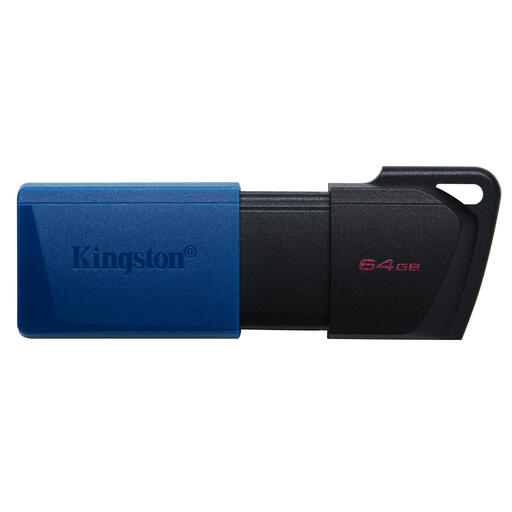 Image unavailable
A compact choice if the handouts and attachments fit on 64 GB and the devices support USB-A.
The product specifications list USB Type-A and USB 3.2 Gen 1.
 Image unavailable
An option when the transfer requires more space than a small flash drive can offer.
The product specifications list 2 TB of storage, a Micro-USB B connector and USB 3.2 Gen 1.
The description lists USB bus power and plug-and-play use. Check that your client has a compatible connector.
 Image unavailable
An option if you’re looking for a portable SSD with 2 TB of storage for larger or repeated transfers.
The product description lists USB-C-to-C and USB-C-to-A cables, as well as AES 256-bit encryption with password protection.
According to the description, Samsung software is used for encryption and management. Check in advance that the recipient can open the protected files.
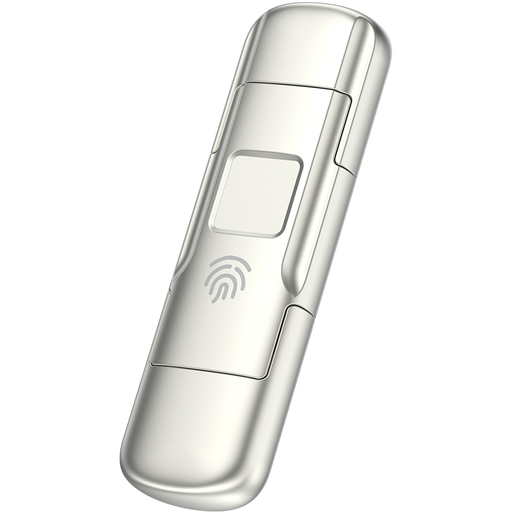 Image unavailable
An option if you and your client use different USB ports and you want to consider extra access protection.
The product description lists USB-A and USB-C, AES-256 encryption and fingerprint access.
First check the current file system and test whether you can read and write files. Apple Support says exFAT is compatible with Windows; a Mac may be able to read an NTFS drive, but Disk Utility doesn’t support writing to NTFS. Reformatting erases the device, so make a copy of any existing files first.
Check that all the intended files are on it and open a sample file. Then safely eject the device before disconnecting it; Microsoft recommends doing this with USB storage in Windows to help prevent data loss.
The Dutch Data Protection Authority doesn’t prescribe a specific type of external drive in the guidance cited. However, organisations processing personal data must decide on appropriate security measures based on the processing and the privacy risks. The Dutch Data Protection Authority gives the example of a lost USB flash drive containing unencrypted personal data as a possible data breach.
Assess the incident and the risk to the people concerned. According to the Dutch Data Protection Authority, a data breach must be reported unless it is unlikely to pose a risk to their rights and freedoms. If reporting is required, the general deadline is 72 hours from when you become aware of it; the circumstances also determine whether the people concerned need to be informed.
There is no fixed statutory warranty period for consumer purchases in the Netherlands. According to the Dutch Government, a product must be fit for purpose and meet what you can reasonably expect from it. A manufacturer’s warranty is an additional benefit; check the terms for the version you choose. Consumer rights don’t automatically apply to business purchases.