
Vandaag of morgen in huis

Kwaliteit gegarandeerd

Welkomstaanbiedingen ontgrendelen: GRATIS bezorging | Tot 80% korting | Gratis 30 dagen JoyPlus-proefperiode
Download de app
A wireless mouse keeps your desk tidy and is handy for working from home, the office, studying and travelling. But the wrong choice can quickly disappoint. For example, a mouse might not connect to your laptop, be too large for your hand or run out of battery after a short time.
So don’t focus only on a low price or a high DPI figure. The right wireless computer mouse will suit your devices, workspace and way of working.
An RF wireless mouse usually uses a small 2.4 GHz USB receiver. This often works straight away, but modern laptops and tablets don’t always have a spare USB-A port. A Bluetooth mouse connects directly to a compatible device, without a separate receiver.
So check the following in advance:
A model with both RF and Bluetooth offers more flexibility, but it isn’t automatically necessary if you only use one computer in a fixed location.
A quiet mouse mainly reduces the sound of clicking. Scrolling, pressing other buttons or moving the mouse across a hard desk may still be audible. Claims such as “up to 90% quieter” come from the brand’s product information and may vary depending on the measurement method used.
For a shared workspace or library, it’s worth looking for silent click or quiet buttons in the specifications. A mouse mat can also reduce noise as you move the mouse.
DPI indicates how sensitively the cursor responds to movement. A high value isn’t useful for everyone. For word processing and spreadsheets, an adjustable setting between, for example, 800 and 1600 DPI is often practical. Gamers or people using several large screens may want more flexibility.
A mouse with adjustable DPI is particularly useful if you switch between precise selection, general office work and fast cursor movements. Also consider the shape, weight and surfaces the optical sensor can work on.
An RF connection via USB is usually straightforward: plug in the receiver, switch on the mouse and start using it. Bluetooth saves a USB port, but you’ll need to pair the mouse through your computer, tablet or laptop settings.
If you’re choosing a multi-device mouse, check how many devices can be paired at once. According to its product description, the Trust Ozaa+ supports one 2.4 GHz connection and two Bluetooth channels, for a total of up to three devices.
Consider the difference between disposable batteries and a rechargeable wireless mouse. A mouse powered by AA or AAA batteries may run for a long time, but you’ll need to buy spares and dispose of used batteries responsibly. A rechargeable model needs regular charging, but you can usually keep working while it charges if the cable supports this.
Battery life is often quoted under specific conditions. Treat a claim such as “up to 24 months” as an indication from the product information, rather than a guaranteed lifespan in every situation.
A compact mouse is handy for carrying in a laptop bag, but may offer less support for a larger hand. A bigger model may feel more comfortable in the office, but takes up more space.
Check:
An ambidextrous mouse is suitable for both left- and right-handed use. An ergonomic shape doesn’t mean every model will feel comfortable for every hand. Compare its dimensions with your current mouse and take regular breaks if you use it for long periods.
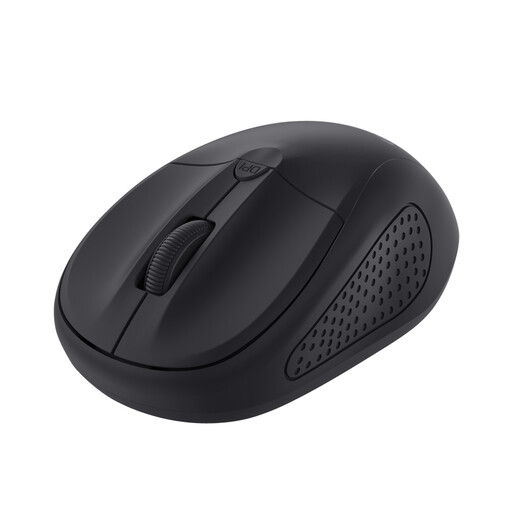
Why it suits this user: This compact optical mouse is designed for straightforward everyday use and working on the go. Its shape suits both left- and right-handed users.
The RF receiver and plug-and-play setup make installation straightforward. The DPI switch lets you choose between 1000 and 1600 DPI instead of being limited to one fixed sensitivity.
A range of up to 6 metres, a weight of 75 grams, a compact design and an on/off switch to save power.
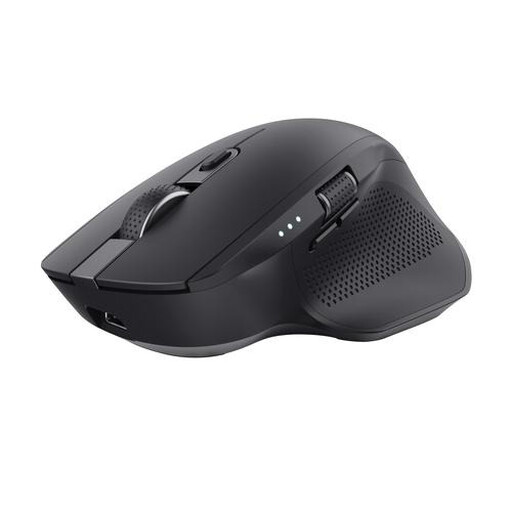
Why it suits this user: This model is designed for people who switch between a laptop, desktop and tablet, and work frequently with wide spreadsheets or timelines.
Having both RF and Bluetooth means you’re not reliant on just one type of connection. The side-scroll button is handy for navigating wide documents.
Pair up to three devices, adjust the DPI up to 3200, use the quiet buttons and recharge the battery, with an LED indicator to show its status.
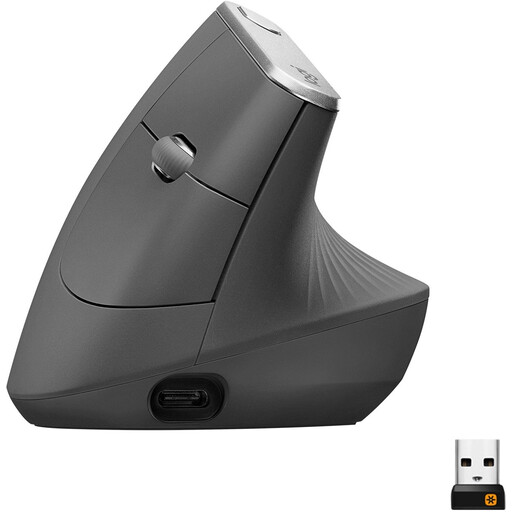
Why it suits this user: Its vertical design, with a 57-degree angle, is intended for right-handed users who want a different grip from that of a flat mouse.
The shape makes the hand position clear from the outset, so you’re not simply buying a standard model with an ‘ergonomic’ marketing label.
Bluetooth and USB receiver, adjustable up to 4000 DPI, a rechargeable battery and a stated range of up to 10 metres.
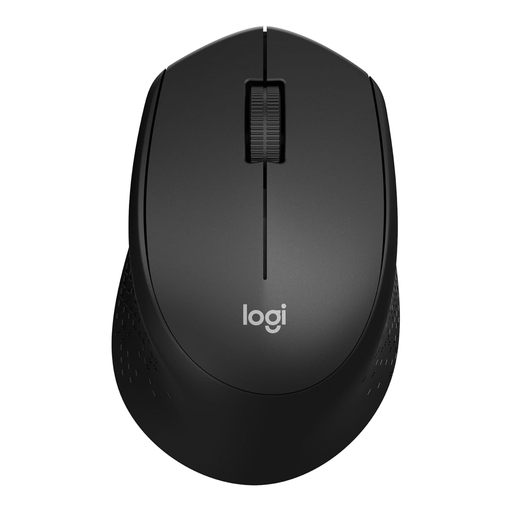
Why it suits this user: Its right-handed shape and quiet-click function make it a good fit for people working from home and those in shared spaces.
The product information mentions quieter clicks and automatic sleep mode. Bear in mind that this doesn’t mean every action is completely silent.
RF connectivity up to 10 metres, optical tracking and a stated battery life of up to 24 months.
We’ve put together a full, up-to-date list of products that meet these strict selection criteria and the applicable European safety regulations.
For an RF model, plug the USB receiver into a spare port and switch on the mouse. For a Bluetooth mouse, turn on Bluetooth on your laptop, tablet or PC, then select the mouse from the list of available devices. If you have any problems, check the manual and make sure the battery is charged.
Battery life depends on the battery type, sleep mode, connection and how often you use the mouse. Manufacturers sometimes quote an expected lifespan of 12 to 36 months for models powered by AA batteries. A rechargeable model will work as long as its built-in battery has enough charge; charging times and battery capacity vary by product.
It can be, but when choosing a wireless gaming mouse, pay particular attention to the polling rate, connection type, weight, sensor and software support. An office mouse with 1000 DPI and three buttons is suitable for everyday work, but may not offer the settings required for competitive gaming. Also check that the software works with your operating system.
