
Vandaag of morgen in huis

Kwaliteit gegarandeerd

Welkomstaanbiedingen ontgrendelen: GRATIS bezorging | Tot 80% korting | Gratis 30 dagen JoyPlus-proefperiode
Download de app
A wireless mouse keeps your desk tidier and is handy with a laptop, home office setup or gaming PC. But not every wireless model is automatically comfortable or practical. A high DPI, long battery life or striking design means little if the connection keeps dropping, the shape doesn’t suit your hand or your laptop doesn’t have a compatible port.
Before you buy, watch out for these common pitfalls.
A sensor with 30,000 DPI sounds impressive, but you don’t need such a high maximum setting for office work, browsing or most games. More important are reliable tracking, an adjustable speed that suits you and a sensor that works on the surface you use.
An optical mouse is generally suitable for everyday use. Some advanced models use a laser sensor and, according to their product specifications, can also work on glass. Always check which sensor is actually built in and whether the DPI can be adjusted.
A manufacturer may quote a long battery life, but it depends on the settings, connection and how intensively you use the mouse. A mouse powered by one AA battery is easy to replace, while a rechargeable mouse needs a USB cable or charging dock.
Also bear in mind the difference between the quoted maximum battery life and everyday use. Don’t open or replace a built-in lithium-ion battery yourself. When charging, use the cable and charger supplied or specified by the manufacturer.
Ergonomics isn’t a fixed standard that works the same way for every hand. A vertical mouse can feel quite different from a traditional model. Larger hands often need more support than a compact laptop mouse, so check the dimensions, weight, hand preference and position of the thumb rest.
A left-handed mouse isn’t necessarily the same as an ambidextrous model. The Logitech Signature M650 L is specifically designed for left-handed users with larger hands, while some Microsoft Surface models can be used by both left- and right-handed users.
A Bluetooth mouse is handy with laptops and tablets because it doesn’t take up a USB port. Check that your device supports the required Bluetooth version, though. For example, the Microsoft Surface Arc Mouse Platinum requires Bluetooth 4.0 or higher.
A 2.4GHz connection with a USB receiver can be a practical choice for desktop computers. A model with multiple connection options gives you more flexibility. The ET Wireless Gaming Mouse supports 2.4G, Bluetooth and wired USB-C modes and, according to the product description, can connect to up to three devices.
Don’t just look for the word “ergonomic”; check the actual dimensions and weight. A lightweight mouse can feel comfortable for quick movements in games. A heavier office model may feel more stable when working with long documents or spreadsheets.
For long hours of office work, a thumb rest, soft sides and a shape that suits your hand are all worth considering. If you’re specifically looking for an ergonomic mouse, you could also choose a vertical model such as the Logitech MX Vertical or HP 925 Ergonomic Vertical Mouse.
A basic office mouse often has two main buttons and a scroll wheel. For productivity, extra side buttons, horizontal scrolling or a mouse with programmable buttons can be useful. Gamers may also want to consider the polling rate, switch technology and number of programmable functions.
A silent mouse reduces clicking noise, but check that this is explicitly stated in the product specifications. The Logitech M330 Silent Plus and Logitech Signature M650 are described by the brand as reducing clicking noise by up to 90%. This is a Logitech claim; the actual experience may vary depending on the user and surface.
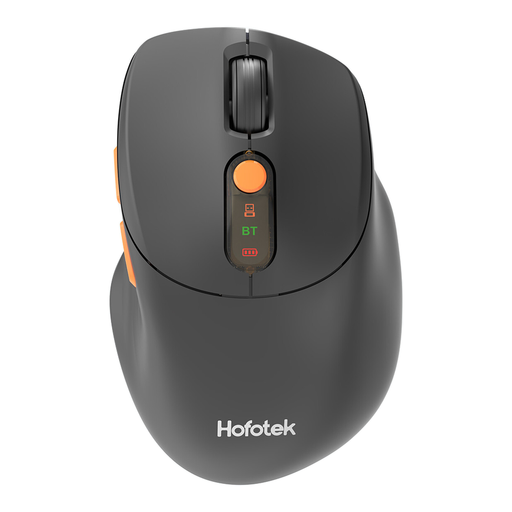
Why it suits this profile: This compact mouse combines Bluetooth and 2.4GHz, making it suitable for laptops, office computers and a range of operating systems.
The DPI is adjustable from 800 to 4000 and the mouse uses an optical sensor, so you’re not paying just for a high maximum figure.
62 grams, quiet clicks according to the product description, support for up to three devices and one AA battery included.
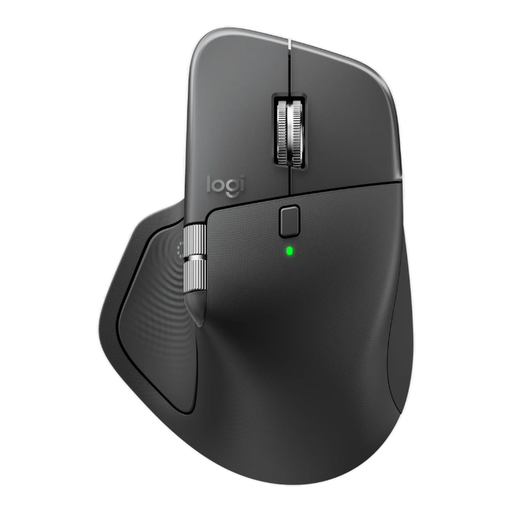
Why it suits this profile: Designed for office professionals who work across multiple devices and handle large documents, while also benefiting from fast scrolling and comfort.
The specifications list a rechargeable battery, quiet clicks, Bluetooth and Logi Bolt, so you’re not limited to just one type of connection.
8,000 DPI, eight buttons, horizontal scrolling, connection to up to three devices and USB-C charging.
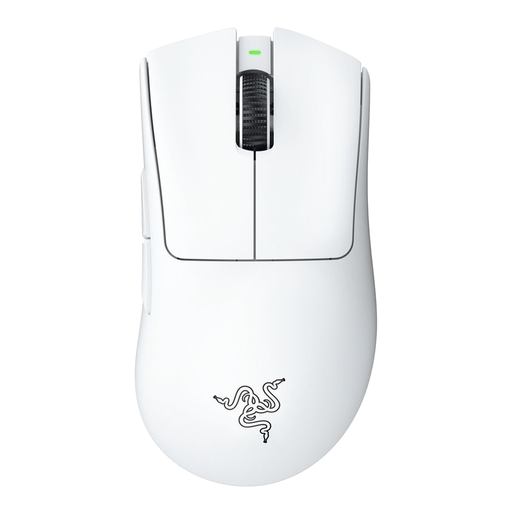
Why it suits this profile: An option for gamers looking for a lightweight, right-handed wireless gaming mouse with programmable buttons.
It can be used wired as well as wirelessly. The specifications list an optical Focus Pro sensor, a 1000Hz polling rate and five buttons.
Around 63 grams, adjustable up to 30,000 DPI, USB-C charging and a battery life of up to 90 hours according to Razer.
Choose a model that explicitly supports left-handed use. The Logitech Signature M650 L has a left-handed shape, five buttons and Bluetooth LE plus a Logi Bolt receiver. For a more compact option, some Surface Arc models are suitable for both left- and right-handed users according to their specifications. However, they have only two buttons and no ergonomic vertical shape.
For Bluetooth, open your laptop’s Bluetooth settings and press the pairing button on the mouse. If your mouse comes with a USB receiver, plug the dongle into an available USB port. Check beforehand that the mouse supports your laptop’s operating system.
It depends on the battery type, switches, how you use it and the build quality. According to their product specifications, models powered by one AA battery can last for several months or more. A rechargeable model needs to be charged periodically via USB-C. The quoted battery life is a maximum, not a guarantee for every use case.
A model with replaceable batteries comes with ongoing costs. A rechargeable mouse uses electricity, and over time its battery may hold less charge. A wired mouse has no battery costs, but is less flexible with a laptop or on a tidy desk.
We’ve put together a complete, up-to-date list of products that meet these strict selection criteria and the applicable European safety regulations.
