
Vandaag of morgen in huis

Kwaliteit gegarandeerd

Welkomstaanbiedingen ontgrendelen: GRATIS bezorging | Tot 80% korting | Gratis 30 dagen JoyPlus-proefperiode
Download de app
A wireless mouse gives you more freedom of movement at your desk, but not every model suits every computer user. Someone working from home often has different requirements from a gamer, student or left-handed user. So don’t just focus on appearance or a high DPI rating. In practice, the connection, shape, battery and hand orientation determine whether a wireless computer mouse remains comfortable to use.
A mouse with 30,000 DPI sounds impressive, but such a high setting usually isn’t necessary for word processing, spreadsheets or browsing the internet. DPI determines how sensitively the cursor responds, but it doesn’t automatically determine how accurate the mouse is in every situation. For office work, 1,000 to 2,000 DPI is often sufficient. Gamers may benefit from adjustable DPI, particularly if they use a different cursor speed for each game.
A wireless mouse usually works via a 2.4GHz USB receiver, Bluetooth or both. A USB receiver is often straightforward: plug it in and start using the mouse. Bluetooth saves a USB port, but your computer must support Bluetooth and the pairing process can vary between operating systems.
Also check whether the receiver is included and whether your laptop has USB-C ports only. In that case, a USB-A receiver may require an adaptor.
A large body, rubberised grip or vertical design won’t automatically suit every hand. A vertical mouse also takes some getting used to. Check the dimensions, weight and hand orientation before ordering. A model designed for right-handed users won’t be suitable for someone who mainly uses their left hand, even if the technical specifications are appealing.
Choose a Bluetooth mouse if you want to keep your USB ports free. A model with both Bluetooth and 2.4GHz offers greater flexibility for use with a desktop computer, laptop and tablet. Check:
For office work, a simple optical mouse with a USB receiver is often sufficient. If you switch between multiple devices, Bluetooth or multi-device connectivity is more useful.
An optical mouse uses a light sensor to track movement. The surface affects how it works: a smooth mouse mat generally provides more predictable results. Some models are described as suitable for glass or multiple surfaces, but always check the exact specification.
Pay attention to the difference between fixed and adjustable DPI. The Logitech M280 and Logitech M330 Silent Plus, for example, both have 1,000 DPI. The Logitech MX Vertical offers 4,000 DPI with a DPI switch. The Logitech MX Master 4 for Business has an adjustable sensor of up to 8,000 DPI. For normal office work, these figures aren’t necessarily decisive; the shape and click feel may be more important.
A mouse can run on an AA or AAA battery, or have a built-in rechargeable battery. A battery-powered model means you don’t need to recharge it, while a rechargeable mouse reduces the need for loose batteries. Check the stated battery life and bear in mind that this is a manufacturer’s estimate which may depend on usage and settings.
With a silent mouse, it’s worth looking at the manufacturer’s exact wording. Logitech, for example, states that its SilentTouch technology can reduce clicking noise by up to 90%, according to its own information. Treat this as a brand-specific product specification, not a universal guarantee for every working environment.
Additional buttons are useful for shortcuts or gaming, but they can make operation more complicated. For an office mouse, three buttons and a scroll wheel are often enough.
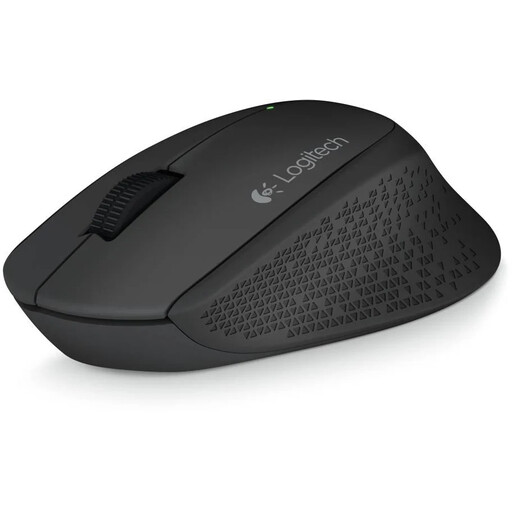
Why it suits this profile: This right-handed wireless mouse has three buttons, a 1,000 DPI optical sensor and a 2.4GHz connection via a nano receiver. That makes it well suited to straightforward home and office work.
The specifications are easy to understand: no unnecessary software or extra features, just an included AA battery and a range of up to 10 metres according to the product information.
Right-handed design, rubberised grip, three buttons and easy USB installation.
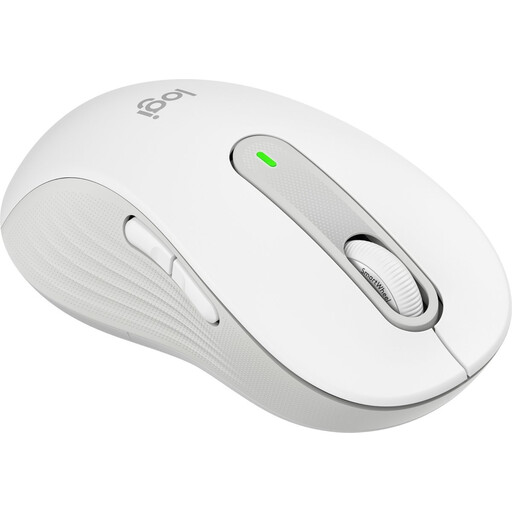
Why it suits this profile: This model is specifically designed for left-handed users with larger hands. Bluetooth LE and the Logi Bolt receiver provide two connectivity options.
The hand orientation is clearly stated. According to Logitech’s own information, SilentTouch reduces clicking noise by up to 90%; check whether this feature suits your working environment.
Left-handed design, 2,000 DPI, five buttons and operation using a single AA battery.
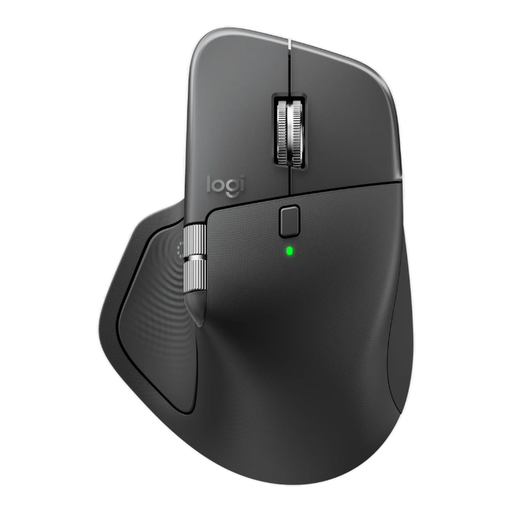
Why it suits this profile: This right-handed mouse combines Bluetooth, a Logi Bolt receiver, USB-C charging, eight buttons and horizontal scrolling. That makes it suitable for intensive office work across multiple devices.
The battery is rechargeable and the model supports multiple connection types. This means the stated features can be compared concretely rather than judged solely by marketing terminology.
8,000 DPI, adjustable DPI, USB-C charging, three connected devices and a laser sensor.
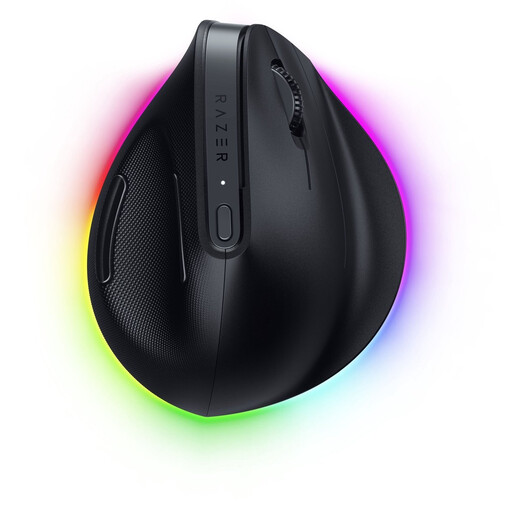
Why it suits this profile: The vertical shape, six buttons, Bluetooth and Razer HyperSpeed are aimed at users who combine work and gaming and want additional customisation options.
The shape and hand orientation are clear from the outset: this is a right-handed vertical mouse. Choose this model only if this grip suits the way you work.
30,000 DPI, programmable buttons, Bluetooth, wireless 2.4GHz connection and rechargeable battery.
We’ve put together a complete, up-to-date list of products that fully meet these strict selection criteria and the applicable European safety regulations.
That depends on the model. A Bluetooth mouse can connect directly to a compatible laptop or tablet. A mouse with a 2.4GHz connection usually requires a USB receiver. Before buying, check which ports and wireless features your computer has.
Battery life varies by model. An AA-powered mouse may run for months or longer according to the product information, while a rechargeable mouse needs to be charged periodically via USB-C. Automatic sleep mode, lighting and the type of connection all affect power consumption.
Not automatically. A vertical mouse may feel different from a standard model and often takes some getting used to. Check the dimensions, hand orientation and angle of the body. If discomfort persists, it’s best to take regular breaks and readjust your workstation.
