
Vandaag of morgen in huis

Kwaliteit gegarandeerd

Welkomstaanbiedingen ontgrendelen: GRATIS bezorging | Tot 80% korting | Gratis 30 dagen JoyPlus-proefperiode
Download de app
A wireless mouse gives you more freedom to move around your desk, but not every model suits every computer user. An office mouse has different requirements from a wireless gaming mouse. A compact laptop model may also be less suitable for long working days.
The most common mistake is focusing on one standout figure, such as DPI or battery life. A high DPI, for example, does not automatically mean greater comfort or accuracy. Use these checks before buying a wireless mouse.
A Bluetooth mouse connects directly to a Bluetooth-enabled device. This is handy for laptops and tablets, as you don't need a USB receiver. Check that your computer supports the right Bluetooth version and that pairing is possible.
A mouse with a 2.4 GHz connection usually works with a USB receiver supplied with the mouse. This can be useful for a PC without Bluetooth. The receiver does take up a USB-A port, though. Some models let you store it inside the mouse, reducing the chance of losing it while travelling.
DPI determines how far the cursor moves for a given hand movement. A mouse with adjustable DPI gives you more control over sensitivity, but a high maximum setting is only relevant for certain users. For office work, 1,000 to 1,600 DPI is often enough; gamers may want multiple profiles and faster switching between them.
Also check the sensor type. An optical mouse generally works well on a standard mouse mat or a smooth desk surface. Tracking on glass or highly reflective surfaces can vary between models.
A stated battery life of “up to” a certain number of hours or months depends on usage, sleep mode, lighting and connection mode. A rechargeable battery means you don't need to buy disposable batteries, but you will need to charge it regularly. A model that uses AA batteries can be more convenient if you want to replace a battery quickly.
Check whether you can keep using the mouse while it charges, too. This is useful if you have a fixed workstation; for a laptop mouse, low weight and easy storage may matter more.
First, choose between Bluetooth, 2.4 GHz or both. Bluetooth is handy for a laptop, Mac or tablet without a spare USB port. A USB receiver can be a reliable option for a PC mouse. Always check which operating systems are supported and which ports are available.
A standard mouse is usually easy to use, while an ergonomic mouse may require a different hand position. Vertical models are often designed specifically for right-handed use. So check:
An ergonomic design is not a medical solution. Take regular breaks during extended use and set up your workstation properly.
Three buttons are often enough for everyday work. For gaming or productivity, extra programmable buttons can be useful. A polling rate of 1,000 Hz means that, according to the product specifications, the mouse’s position is reported to the computer up to 1,000 times per second. This can be useful for fast-paced games, but may use more power.
Also check whether settings can only be changed using Windows software. This matters if you want to use the mouse with macOS or multiple devices.
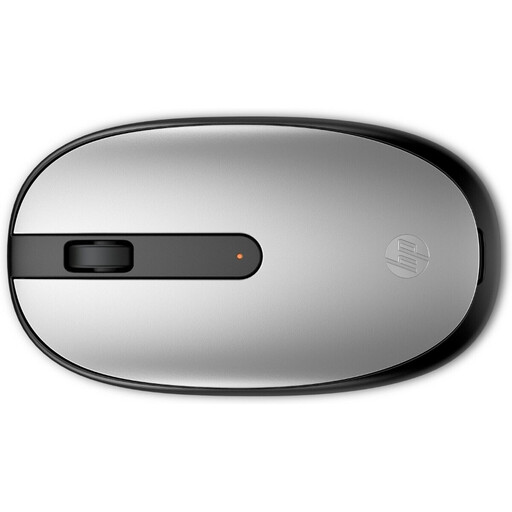
Why it suits this profile: This compact Bluetooth mouse is suitable for everyday use with a laptop, office computer or tablet, without the need for an extra USB receiver.
It connects via Bluetooth 5.1, so there's no need for a separate dongle. The specifications list 1,600 DPI and support for Windows, macOS and ChromeOS.
Ambidextrous design, 54.2 grams, three buttons and power from a single AA battery.
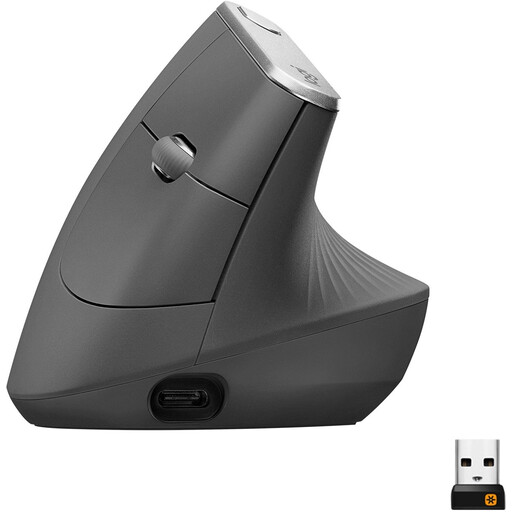
Why it suits this profile: Its vertical shape and support for Bluetooth and 2.4 GHz make it a good fit for users who value comfort and working across multiple devices.
The product specifications list a 57-degree angle, adjustable DPI up to 4,000 and a rechargeable battery. However, this model is designed for right-handed users.
Bluetooth, a USB receiver, four adjustable DPI levels according to the product information, and a battery that Logitech says lasts up to four months.
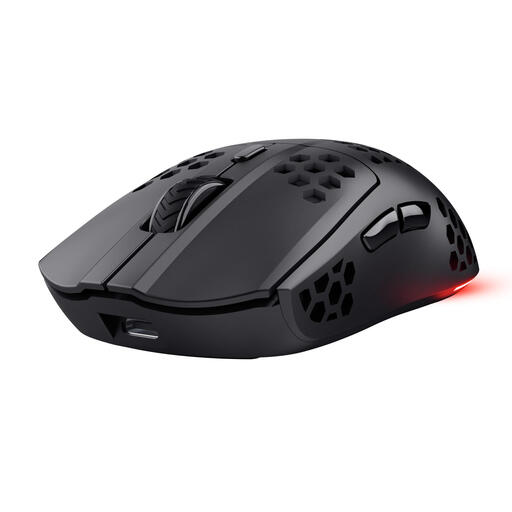
Why it suits this profile: This wireless gaming mouse is designed for PC and laptop gamers looking for low latency, a lightweight design and programmable buttons.
The 2.4 GHz connection uses a USB receiver. According to the product information, you can keep playing while the mouse charges via USB-C.
Around 73 grams, an optical sensor up to 4,800 DPI, six programmable buttons and a polling rate up to 1,000 Hz.
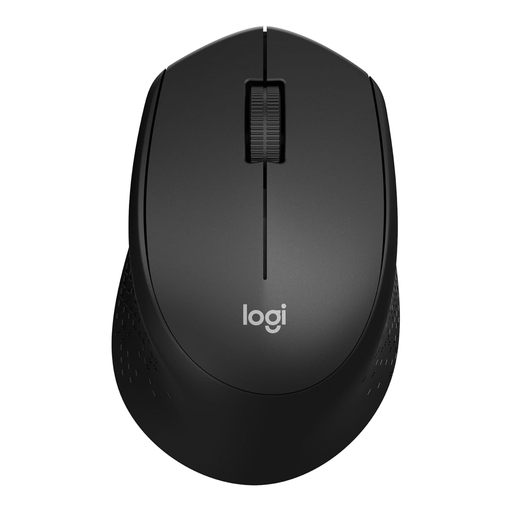
Why it suits this profile: A practical choice for home workers, libraries and shared offices where clicking sounds can be distracting.
According to Logitech, the clicks are more than 90% quieter than those of traditional mice. This is a manufacturer's claim, not a universal noise standard.
Optical tracking, three buttons, a range of up to 10 metres and battery life of up to 24 months according to Logitech.
If you're using a 2.4 GHz model, plug the USB receiver directly into your computer. A USB hub can be handy, but try to keep the receiver clear of metal obstacles and other sources of interference. To connect a Bluetooth mouse, pair it through your device's Bluetooth settings.
Use a mouse mat if your desk surface is uneven or reflective. Clean the sensor and feet with a soft, dry cloth. Charge a built-in battery using the supplied or a compatible cable, and store separate receivers inside the mouse if possible. At the end of their life, electronic devices and batteries should be taken to the appropriate collection point.
We've put together a complete, up-to-date list of products that meet these strict selection criteria and the applicable European safety regulations.
Yes, if the model uses a USB receiver. You'll need a spare USB port. If your laptop only has USB-C ports, check whether you need an adapter or choose a Bluetooth mouse.
It varies by model and usage. A mouse powered by AA batteries may last several months, according to the product specifications. Rechargeable models often give an estimated number of hours or months per charge. Lighting, high polling rates and intensive use can affect battery life.
It can be, particularly if you find extra buttons or adjustable DPI useful. Do consider the weight, battery management and noise level. For a quiet office, a silent mouse is often more practical than a gaming mouse with flashy lighting.
