
Vandaag of morgen in huis

Kwaliteit gegarandeerd

Welkomstaanbiedingen ontgrendelen: GRATIS bezorging | Tot 80% korting | Gratis 30 dagen JoyPlus-proefperiode
Download de app
A wireless mouse gives you more room on your desk and is handy with a laptop, PC or tablet. But it’s not a good idea to choose based only on price, dpi or a bold product claim. A mouse may seem suitable on paper, but prove awkward to use because of limited compatibility, the wrong shape or a battery that runs out sooner than expected.
As a Joybuy Product Recommendation Officer, I focus on specifications you can verify: connectivity, power, shape, sensor and intended use.
A Bluetooth mouse usually doesn’t need a USB receiver. That’s handy with slim laptops that have few USB ports. Before you buy, check that your laptop, PC, tablet or Chromebook supports Bluetooth and that the operating system is compatible.
A mouse with a 2.4GHz receiver works differently. You’ll need a spare USB-A port. Some models offer both options, which is useful if you switch between a laptop and desktop computer.
Dpi indicates how sensitively the cursor responds to movement. A higher value isn’t automatically better. For word processing, browsing and spreadsheets, 800 to 1600 dpi may be enough. An adjustable sensor is especially useful if you work with screens of different sizes.
Also check how the manufacturer presents the figure. Product specifications may list different maximum values or default settings. So don’t just look at the highest number: check whether you can adjust the speed too.
The term ergonomic mouse doesn’t tell you much on its own. A compact, symmetrical mouse will feel different in your hand from a vertical mouse designed for right-handed use. Consider:
A vertical shape may take some getting used to. If you travel often, you may find a compact model more practical than a large design with a wrist rest.
For a wireless mouse for a laptop, Bluetooth is appealing because you don’t need to carry a dongle. For example, the HP 240 Black Bluetooth Mouse uses Bluetooth 5.1, an optical sensor with 1600 dpi, three buttons and a scroll wheel. According to the listed specifications, it works with Windows, macOS and ChromeOS.
For a wireless mouse for a PC, a USB receiver can be straightforward: plug it in and get started. Check that it uses USB-A and that your PC has a spare port.
Use several devices? A multi-device mouse with Bluetooth and RF connectivity may be more convenient. Check how many devices you can pair at once and how you switch between them: using a button, software or automatically.
A mouse powered by AA or AAA batteries can last from months to years, depending on the model and how you use it. Check whether the battery is included and whether the mouse takes one or more batteries.
A rechargeable mouse saves you from buying disposable batteries. Check the connection type, such as USB-C, the estimated battery life and whether you can keep using the mouse while it charges. According to the product specifications, the Trust Zaya has a built-in rechargeable battery, a USB-C connection and three dpi settings: 800, 1200 and 1600.
A quiet mouse can be useful in a shared office, library or bedroom. Check whether only the click buttons are quieter or whether the scroll wheel is too. “Quiet” or “silent” is a product claim made by the brand; how loud it seems can vary depending on the surface and the user.
An optical mouse uses a light sensor to track movement. Most office mice work well on a normal, matt surface. Reflective surfaces such as glass can affect tracking, so a mouse mat can sometimes help, even with a good sensor.
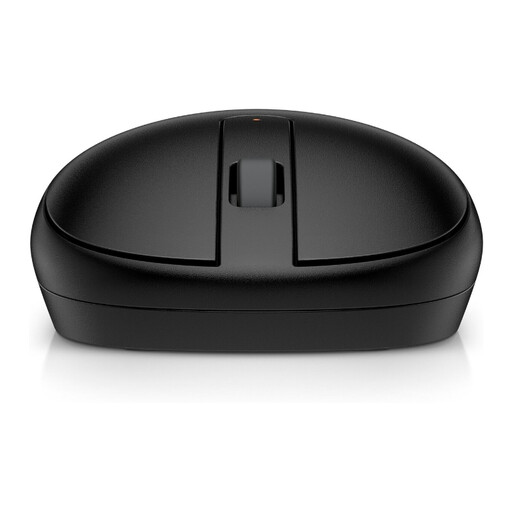
Why it suits this type of user: A straightforward choice for everyday use with a laptop or desktop that supports Bluetooth. Its ambidextrous shape is suitable for both left- and right-handed use.
It connects without a separate dongle. The optical sensor has a verifiable resolution of 1600 dpi, rather than relying on a vague claim about accuracy.
Bluetooth 5.1, 1600 dpi, three buttons and a scroll wheel. According to the product information, it works with Windows, macOS and ChromeOS.
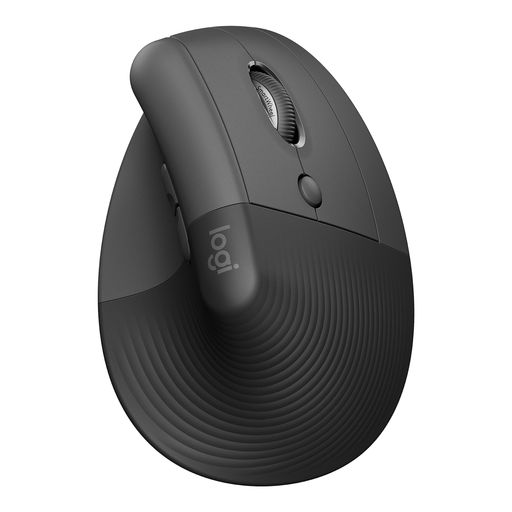
Why it suits this type of user: For right-handed home workers and office professionals who specifically want a vertical shape and extra customisation options.
Its shape is clearly described as vertical and right-handed. You’ll know in advance that this isn’t a universal, flat mouse, making it easier to judge whether it will fit your hand.
Bluetooth or USB receiver, four programmable buttons, optical sensor up to 4000 dpi and quiet clicks according to the product specifications.
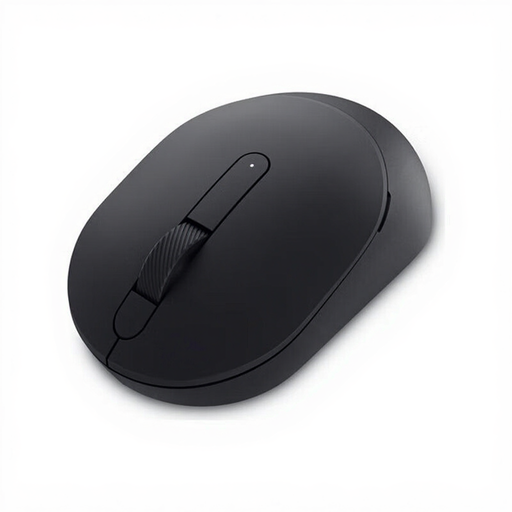
Why it suits this type of user: A practical option for shared workspaces and hot-desking, or if you want to switch between Bluetooth and a USB receiver.
Its quiet operation, compact size and two connection types are each listed separately. You don’t have to rely on a vague claim that it’s suitable for office use.
Ambidextrous shape, optical sensor up to 4020 dpi, Bluetooth and RF. The manufacturer also states a battery life of up to 36 months; actual use may affect how long it lasts.
A wireless keyboard and mouse set makes sense if you want to replace both input devices at once. Pay close attention to the layout. A US QWERTY layout differs from the UK keyboard layout, particularly when it comes to punctuation and special characters.
According to the product specifications, the Trust Lyra pairs a compact keyboard with a mouse, supports three devices and connects via USB receiver and Bluetooth. Both devices are rechargeable. A full-size set is more suitable for a fixed workspace where you need a numeric keypad. For a small table or flexible workspace, a compact model takes up less room.
We’ve put together a complete, up-to-date list of products that meet these strict selection criteria and the applicable European safety regulations.
No. Check whether your laptop supports Bluetooth or has a spare USB port for the receiver. Also check which operating systems are listed, such as Windows, macOS, ChromeOS, Android or iPadOS.
It varies by model, battery type, connection and usage. For example, according to the product specifications, a mouse with an AA battery may last 15 to 24 months, while the battery life of a rechargeable mouse is stated per charge. Treat these figures as a guide, not a guaranteed battery life.
That depends on the purchase price, battery and lifespan. You won’t need to buy separate AA or AAA batteries, but you will need to charge the mouse regularly. Check whether a charging cable is included and whether you can use the mouse while it charges.
