
Vandaag of morgen in huis

Kwaliteit gegarandeerd

Welkomstaanbiedingen ontgrendelen: GRATIS bezorging | Tot 80% korting | Gratis 30 dagen JoyPlus-proefperiode
Download de app
A wireless mouse gives you more freedom to move around at the office, at home or on the go. However, not every model is right for every user. A budget mouse might work perfectly well for occasional laptop use, but fall short during long working days or gaming sessions. On the other hand, you might pay extra for features you rarely use.
Pay particular attention to the connection, power source, shape and sensor. Read on to find out what to look for and which models suit different needs.
A mouse can connect via Bluetooth, a 2.4GHz USB receiver or both. Bluetooth is useful for a laptop without a spare USB port, while a mouse with a USB receiver is often easy to set up and use straight away.
Check the following first:
A model with a USB-A receiver only may be inconvenient if you have a modern laptop with USB-C ports only. A Bluetooth mouse avoids this problem, but you’ll need to pair it correctly and make sure your device has adequate Bluetooth support.
DPI indicates how sensitive the sensor is. A high-DPI gaming mouse can move the cursor quickly across a large screen, but a higher number doesn’t automatically make a mouse more accurate for every user.
For office work, an adjustable setting of around 1,000 to 4,000 DPI is often practical. Gamers may want more flexibility, such as 12,000, 24,000 or 44,000 DPI. Also consider the polling rate, sensor technology and options for adjusting the settings. A high DPI won’t offer much benefit without good software or a grip that suits you.
A wireless mouse runs on disposable batteries or a built-in rechargeable battery. With a model that takes AA or AAA batteries, you can carry on straight away by swapping in a spare. A rechargeable mouse saves you from buying batteries regularly, but you’ll need to charge it via USB-C from time to time.
Check the difference between:
A wireless mouse for Mac and Windows is especially useful if you use several devices. Models that support up to three devices make it easier to switch between, for example, a work laptop, desktop computer and tablet. Check whether the included receiver is USB-A or USB-C.
A mouse with a USB receiver is often practical for a permanent workstation. For travel and a laptop mouse, Bluetooth is appealing because you don’t need to carry a separate dongle.
An ergonomic mouse usually has a curved shape, a thumb rest or an extra scroll wheel. This can be comfortable during long hours of office work, but the shape should suit your hand and preferences. Check whether the model is designed for right-handed use only or is also suitable for left-handed users.
A lightweight mouse weighing around 50 to 90 grams is a popular choice for gaming and mobile use. A heavier model may feel more stable when working with large spreadsheets or editing images. Size matters just as much as weight.
A quiet mouse can be a good choice for a shared workspace, library or home office. Check how many buttons it has and whether they can be programmed. A mouse with programmable buttons can perform shortcuts, macros or app functions, though you may need software to set them up.
Also check whether the scroll wheel supports horizontal scrolling. This is useful for wide spreadsheets, timelines and large documents.
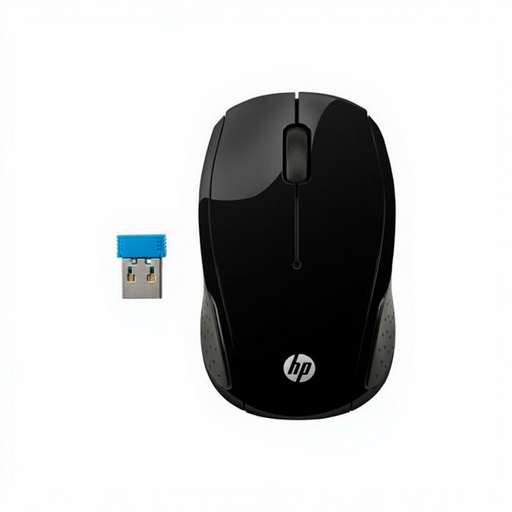
Why it suits this profile: This mouse is designed for everyday use with a laptop, desktop computer or in the office. The USB-A receiver and included AAA batteries make it easy to get started.
It connects via 2.4GHz and doesn’t require separate software. Just check that your device has a USB-A port.
Ambidextrous design, 1,000 DPI, a 10-metre range and two AAA batteries included.
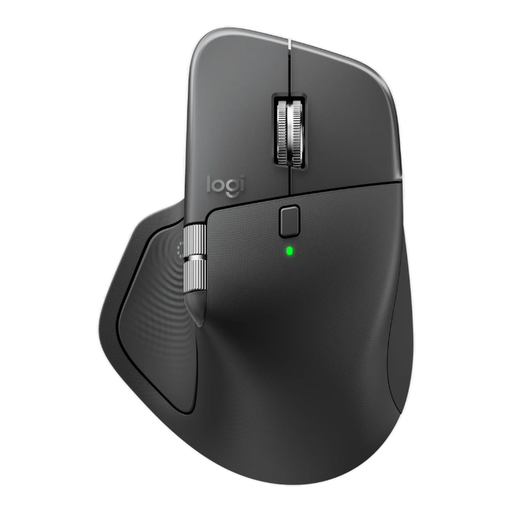
Why it suits this profile: For professionals who value support for multiple devices, shortcuts and precise scrolling. This mouse is designed for right-handed use.
The specifications list Bluetooth and a Logi Bolt receiver, as well as support for three paired devices. This makes it easier to choose the right connection.
8,000 DPI, eight buttons, horizontal scrolling, USB-C charging and a rechargeable battery.
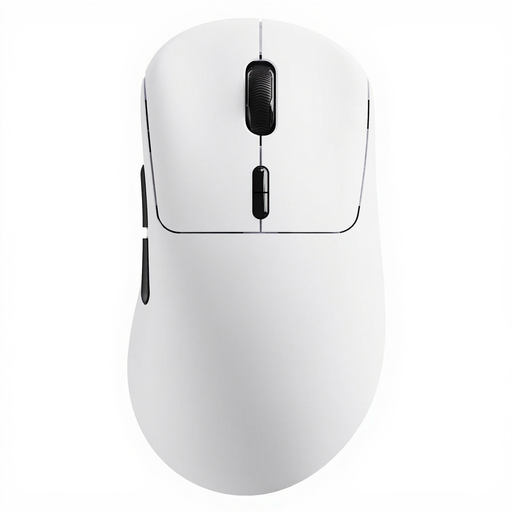
Why it suits this profile: Designed for gamers looking for a lightweight design, adjustable sensitivity and programmable buttons. According to the product description, this model supports Windows and Mac via the A HUB software.
The specifications list 2.4GHz connectivity, a weight of 53 grams, 10 programmable buttons and adjustable DPI of up to 26,000.
Rapoo states that battery life is up to 750 hours at 1,000 Hz. According to the product information, the model also supports a wireless polling rate of up to 8,000 Hz.
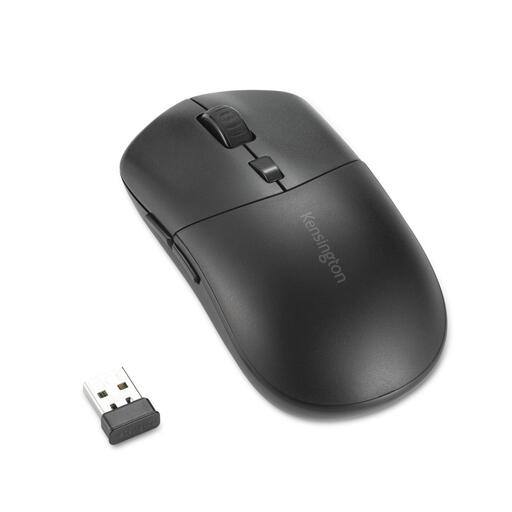
Why it suits this profile: For users who want quiet clicks, support for multiple devices and USB-C charging for everyday office work.
The mouse connects via both Bluetooth and the included 2.4GHz USB-A receiver. This gives you an alternative if one connection isn’t practical.
Six buttons, programmable functions, quiet clicks, 2,400 DPI and up to four months of battery life according to the product specifications.
We’ve put together a complete, up-to-date list of products that meet these strict selection criteria and comply with current European safety regulations.
Not necessarily. A Bluetooth mouse requires Bluetooth support on your laptop. A model with a USB receiver needs a suitable USB port. Also check the operating system and whether the manufacturer requires separate software for extra buttons.
Battery life depends on the type of power source, connection and usage. Manufacturers often quote a maximum battery life under certain conditions. A rechargeable mouse remains practical as long as its built-in battery retains enough capacity. With a model that takes AA or AAA batteries, you can easily replace them.
Yes, but for gaming, choose a model with a stable 2.4GHz connection, adjustable DPI and low polling latency. Bluetooth is useful for everyday use, but is less commonly chosen for competitive gaming. Also consider the weight, grip, programmable buttons and compatibility with the software you want to use.
