
Vandaag of morgen in huis

Kwaliteit gegarandeerd

Welkomstaanbiedingen ontgrendelen: GRATIS bezorging | Tot 80% korting | Gratis 30 dagen JoyPlus-proefperiode
Download de app
A wireless mouse keeps your desk tidier and is a useful companion for a laptop. However, it is not wise to focus only on the price, appearance or a high DPI figure. For example, an inexpensive mouse may require a USB receiver when your laptop only has USB-C ports. A compact model may be convenient for travelling, but less suitable for long periods of use. And a gaming mouse packed with features may be unnecessarily expensive for basic office work.
Pay particular attention to connectivity, sensor, hand shape, power and intended use. This will help you avoid having to buy another mouse a few months later.
A Bluetooth mouse pairs directly with a Bluetooth-enabled device. You generally do not need a separate receiver, which is useful for laptops and tablets with few available ports.
An RF wireless mouse usually uses a 2.4GHz connection with a small USB receiver. It often works straight away through plug and play, but it does take up a USB port. Check that your computer has a suitable USB-A port. Some modern laptops may require an adapter.
DPI indicates how quickly the cursor moves across the screen in response to a particular hand movement. A high-DPI mouse is not automatically more accurate for every user. For word processing, administration and browsing, 1000 to 1600 DPI is often practical. Gaming mice sometimes offer 18,000, 26,000 or even 36,000 DPI, but these figures are mainly relevant when you want to fine-tune the sensitivity.
Also check whether the DPI can be adjusted. That is more useful than having a high maximum setting that you rarely use in practice.
An ambidextrous mouse has a symmetrical shape and can generally be used by both left- and right-handed users. This makes such a model flexible, but not every symmetrical mouse feels the same. Pay attention to the length, width, height and position of any thumb buttons.
An ergonomic mouse may have a more pronounced shape designed for one hand. This can be comfortable for office work, but a right-handed model is less suitable if several people use the mouse.
Before buying, check:
An optical mouse uses an optical sensor to determine its position. Performance can vary depending on the surface. A matt mouse mat is generally a practical choice when tracking is less stable on a glossy desk. Do not look only at DPI; consider the type of connection and the settings you actually need as well.
Pay attention to the difference between:
Clean the sensor, buttons and scroll wheel with a dry, soft cloth. Store the USB receiver inside the mouse if a storage compartment is provided. Small receivers can easily get lost.
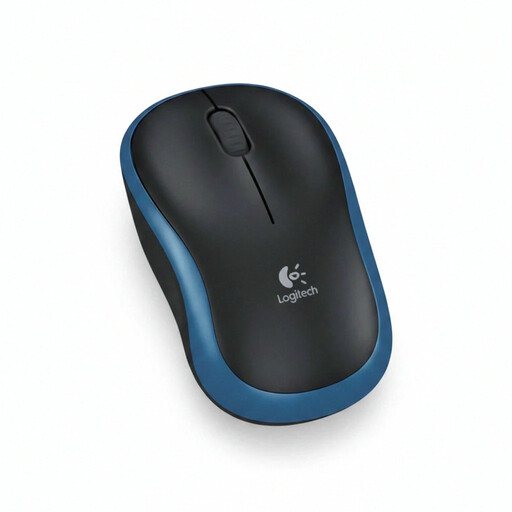
Why it suits this profile: For home use, studying or basic office work, this compact wireless mouse offers a straightforward setup with three buttons, a scroll wheel and 1000 DPI.
The specifications are easy to check: 2.4GHz RF, a USB nano receiver, optical tracking and an AA battery included.
Ambidextrous design, plug-and-play installation and a compact size for use with a laptop.
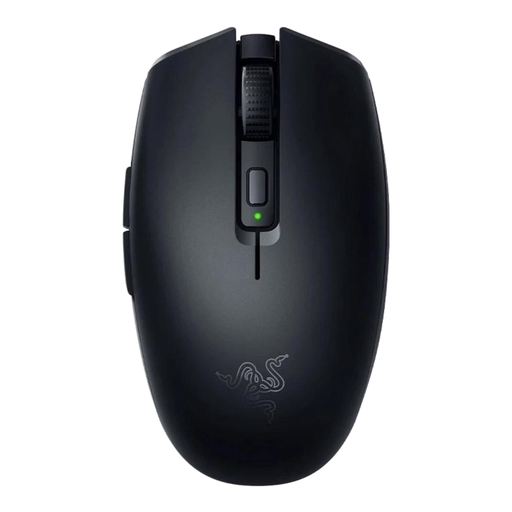
Why it suits this profile: This model combines Bluetooth with Razer HyperSpeed Wireless and is designed for users who take their mouse between their workspace and gaming setup.
You are not limited to one type of connection. The symmetrical shape and low stated weight make it a more flexible choice.
18,000 DPI, six programmable buttons and a stated battery life of up to 1000 hours via Bluetooth.
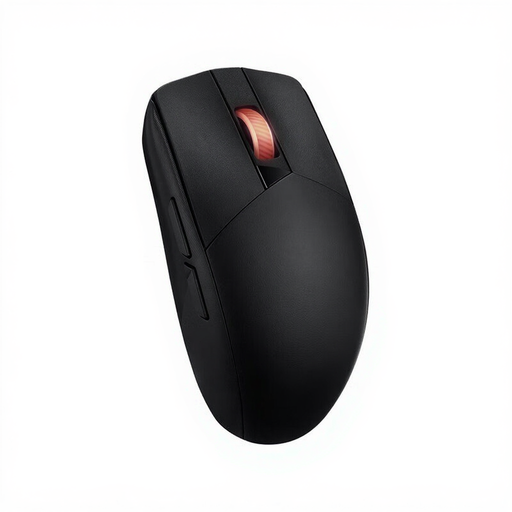
Why it suits this profile: For gaming and users who want plenty of customisation options, this wireless mouse offers RF and Bluetooth alongside programmable buttons.
The choice is not just about DPI: you also get two wireless options, an ambidextrous design and customisable controls.
Optical sensor up to 36,000 DPI, five buttons and a stated battery life of up to 450 hours.
We have compiled a complete, up-to-date list of products that fully meet these strict selection criteria and the applicable European safety regulations.
For an office mouse, quiet clicks, adjustable DPI and a comfortable shape are often more important than lighting or an extremely high polling rate. According to the product information, the Trust Yvi+ has quiet buttons, 800 to 1600 DPI and an RF connection.
A compact mouse is practical for students and laptop users. Do check that the lower height and narrower shape suit your hand. For travelling, models with a storage compartment for the receiver or Bluetooth connectivity are convenient.
A gaming mouse requires more attention to polling rate, weight, sensor type, buttons and software. A high DPI setting is only useful if you can tailor it to your screen, game and personal preference.
Insert the USB receiver into a suitable USB port, insert the battery or charge the mouse, then switch it on. Many models do not require any additional software. If the mouse does not work, check the battery, the on/off switch and that the receiver is properly connected.
This depends on the model, battery type and how you use it. Product information sometimes states a usage time of several months or hundreds of hours. Treat this as a stated maximum under certain conditions. An on/off switch and automatic sleep mode can help reduce power consumption.
Neither is the right choice for every user. Bluetooth saves a USB port and is well suited to laptops. RF often offers straightforward installation via a receiver. Choose based on your available ports, compatibility and the devices you want to use the mouse with.
