
Vandaag of morgen in huis

Kwaliteit gegarandeerd

Welkomstaanbiedingen ontgrendelen: GRATIS bezorging | Tot 80% korting | Gratis 30 dagen JoyPlus-proefperiode
Download de app
A wireless keyboard and mouse set keeps your desk tidier and is useful for working from home, studying and office work. However, the wrong choice can quickly become frustrating. You might end up with a keyboard layout that doesn’t match your laptop, a mouse that’s too small for everyday use or a USB receiver that isn’t compatible with your device.
Use these checks to compare a wireless keyboard and mouse based on practical features rather than marketing claims.
In the Netherlands, QWERTY is most common, while some models have a Belgian-layout AZERTY keyboard. This means the labels and positions of the keys may differ. Check whether the model uses a US QWERTY layout, too. For example, the Trust Ody II is listed as QWERTY US English; this isn’t the same as every Dutch keyboard layout.
The wrong layout is particularly frustrating if you touch-type or often use special characters. So don’t just look at the product name: check the specifications under “keyboard layout” and “language” as well.
A quiet mouse and keyboard reduce clicking and typing noise, but the volume also depends on the surface, how firmly you type and the type of keys. A membrane or scissor-switch keyboard feels different from a mechanical model. If you work in a shared home, library or open-plan office, look for explicit descriptions such as “silent keys” and “silent click”.
A set with a USB receiver usually works straight away with a PC or laptop, but that doesn’t mean you can easily switch between multiple devices. To use a laptop, tablet and desktop, you’ll need Bluetooth or multiple connection channels. Also check whether your device has a spare USB-A port. Some laptops may need an adapter.
A 2.4 GHz connection via a USB receiver is practical for a fixed workstation. Plug in the receiver and you can usually use the set without any extra software. Bluetooth is more convenient for tablets, phones and laptops without a spare USB port.
Look out for these differences:
A full-size keyboard usually has a numeric keypad. This is useful for administration, spreadsheets and financial data, but takes up more space. A compact TKL model leaves out the numeric section and is easier to carry around.
Also check:
A wireless mouse with an optical sensor will generally work on most non-glossy desk surfaces for office tasks. DPI determines cursor speed, not necessarily accuracy. For documents, settings between around 800 and 1600 DPI are often sufficient. A higher adjustable DPI can be useful with large screens, but isn’t essential for everyday office work.
Also think carefully about whether you prefer:
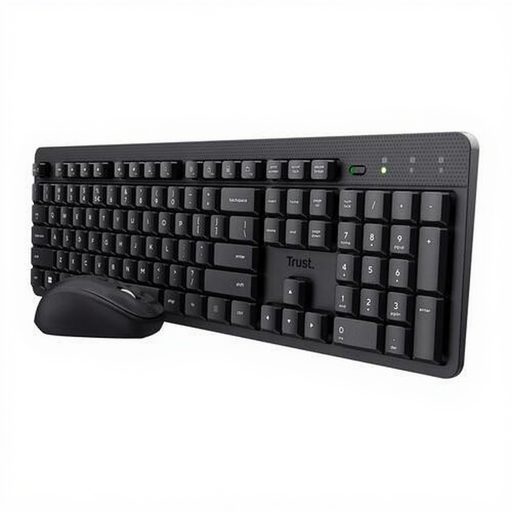
Why it suits this profile: A straightforward set for working from home, studying and general office tasks, with a single receiver and plug-and-play setup.
The product specifications list quiet keys and mouse buttons, a single USB receiver and adjustable DPI from 800 to 1600. Do check that the US QWERTY layout suits you.
Low-profile keys, media keys, an adjustable typing angle and compatibility with Windows, macOS, Linux and Chrome OS.
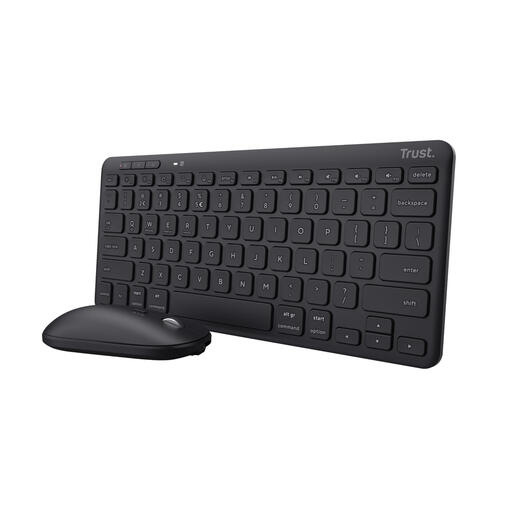
Why it suits this profile: Ideal for hybrid professionals who use a laptop, tablet and phone side by side and want a compact set they can take with them.
According to the product specifications, the set supports one USB connection and two Bluetooth channels. This means you won’t need a separate set for each device.
Rechargeable keyboard and mouse, compact TKL format, quiet scissor keys and support for Windows, macOS, iOS, iPadOS, Android and Chrome OS.
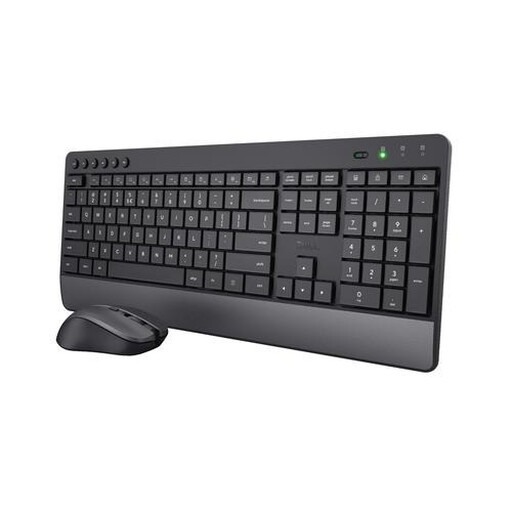
Why it suits this profile: A full-size office keyboard and mouse set for people who type a lot every day and need a numeric keypad.
The product specifications list quiet keys and mouse buttons, a wrist rest and a single 2.4 GHz receiver. The layout is US QWERTY, so check this before buying.
Full-size keyboard with numeric keypad, media keys, adjustable mouse sensitivity and batteries included.
We’ve put together a complete, up-to-date list of products that meet these strict selection criteria and the applicable European safety regulations.
For a set with a USB receiver, plug the receiver into a spare USB port and switch on the keyboard and mouse. For Bluetooth, turn on Bluetooth on your computer, tablet or phone and follow the on-screen pairing steps. Check beforehand that both devices support the same connection method.
It varies by model, how often you use it and the type of battery. Some office products run on standard batteries for months or longer; rechargeable models need to be plugged in periodically. An on/off switch helps to reduce power consumption. Manufacturers’ estimates are a guide to usage, not a guarantee for every working environment.
Yes, if reducing clicking and typing noise is important to you. As well as checking for “silent” features, look at the type of keys, how they feel to press and the shape of the mouse. For long periods of use, the right keyboard layout, enough desk space and a mouse that fits your hand are just as important as the noise level.
