
Illustrators with a small desk
You want to leave room for your keyboard, mouse or graphics tablet, so you’re comparing dimensions with the stand fitted or with a suitable VESA mount.


First, measure the available space, including the monitor stand, then decide how many pixels you need for your canvas and drawing panels. With 1920 × 1200 pixels, the ASUS PA248QV gives you more vertical workspace than Full HD; the BenQ PD2506Q has 2560 × 1440 pixels, but BenQ lists dimensions of 570.0 × 256.9 mm with the stand. Advanced colour management is especially relevant if you also review coloured backgrounds or print work: EIZO specifies hardware calibration for the CS2400S, but the profile still needs to match your intended output.
You want to leave room for your keyboard, mouse or graphics tablet, so you’re comparing dimensions with the stand fitted or with a suitable VESA mount.
You want to see your canvas and tool panels at the same time, and are weighing pixel count against the space the monitor takes up.
You combine silhouettes with coloured backgrounds or print work and want to match what you see on screen to the final output.
First, measure the space taken up by the stand. Then compare workspace, colour management and connections with your artwork and computer.
| What to consider | What should you look for? | Who is this important for? |
|---|---|---|
| Desk space and setup | Measure the width and depth with the stand fitted. ASUS lists 53.30 × 21.10 cm for the PA248QV; BenQ lists 570.0 × 256.9 mm for the PD2506Q. If you’re using an arm, check the VESA size and mounting position too. | If I want to keep my keyboard, mouse or graphics tablet on the same small desk, I include the stand in my measurements; around 36% of consumers put desk space first. |
| Canvas space and detail | Compare resolution and aspect ratio: ASUS lists 1920 × 1200 for the PA248QV, as does EIZO for the CS2400S; BenQ specifies 2560 × 1440 for the PD2506Q. | When I want to see silhouette edges and drawing panels at the same time, I compare the resolution with my workspace; around 29% of consumers prioritise canvas detail. |
| Colour for the final output | Check that the colour gamut and calibration options suit your output. EIZO specifies hardware calibration and more than 99% AdobeRGB for the CS2400S; Adobe recommends calibration hardware and software for colour-critical work. | If I also review coloured backgrounds or print work, I want to match my screen to that output; around 21% of consumers prioritise colour management. |
| Connections and workspace setup | Check whether your laptop can output video over USB-C and how much power it needs. BenQ specifies DisplayPort Alt Mode and 65 W Power Delivery for the PD2506Q; also check whether the screen height is adjustable. | For a laptop setup, I want to know whether video and, where needed, power will work through the connection I’ve chosen; around 14% of consumers make connections or working posture their top priority. |
The dimensions with the stand fitted determine how much room you’ll have left for your drawing tools. ASUS and BenQ list different width and depth measurements for the models mentioned.
Compare the dimensions with the stand fitted against the clear desk space before choosing a size.
You may need a suitable arm or a different desk layout to accommodate another setup.
A colour gamut alone won’t match your screen to your output. Adobe warns that an incorrect monitor profile can lead to misleading colour adjustments.
First decide what you’re creating your work for, then match the profile and calibration to that output.
Calibration tools may be needed for colour-critical work.
For the BenQ PD2506Q, BenQ specifies DisplayPort Alt Mode and 65 W Power Delivery. Whether one cable is enough also depends on your laptop’s video and power capabilities.
Compare your laptop’s USB-C specifications with those of the exact monitor model.
Depending on the connections available, you may need a different video cable or a separate laptop power supply.
The ProArt PA248QV is a 24.1-inch 16:10 option for anyone looking for extra vertical workspace.
The DesignVue PD2506Q is a 25-inch QHD option with USB-C, for a desk with enough room for its stand.
The ColorEdge CS2400S is a 24.1-inch option for illustration workflows where colour management matters.
The 24E1N1300A/01 is a 23.8-inch Full HD option if you need a USB-C connection with power delivery.
The UltraSharp U2424H is a 23.8-inch Full HD work monitor you can compare for its connections and adjustability.
These Joybuy picks include portable screens and compact monitors. Compare resolution, physical setup and connections with the space and computer on your desk.
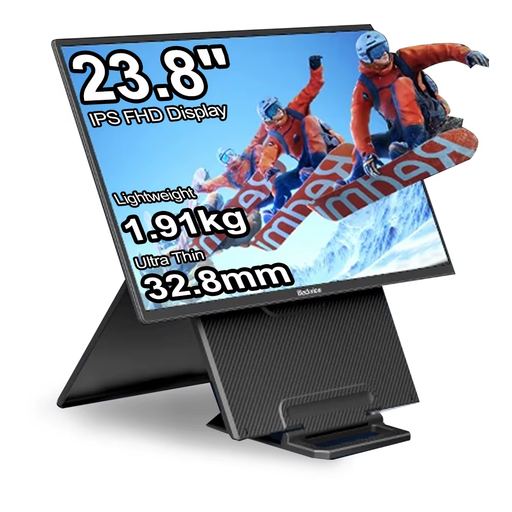 No image available
A portable option if you’re looking for a 16:10 canvas and want the flexibility to position the screen where you need it.
23.8 inches; 1920 × 1200 pixels; 100 Hz; 100% sRGB; 1.91 kg without stand; VESA-compatible.
 No image available
A compact portable option if canvas detail matters to you and you want to use the monitor in a separate space.
2560 × 1600 pixels; 16:10; 144 Hz; QLED; Mini HDMI and Type-C; VESA-compatible.
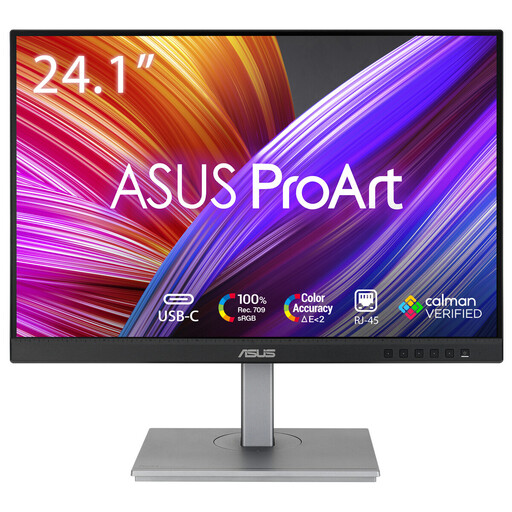 No image available
A 16:10 monitor if you’re looking for extra vertical canvas space and want to adjust the screen position.
24.1 inches; 1920 × 1200 pixels; USB-C with up to 90 W Power Delivery; height, swivel, tilt and pivot adjustment.
 No image available
A QHD option if you want more pixels for your canvas and drawing panels, with colour performance also in mind.
23.8 inches; 2560 × 1440 pixels; 95% DCI-P3; factory calibrated; USB-C with up to 90 W Power Delivery.
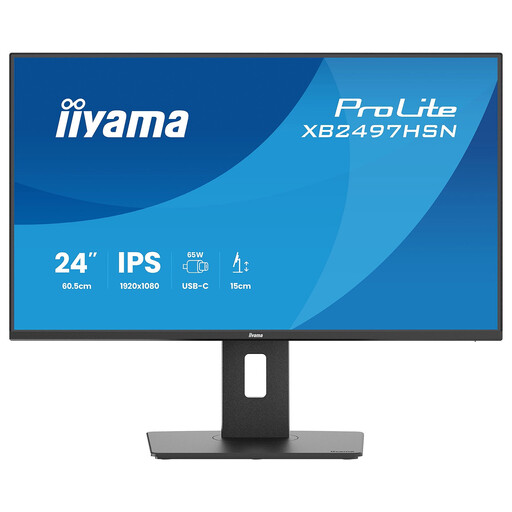 No image available
A Full HD option if USB-C connectivity, a USB hub and an adjustable screen position suit your workspace.
24 inches; 1920 × 1080 pixels; 100 Hz; IPS; USB-C with up to 65 W Power Delivery; USB hub; height, swivel, tilt and pivot adjustment.
Not necessarily. According to Philips and BenQ, the models mentioned range from 1920 × 1080 pixels on the Philips 24E1N1300A/01 to 2560 × 1440 pixels on the BenQ PD2506Q. Choose more pixels if they help you see your canvas and tools more clearly at the same time, not just because of the resolution label.
Match the brightness, white point and monitor profile to your intended output. Adobe recommends calibration hardware and software for colour-critical work; a stated colour gamut won’t calibrate your screen automatically.
Check the VESA size for the exact model, its weight without the stand and whether the arm can be attached to your desk. ASUS lists VESA 100 × 100 mm and 3.9 kg without the stand for the PA248QV; BenQ lists VESA 100 × 100 mm and 4.4 kg without the stand for the PD2506Q.
According to the Dutch government, there is no fixed term for the legal guarantee in the Netherlands: you’re entitled to a product that works properly, and if it has a fault, the seller must provide a solution. For online purchases from a business, you generally have a 14-day cooling-off period; check the terms for the specific order.
The rules cited for employees don’t automatically apply to a home workstation used as a hobby. Arboportaal explains that when an employee works at a screen for more than 2 hours a day, the screen and keyboard must not be attached to each other; the screen must also be height-adjustable.