Start by checking the connection on your existing monitor, then decide which screen you want to use for reliably assessing your wildlife photos. Lightroom Classic can display a separate Library window on a second monitor, but Adobe recommends calibration for consistent colour reproduction. So check the exact laptop configuration and the screen layout you need, too.
Who is this laptop guide for?
Photographers with a dedicated second monitor
You want to review and crop wildlife shots while keeping your selection or library open on the other screen. Adobe describes displaying a separate Library window on a connected second monitor. You’ll also need to check the connection and screen layout.
Photographers who need accurate colour
You want to assess detail and colour while cropping, so you’ll need to consider both screens and their calibration. Adobe recommends monitor calibration for consistent colour reproduction.
Photographers who select photos on the go
You sometimes work without an external monitor and need to weigh portability against the space available on the built-in screen. Apple and Lenovo model specifications give you specific screen sizes to compare.
What should you look for when choosing?
First, check that the exact laptop configuration supports your monitor, the connection you want to use and your preferred screen layout. Then compare the display, memory, storage and size with how and where you edit your photos.
| What to consider |
What should you check? |
Who is this important for? |
| Assessing detail and colour |
Compare the display on the exact configuration and decide which screen you’ll calibrate and use for your final assessment. |
If I want to crop wildlife shots precisely, I need to assess detail and colour on the screen I use for my final checks. Around 31% of consumers put detail and colour assessment first. |
| Connecting two screens |
Check the laptop’s video output, the monitor’s input and whether you mean one external screen or two. |
I want to connect my existing monitor and arrange my screens without relying on the wrong port. Around 31% of consumers prioritise a dual-screen setup. |
| Memory and storage |
Check the memory and SSD on the exact variant, and plan separate backups for your original photos. |
When my photo workflow involves lots of files and editing tasks running at the same time, I want to choose a configuration that can handle it. Around 23% of consumers prioritise this kind of workflow requirement. |
| Working without a monitor |
Compare screen size, weight and ports with how often you work away from your usual workspace. |
If I’m selecting or cropping photos on the go, the built-in screen needs to work for me without my dedicated monitor. Around 15% of consumers give working without that monitor top priority. |
Pitfalls to avoid when buying
-
Assuming every laptop supports two screens in the way you want
The setup you can use depends on the video output on the exact laptop configuration, the monitor connection and the number of screens you want.
Make a note of your monitor’s input, then check the output and external-display specifications for the configuration you’re considering.
Depending on the connections, you may need a suitable cable, adapter or dock.
-
Expecting two screens to show the same colours automatically
Adobe links consistent colour reproduction to monitor calibration, so your laptop screen and external monitor won’t necessarily look the same straight away.
Decide which screen you’ll use for your final assessment and calibrate it.
-
Backing up only a Lightroom catalogue
Adobe describes the catalogue as a database that includes information such as where your photos are stored. A copy of the catalogue isn’t a substitute for backing up your original photo files.
Plan backups for both the catalogue and your original photos.
You’ll need separate backup storage for your original photos.
-
Assuming the manufacturer’s warranty covers all your statutory rights
In the Netherlands, statutory guarantee rights aren’t limited to a fixed two-year period for every product. ACM ConsuWijzer explains that the retailer is your point of contact for statutory guarantee claims.
Keep your proof of purchase and report any fault to the retailer.
Brands to consider
Apple
The MacBook Air M5 offers a portable Mac setup, while the MacBook Pro M5 Pro is a separate, higher-spec range. Compare the exact memory variant and external-display support.
- Apple lists support for the built-in display alongside external displays for the MacBook Air M5.
- That specification alone doesn’t tell you how quickly it will edit photos or how colours will look in practice.
Lenovo
The Yoga Pro 9i Gen 11 is a Windows creator laptop we’ve looked into, with a 16-inch screen. Assess IdeaPad models individually, based on their specific configurations.
- For configuration 83SF003UMH, Lenovo lists 32 GB of memory, a 1 TB SSD and a 16-inch screen.
- Check the ports and external-display support for the configuration you’re considering; these details don’t automatically apply to other models.
ASUS
The ProArt P16 H7607 is a Windows range aimed at creators who want a large built-in screen and are considering a higher-spec configuration.
- ASUS lists a 4K OLED screen for the range.
- Range specifications may refer to the maximum available, and don’t automatically tell you which configuration you need for cropping.
Dell
The configurable Dell 16 Premium is an option if you want to compare the processor, memory, storage and screen as part of one order.
- Dell offers configuration options for the specification.
- Specifications can vary by configuration, so check the components included in the one you choose.
HP
The OmniBook Ultra 14 range includes smaller Windows configurations for anyone who values portability alongside a dedicated external monitor.
- A Dutch HP retailer listing for model 14-kd0672nd gives 16 GB of memory, a 512 GB SSD and a 14-inch OLED screen.
- Check that your existing monitor works with the laptop you choose using the connection you want to use.
Joybuy laptops for this workspace
These laptop options are aimed at reviewing and cropping wildlife photos using a built-in screen and an external monitor. Check the connections on each configuration and make sure they support your preferred screen layout.
 No image available
ASUS ROG Zephyrus G16 GU605CM-QR026W, Ultra 9 285H, RTX 5060, 16 GB, 1 TB
This configuration is listed with a 16-inch OLED screen, HDMI 2.1 and Thunderbolt 4 with DisplayPort. Check that the connections are compatible with your monitor.
The screen has a resolution of 2560 × 1600 and is listed as covering 100% DCI-P3. Memory: 16 GB. Storage: 1 TB SSD.
The product description says the power adapter must be bought separately.
View at Joybuy
 No image available
HP OmniBook Ultra Next Gen AI 16-bk0004nd, 128 GB, 2 TB, 3K OLED touchscreen
This 16-inch configuration lists USB-C with DisplayPort, so you can compare the connection with the input on your external monitor.
The product name specifies 128 GB of memory, a 2 TB SSD and a 3K OLED touchscreen with a 120 Hz refresh rate. Check that this configuration suits your software and workflow.
View at Joybuy
 No image available
MSI Venture 16 AI A2HMG-068NL, Core Ultra 7 255H, 32 GB, 512 GB
This 16-inch configuration lists HDMI 2.1 and USB-C with DisplayPort for connecting an external monitor.
The screen has a resolution of 1920 × 1200 and a refresh rate of 144 Hz. The configuration lists 32 GB of DDR5 memory and a 512 GB SSD.
The description says this configuration is supplied without a power adapter.
View at Joybuy
 No image available
Apple MacBook Air 15-inch M5, 16 GB, 512 GB, Starlight
This configuration lists support for up to two external displays and has a built-in 15.3-inch screen. Check that it supports your preferred screen layout.
The configuration lists 16 GB of memory and 512 GB of storage.
The product description says a USB-C power adapter is not included.
View at Joybuy
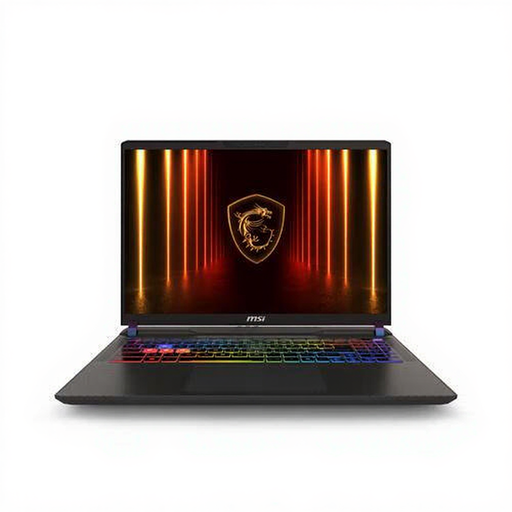 No image available
MSI Vector A16 HX A8WIG-025NL, Ryzen 9 8940HX, RTX 5080, 16 GB, 1 TB
An HDMI 2.1 output and a 16-inch screen are listed. Compare the output with the input on your external monitor.
The screen has a resolution of 2560 × 1600. This configuration lists 16 GB of DDR5 memory and a 1 TB SSD.
The product description gives a weight of 2.7 kg.
View at Joybuy
Frequently asked questions
Can Lightroom Classic show the Library on my second monitor?
Yes. Adobe describes displaying a separate Library window on a connected second monitor. Also check that your laptop’s video output is compatible with your monitor.
How do you make two screens work well once they’re connected?
In Windows, you can arrange detected displays and test the layout. Adobe recommends calibrating the monitor for consistent colour assessment, so don’t judge screens by their product names alone.
Is backing up the Lightroom catalogue enough to protect your wildlife photos?
No. Adobe describes the catalogue as a database that includes references to where your photos are stored. You should also make a separate backup of your original photo files.
What are your rights when buying a laptop online in the Netherlands?
For online purchases, you generally have a statutory 14-day cooling-off period after delivery, as ACM ConsuWijzer explains. You’re also entitled to a product that meets the required standards. If there’s a fault, the retailer is your point of contact for statutory guarantee claims. The guarantee period isn’t fixed at two years for every product.


