
Designer uploading files while on video calls
You want to send a design file while staying on a video call. It’s important to work out whether your internet upload speed is too limited or the Wi-Fi at your workspace is the problem.


A Wi-Fi repeater can help if the Wi-Fi at your workspace is weak, provided the repeater itself still has a good connection to the router. If your internet upload is slow even near the router or over a cable, extra Wi-Fi coverage won’t solve the problem. Connecting a network cable to your workspace can allow a suitable access point to avoid a wireless connection between the router and your workspace.
You want to send a design file while staying on a video call. It’s important to work out whether your internet upload speed is too limited or the Wi-Fi at your workspace is the problem.
You have good Wi-Fi near the router, but a weak connection in your workspace. The repeater’s position and its connection to the router both help determine whether extending your Wi-Fi wirelessly is worthwhile.
You can run a network cable to your workspace and want Wi-Fi or a wired connection there for your work device.
First, check whether the bottleneck is your internet upload or the Wi-Fi at your workspace. Then decide between extending the signal wirelessly and using a wired access point. If you need coverage in more than one room, several compatible Wi-Fi points may be suitable, but check that your router and chosen devices support mesh.
| What to consider | What should you check? | Who is this important for? |
|---|---|---|
| Usable upload speed | Compare the upload speed near the router, preferably over a wired connection, with the speed at your workspace while using both at the same time. Zoom recommends an upload speed of 2.6 Mbps and a download speed of 1.8 Mbps for a 720p group call. These are requirements for that application, not an overall threshold for a call and a design file upload combined. | If I want to send a design file and make a video call at the same time, I want to know whether the connection can handle both. Around 36% of consumers prioritise having enough upload speed for this combination. |
| Range and placement | Check whether the repeater will still receive a usable signal from the router in the intended position, then test the connection in your workspace. The Consumentenbond and Coolblue highlight the importance of placement and the connection back to the router. | If I mainly have weak Wi-Fi in one workspace, I want to improve the signal there without overlooking the connection between the repeater and router. Around 29% of consumers make coverage in that room their main priority. |
| Wired connection | Check that the exact model has both an Ethernet port and access point mode. An Ethernet port for a work device doesn’t automatically mean that the connection to the router is wired too. | If I can run a network cable to my workspace, I want to know whether the Wi-Fi point can use that cable to connect to the router. Around 21% of consumers prefer a wired connection to or near their workspace. |
| Compatibility and security | Check the mesh requirements for your router and the exact model, available firmware updates, your Wi-Fi password and the applicable CE marking. | If I want to extend an existing network, I want to know which features work with my router and how to secure the network. Around 14% of consumers prioritise compatibility and security. |
A stated wireless capacity isn’t a measurement of your upload speed at your workspace. Results also depend on the connection to the router and your internet upload speed.
Test your workspace during your own upload and video call, and compare the results with a wired connection if possible.
A wireless repeater needs to receive the existing signal before it can pass it on.
Choose a spot where the router’s signal is usable. If there isn’t one, see whether a wired access point is an option.
A repeater may work with routers from other brands without supporting that brand’s mesh features.
Check the mesh requirements for your router and the exact extender model.
A description may identify a model as a different type of product from the one shown in the manufacturer’s documentation. A product listing alone doesn’t establish whether the specific version meets the applicable requirements.
Compare the full model name and features with the manufacturer’s documentation. Check the applicable CE marking when the product arrives; the RDI sets out the requirements for radio equipment sold on the Dutch market.
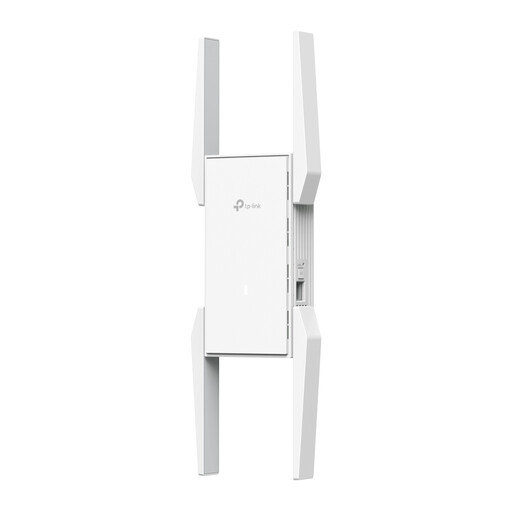
The RE705X is worth considering if you want the choice of wireless repeating or using an access point connected via an existing network cable.
The FRITZ!Repeater 3000 AX may suit an existing FRITZ!Box setup or a home where a network cable connection is possible.
The WiFi 6 Repeater 5400 is an option if you can place it somewhere with usable reception. The manufacturer also mentions access point use via a network cable.
The RP-AX58 is a dual-band Wi-Fi 6 repeater. AiMesh is relevant if you already have a compatible ASUS router.
These products include mesh points, wireless repeaters and access points for workspaces where Wi-Fi coverage or a wired connection needs attention. Extra Wi-Fi coverage won’t increase a low upload speed on your internet connection.
 No image available
Suitable for a setup with multiple mesh points; the product description lists three units.
Wi-Fi 6, dual-band (2.4 GHz/5 GHz); three gigabit Ethernet ports per unit.
 No image available
May suit you if you want to extend an existing wireless network and can place the repeater somewhere with usable reception.
The product description lists a 2.4 GHz signal and WPA-PSK/WPA2-PSK encryption.
 No image available
May suit you as a repeater for an existing network, provided it’s placed within range.
Dual-band with 2.4 GHz and 5 GHz bands; the description lists one Ethernet port.
 No image available
May suit you if you’re looking for an access point or extender and the listed connection options work with your network setup.
The product title lists N up to 300 Mbps, two antennas, WPS and Passive PoE; the description mentions access point, range extender and client modes.
 No image available
Suitable for a setup with multiple mesh points; the product description lists three units for Wi-Fi coverage throughout the home.
Dual-band Wi-Fi 5 (2.4 GHz/5 GHz); two Ethernet ports per unit.
Only if the Wi-Fi connection at your workspace is the main bottleneck. Compare the connection there with the one near your router or over a cable before choosing a repeater.
On a model with access point mode, select that mode and connect the Ethernet port to your router or a connected network point. TP-Link describes this setup for compatible models; check the instructions for your exact version.
Use a strong Wi-Fi or router password and install any available software updates. The Dutch Data Protection Authority recommends this as a security measure; it doesn’t prove that a particular model is secure.
You don’t need extra cover to benefit from the statutory consumer guarantee when buying from a Dutch retailer. According to the Dutch government, there is no fixed statutory guarantee period in the Netherlands. Extra cover can only add something if its terms give you more rights.
A device sold as radio equipment must meet the applicable requirements and carry the correct CE marking. The RDI sets out the requirements for radio equipment; a retailer’s product description alone doesn’t verify the specific version.