
Workshop participant behind thick walls
Your main priority is to have a reliable connection at one fixed workstation. Compare a wired connection with a Wi-Fi access point positioned close enough to that spot.


A more powerful router isn’t automatically the answer to Wi-Fi problems during a workshop behind thick walls. First, check whether you can connect your laptop or an access point to the workshop space using a cable. If you can’t, see whether a wireless mesh point there can still get a good signal from the main router, or whether powerline is worth testing. A higher advertised Wi-Fi speed doesn’t, by itself, prove that the connection will be stable in that room.
Your main priority is to have a reliable connection at one fixed workstation. Compare a wired connection with a Wi-Fi access point positioned close enough to that spot.
You want to reach other rooms as well as the workshop space. The number of units and how they connect to one another both affect your choice; the Consumers’ Association also highlights the importance of suitable placement.
Running a cable to your workshop space isn’t practical. Compare a wirelessly placed Wi-Fi access point with a powerline mesh system, and check the connection where you’ll be taking the workshop.
First, check the connection at your usual workshop spot. Then decide whether you mainly want to reach other rooms, can’t run a cable, or want to keep your existing equipment.
| What to consider | What to look for when buying | Who this matters to |
|---|---|---|
| Connection at the workshop space | Check whether your laptop has an Ethernet port or needs a suitable adapter. Also see whether an access point can be connected via LAN. | I want to avoid interruptions at my usual workstation during the workshop; around 39% of consumers give a reliable connection in that spot top priority. |
| Coverage in several rooms | Check how many units are included in the exact package and where they can be placed. See whether Ethernet backhaul is possible if the wireless connection between units isn’t suitable. | If I need Wi-Fi in other rooms too, I look beyond the workshop space alone; around 23% of consumers prioritise coverage in several rooms. |
| Installation without an Ethernet cable | Check whether the system you’ve chosen supports powerline; not every mesh model has this feature. Then test the connection at the workshop space. | Running a cable to my workshop space isn’t a practical option; around 23% of consumers give installation without a network cable top priority. |
| Keeping existing equipment | Check whether a new router will connect to your provider’s modem. Also compare whether adjusting your current setup or adding one access point would be enough. | I want to know whether I can keep my current router before replacing any equipment; around 15% of consumers prioritise keeping their equipment and limiting extra costs. |
An advertised speed or coverage claim doesn’t tell you how good the connection will be at your workshop spot. Placement and the connection between mesh points matter too.
Test your current setup at your workstation first. Then compare a cable or an extra access point with replacing the whole router.
Replacing a working router could be an unnecessary expense.
A wireless mesh point depends on its own connection to the network. If it’s placed somewhere with barely any signal, the connection to the workshop room may still be too weak.
Check the connection at the planned location. If it isn’t suitable, compare Ethernet backhaul with a powerline solution that you can test in your home.
You may need an extra unit or still have to run a cable.
Product details can vary between versions or packages. TP-Link lists three gigabit ports for the Deco PX50, while a Joybuy listing for the Deco PX50 (2-pack) specifies one Ethernet port per device.
Before buying, check the exact version, package contents and port layout against the manufacturer’s product details.
The Deco X50 and Deco PX50 offer different ways to connect mesh points. TP-Link describes the X50 as Wi-Fi 6 mesh with optional Ethernet backhaul; the PX50 uses your home’s electrical wiring for the powerline connection between units.
The ZenWiFi XD5 is a mesh option if you want to spread units across several rooms. ASUS describes Ethernet backhaul as an option when Ethernet connections are available.
According to the manufacturer, a FRITZ!Repeater 1200 AX can be used via LAN as an additional access point behind a router from another brand. The FRITZ!Box 4060 is a separate router option if you want to replace your router.
This selection includes mesh products and an access point for anyone looking to extend Wi-Fi to several areas or connect the workshop space by cable. For any specific device, check the CE marking on the device itself; a webshop listing isn’t conclusive proof, according to the Dutch Authority for Digital Infrastructure.
 Image unavailable
This mesh kit is an option if you want to place the units in several areas and can connect them by cable.
The product description lists Wi-Fi 7, tri-band, MLO, wired and wireless backhaul, and Ethernet ports on each unit.
 Image unavailable
This mesh product may suit you if you want to place network points in several areas and can use a wired connection between them.
The product details list Wi-Fi 7 (802.11be), dual-band at 2.4 GHz and 5 GHz, Ethernet ports and wired backhaul. Check which features and connections your network needs.
 Image unavailable
This mesh router may suit you if you want to extend Wi-Fi to several areas of your home.
The product title lists AX3000, dual-band and Wi-Fi 6. The product description mentions mesh, a single network name and roaming; check that the connection and features are right for your network.
 Image unavailable
This access point is an option if you can run a network cable to the workshop space and want to keep your existing router.
The product details list Wi-Fi 6, dual-band, Ethernet, PoE and WPA3. Check that your setup has the Ethernet and PoE connections you need.
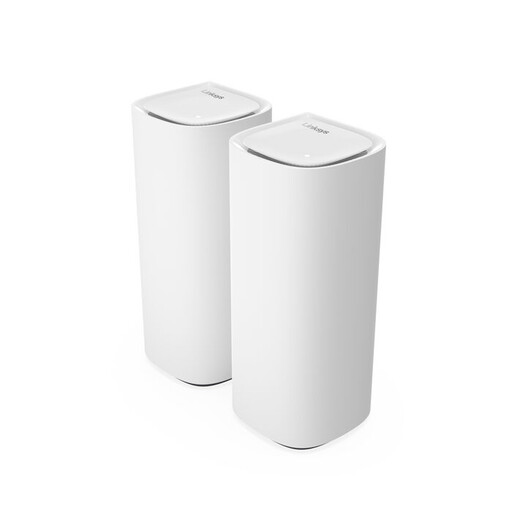 Image unavailable
This mesh kit may suit you if you want to extend Wi-Fi to several rooms and expandability matters to you.
The product details list tri-band Wi-Fi 7 at 2.4 GHz, 5 GHz and 6 GHz, and two mesh points. Check the planned placement and the connection at the workshop space.
Test it at the actual workstation using the workshop service and the devices you’ll be using. The speed you need depends on the service and how you use it, such as video or screen sharing only; Zoom publishes different requirements for these uses. A high Wi-Fi speed on the box is no substitute for testing.
Not without checking the connection between the points. With wireless mesh, the extra point needs to reach the main router, so a suitable spot in between may work better. With Ethernet backhaul, the connection between compatible points runs over a cable.
In 2021, the ACM published a policy on the freedom to choose your own modem and/or router. That doesn’t mean every model will work with every provider connection without any settings changes: before buying, check which connection and configuration your internet service requires.
Radio equipment placed on the market in the Netherlands must carry the correct CE marking, according to the Dutch Authority for Digital Infrastructure. Check the marking on the device itself; a webshop listing isn’t conclusive proof.
As well as any manufacturer’s warranty, the Netherlands has a statutory guarantee: the product must do what you could reasonably expect it to. According to ACM ConsuWijzer, the seller must offer an appropriate solution if a product is faulty; the statutory period isn’t simply two years for every product.