What should you look for when choosing?
Wireless repeater
Choose this option if: there’s a spot before the room with poor reception where the repeater can still get a usable Wi-Fi signal.
Bear in mind: the connection between the router and repeater is still wireless, so walls can weaken it too.
Wired access point
Choose this option if: you can run ethernet to or beyond the wall that’s causing the problem.
Bear in mind: you’ll need to run a cable and check that the device supports the access point mode you want.
Powerline with Wi-Fi
Choose this option if: running a cable is difficult and there’s no suitable spot for a wireless repeater.
Bear in mind: performance can vary from socket to socket, so test the kit in the places you plan to use it.
First, work out where the signal drops and what kind of connection you can get to your meeting spot. Then compare the setup, router compatibility and complete installation.
| What to consider |
What should you check? |
Who is this important for? |
| Connection during meetings |
Test the Wi-Fi at the extra access point and at your meeting spot; compare it with a wired connection if needed. |
If I want to join meetings from a regular spot without interruptions, I need to know whether the connection there is usable. Around 38% of consumers put meeting stability first. |
| Placement and connection |
Check whether there’s a spot with reception, whether you can run ethernet and which sockets you’d use for powerline. |
If I don’t have a cable route, there still needs to be a practical place for the repeater or adapters. Around 31% of consumers say ease of placement is their main concern. |
| Router compatibility |
Check the exact router model, the mesh feature it supports and the connection mode you need. |
If I want to keep using my current router, I need to know in advance whether it will work with the extra Wi-Fi access point. An estimated 15% of consumers make compatibility their top priority. |
| Complete setup |
Compare what you need for your chosen option: a device, cable and access point, or a powerline kit with an adapter at each end. |
If you want to understand the total purchase and running costs, look at the complete solution rather than just one device. Around 16% of consumers give total costs top priority. |
Joybuy products
This selection includes wireless repeaters, powerline Wi-Fi, access points and mesh devices for improving Wi-Fi around a meeting spot. Check which connection options and settings are right for your home and router for each model.
 No image available
TP-LINK TL-WPA7517 KIT powerline adapter starter kit
A powerline Wi-Fi option to consider if running a cable is difficult and there’s no suitable spot for a wireless repeater.
Test the sockets you plan to use: performance can vary from one place to another and may be affected by electrical appliances.
Joybuy
 No image available
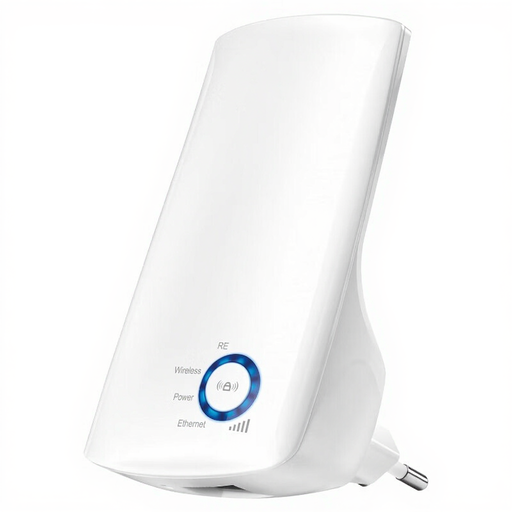
TP-Link TL-WA850RE, 300 Mbps
A wireless repeater to consider if there’s a spot between the router and your meeting area where the signal is still usable.
The stated 300 Mbps is the figure in the product name; check the connection where you hold your meetings. The Consumers’ Association advises placing Wi-Fi access points with as few obstacles between them as possible.
Joybuy
 No image available
TP-Link Deco XE75 Pro, 3-pack, tri-band Wi-Fi 6E
A mesh kit with three devices to consider if you want to use several Wi-Fi access points. Check in advance how the kit will work with your existing router and preferred connection setup.
The product name lists 2.4, 5 and 6 GHz bands and Wi-Fi 6E.
Joybuy
 No image available
TP-Link TL-WA801N access point and Wi-Fi extender
Worth considering if you can connect an access point by cable where you need it; you’ll need a network cable for this setup.
The product name lists up to 300 Mbps, two antennas and passive PoE. Check that the PoE power supply is suitable for your chosen installation.
Joybuy
 No image available
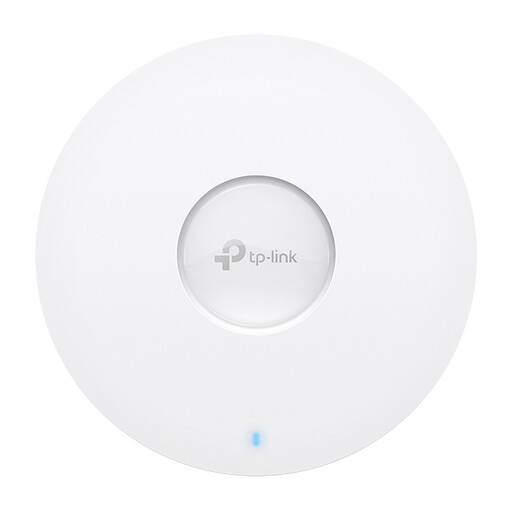
TP-Link Omada EAP613 Wi-Fi 6 access point
An access point to consider if you can run ethernet to the location you need; check that the required power supply and connection are available.
The product information lists a gigabit ethernet port, PoE support and wall or ceiling mounting. The product name states 1775 Mbps.
Joybuy
Frequently asked questions
How can I tell whether Wi-Fi or my internet connection is disrupting my meeting?
Compare a test using a network cable with one taken at your meeting spot. If the wired connection works well but Wi-Fi performs differently there, your local Wi-Fi setup may be a factor. Problems that also occur over a cable aren’t caused solely by the Wi-Fi access point.
Where should I put a wireless repeater?
Don’t automatically put it in the room where the Wi-Fi signal already drops. The Consumers’ Association advises keeping obstacles between Wi-Fi access points to a minimum. Use the signal indicator or setup app as a guide, then test the connection at your meeting spot.
How can I keep the connection working well after installation?
Protect your network with a strong password and keep your router and Wi-Fi access points up to date. Test the connection again at your meeting spot if you change the setup or notice interruptions.
What should I consider for the complete setup?
Check whether you need a standalone repeater, a cable with an access point, or a powerline kit with an adapter at each end. Also factor in energy use and support for the specific model you’re considering.
Can I use any imported Wi-Fi booster in the Netherlands?
No, not automatically. The Dutch Authority for Digital Infrastructure states that radio equipment must meet the applicable European requirements. For the specific model, check that it has the correct CE marking and is approved for use in the Netherlands; a device from another country may use different frequencies.


