First, test your internet connection and Wi-Fi where you work: a new router won’t fix a lack of available bandwidth. If your connection is fast enough but Wi-Fi struggles when several devices are in use, compare routers with suitable connections and traffic management features. If coverage is weak in one workspace, an ethernet cable or an extra access point may be a better fit. Before buying, check how the device works with your provider’s modem and whether the version you’ve chosen is compatible with your connection.
Who is this choice relevant to?
A household with simultaneous video calls
You want several laptops and phones to be able to make video calls at the same time. First, check the available connection, then compare network features for simultaneous use; a router’s specifications don’t guarantee call quality. Microsoft Support explains why sufficient bandwidth matters for video calls.
A homeworker with weak Wi-Fi in their workspace
You make calls in a spot where distance, walls or interference can weaken the signal. Before focusing on a higher Wi-Fi speed, compare moving your router, using a cable or adding an access point. The Dutch Authority for Digital Infrastructure offers advice on Wi-Fi and sources of interference.
A buyer looking to change their provider’s network
You want to use your own router without unexpectedly disrupting your existing internet or home network features. Check the connection, provider settings and the role of your provider’s device. ACM ConsuWijzer explains your freedom to choose your own network equipment.
Which buying concerns matter?
A single standalone Wi-Fi router
A good fit when: your internet connection is fast enough, your workspaces already have reasonable coverage and your current router struggles when several devices are in use.
Trade-off: a single router doesn’t add a separate access point beyond a wall that interferes with the signal.
Keep your existing router and connect a laptop by cable
A good fit when: problems mainly affect one fixed workspace and using an ethernet cable is practical.
Trade-off: connecting one laptop by cable won’t automatically improve Wi-Fi for other devices or solve a lack of upload capacity.
Add an access point or mesh system behind your router
A good fit when: your internet connection is good, but Wi-Fi is weak in another place where you make calls.
Trade-off: extra units need space and may require cabling; they won’t increase the speed of your internet plan.
| What to consider |
What to check before buying |
Who this matters to |
| Simultaneous video calls |
Test upload and download speeds during normal use, then compare the network features of the exact model. |
If calls take place on several laptops or phones, I want to know whether the connection and network can handle the demand. Around 36% of consumers give stable simultaneous video calls their highest priority. |
| Coverage in your workspace |
Test each place where you make calls and compare router placement, a cable and extra access points. |
If walls or distance weaken the signal in my workspace, I want a reliable connection there. Around 29% of consumers prioritise Wi-Fi coverage in their workspace. |
| Connection to your provider’s network |
Check modem and network connections, provider settings and the router or access point mode you need. |
Before changing my provider’s device, I want to know how my own router will fit into my existing network. Around 21% of consumers give this connection and configuration their highest priority. |
| Security and management |
Check the security settings and whether firmware updates will continue to be available for the exact model. |
When work devices are connected, I want to manage access and maintenance properly. Around 14% of consumers put security and network management first. |
Pitfalls to avoid when choosing
-
Assuming peak Wi-Fi speed is the speed you’ll get for video calls
Call quality also depends on available upload and download speeds, placement and interference. A model’s specifications don’t measure the connection in your workspace.
Test the connection and, where possible, compare the same laptop over Wi-Fi and with an ethernet cable.
-
Treating a router and an extra access point as the same solution
A single new router won’t automatically add a separate Wi-Fi transmitter in a spot where walls or distance weaken the signal.
Test the connection where you make calls. If you’re expanding your network, check the network mode and, if you’re connecting units by cable, make sure that connection is supported.
-
Confusing a shortened model name with the full version
A label such as a Wi-Fi class or product range doesn’t, by itself, confirm the full model and version.
Before buying, compare the full model name and version in the specific listing with the one you need.
Brands compared
ASUS
According to ASUS Netherlands’ specifications, the RT-AX58U is a standalone Wi-Fi 6 router with router and access point modes.
- ASUS lists Adaptive QoS, four gigabit LAN ports and a guest network for this model.
- The processor differs between V1 and V2, so check which hardware version is on offer. These specifications aren’t an independent measure of call quality.
TP-Link
The Archer AX55 is a standalone router. Deco is a separate product range that can be used as an access point behind an existing network.
- TP-Link lists OFDMA for the Archer AX55 and describes access point mode and ethernet backhaul for Deco.
- An Archer with OneMesh and a Deco system aren’t the same expansion solution unless you’ve checked compatibility.
FRITZ!
According to FRITZ!, the FRITZ!Box 4060 is a tri-band Wi-Fi 6 router that connects to an external cable, DSL or fibre modem.
- The manufacturer lists a 2.5-gigabit WAN port, three gigabit LAN ports, mesh and a DECT base station.
- The model description is for use with a modem; it doesn’t show that the router can directly replace every provider connection.
Linksys
Linksys describes the MR7350 as a standalone dual-band Wi-Fi 6 router with expandable Intelligent Mesh.
- Linksys lists four gigabit LAN ports, a gigabit WAN port and a guest network.
- Check the hardware version and support for the item on offer. The product specifications aren’t an independent measure of performance during simultaneous video calls.
Joybuy products
This selection includes standalone routers and mesh systems for a compact home workspace, with options for multiple devices and wired connections.
 No image available
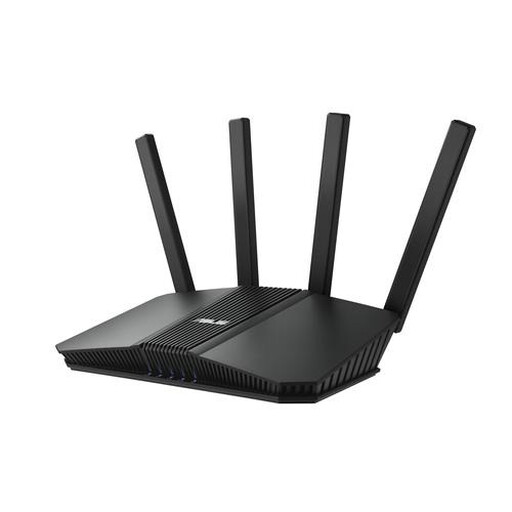
ASUS RT-AX52 AX1800 AiMesh
A standalone router to compare if several devices connect wirelessly or you can connect a workspace by cable.
The product information lists Wi-Fi 6, OFDMA, MU-MIMO, QoS and three gigabit ethernet ports. The title specifies dual-band, 2.4 GHz and 5 GHz.
View at Joybuy
 No image available
ASUS RT-BE82U BE6500
A standalone router to compare if you’re weighing up simultaneous wireless use and wired network connections.
The product name lists Wi-Fi 7 and 2.5-gigabit ethernet; the product description lists four ethernet ports and OFDMA.
View at Joybuy
 No image available
ASUS RT-AX52 Pro AX3000
A standalone router to compare if you use several devices and are considering a wired workspace.
The product name specifies dual-band, 2.4 GHz and 5 GHz. The product information lists AiMesh, four gigabit LAN ports, OFDMA and MU-MIMO.
View at Joybuy
 No image available
TP-Link Deco XE75, 3 units
A mesh system to compare if you need Wi-Fi in several workspaces and want your network to include more than one unit.
The product information lists tri-band Wi-Fi 6E, three units, OFDMA, QoS and three gigabit ethernet ports per unit.
View at Joybuy
 No image available
TP-Link Deco X50, 2-pack
A mesh system to compare if you want to extend Wi-Fi across several network points.
The product information lists dual-band Wi-Fi 6, two units, OFDMA, MU-MIMO and three gigabit ethernet ports per unit.
View at Joybuy
Frequently asked questions
Should I buy a new router if two video calls are glitching at the same time?
Not before testing your upload and download speeds and the connection in both places where you make calls. If your internet connection is the bottleneck, a different Wi-Fi router won’t solve the problem. If the issue is local to your Wi-Fi, you could look at router placement, a cable or extra coverage.
Can a Deco system work behind my existing router?
Yes. TP-Link describes an access point mode for Deco that extends your existing wired network and Wi-Fi coverage. Check how to connect it and follow the settings for the exact system if you want to use ethernet backhaul.
Can I use my own router in the Netherlands?
Yes. According to ACM ConsuWijzer, you’re free to choose your router. If you want to connect your own device directly to your provider’s network, technical and security requirements, as well as provider settings, may apply.
What legal requirements should I check when buying a router for the Dutch market?
Wi-Fi equipment sold in the Netherlands must comply with the relevant European equipment regulations and carry a CE mark. Check this for the exact version; a similar model name doesn’t confirm that the item on offer meets these requirements.
How can I keep my router suitable for everyday homeworking?
Use strong, non-default login details, check the access settings and keep the firmware up to date while updates are available for the exact model. The Dutch Data Protection Authority recommends this as a security measure; it doesn’t prove that a specific model remains secure once support ends.


