First, check the position and settings of your current router, then test the connection at the desk upstairs. If the signal is weak mainly in that spot, a wired access point or a well-positioned mesh node may help more directly than simply buying a new router. If you can’t run a cable, mesh may be an option. Also check whether an extender will work alongside your provider’s router, and which features change in the mode you choose.
Who is this relevant to?
Household with a study area upstairs
Wants a reliable connection at the desk upstairs while devices downstairs are online too. KPN recommends checking the position and settings of the modem router; the Consumers’ Association notes that devices need to support Wi-Fi 6 to benefit from that standard.
Household that wants to keep its provider’s router
Wants to extend Wi-Fi without losing the network features of the existing router. TP-Link describes access point mode as a way to let the existing router manage the network; check which features are available in this mode.
Household that wants to replace its main router
Is looking for a new router, but wants to establish first whether the problem lies with the internet connection or the Wi-Fi coverage upstairs. ACM ConsuWijzer and ASUS provide information on choosing a router and on the settings and modes of specific devices.
What should you consider when choosing?
Optimise your current router
Choose this option: if the connection upstairs may be affected by the router’s position or settings.
Trade-off: you won’t need an extra device, but this may not solve a weak signal travelling between floors.
Wired access point or mesh node
Choose this option: if you can run a network cable upstairs and need coverage in that specific area.
Trade-off: you’ll need to run a cable or use an existing connection; some gateway features may not be available in the app when using access point mode.
Wireless mesh system
Choose this option: if several areas have poor coverage and running a cable upstairs isn’t practical.
Trade-off: place an additional unit where it can still connect to the main unit; your home and the positioning will affect the results.
Replace the standalone router
Choose this option: if your current router needs replacing or lacks the router features you need.
Trade-off: a new router alone won’t guarantee coverage at a desk on another floor. If you’re replacing your modem too, check the connection type and your provider’s settings.
Start by testing the connection at the desk upstairs. Then decide whether to keep your router, extend the network using a cable or add a wireless mesh node.
| Buying concern |
What to consider |
Relevant to |
| Coverage at the desk upstairs |
Test in your study area; compare moving the router, using a wired access point and adding wireless mesh. |
If I study upstairs and the connection keeps dropping there while Wi-Fi works downstairs, I want to know whether an extra node in that spot could help. Around 40% of consumers put upstairs coverage first. |
| Using the network at the same time |
Check that the devices you use support Wi-Fi, and test the connection in the places where they’ll be used at the same time. |
When several people in the household study online in the evening, I want to consider both coverage and simultaneous connections. Around 30% of consumers put shared use at the top of their list. |
| Keeping your provider’s router |
Decide which device will manage the network and which features will remain available in access point mode. |
If I want to keep using my provider’s router, I want to know in advance how an extender will work with it. Keeping the existing connection is the main priority for around 20% of consumers. |
| Use and maintenance |
Compare how many nodes you’ll need and check whether the equipment receives firmware updates. |
If you’re mainly concerned about extra devices, power use and maintenance, you’ll want to know what needs looking after once everything is installed. Around 10% of consumers put these considerations first. |
Common buying mistakes
-
Assuming a high combined Wi-Fi speed means fast speeds at your desk
The maximum speed quoted for wireless connections doesn’t tell you what speed you’ll get in a particular spot in your home.
Test the connection at the desk using the devices you’ll actually use there.
-
Installing an extra router when your provider’s router should manage the network
An extender system can work in access point mode, but some gateway features won’t be available in the Deco app.
Decide in advance which router will manage the network and check that the features you need are available in the mode you choose.
-
Choosing a third mesh node based only on the quoted coverage area
Your home and the positioning of the nodes affect coverage; extra equipment also uses electricity.
First, test the areas where you need Wi-Fi, then work out how many nodes you’ll need for your set-up.
Brands to compare
TP-Link
The Deco X50 range is designed for expandable Wi-Fi 6 mesh and is available in sets of one, two or three units.
- According to the product specifications, each X50 unit has three gigabit ports and the system supports Ethernet backhaul.
- In access point mode, the main router manages the network and some gateway features aren’t available in the Deco app. The stated coverage isn’t a measurement of performance in your home.
ASUS
The RT-AX58U is a standalone Wi-Fi 6 router with several operating modes, including router, access point and AiMesh node modes.
- ASUS specifies four gigabit LAN ports for the RT-AX58U.
- A single router can’t guarantee coverage at a desk on another floor; check the exact hardware version too.
FRITZ!
The FRITZ!Box 7530 AX is designed for a DSL connection with Wi-Fi 6 and mesh expansion; the FRITZ!Repeater 1200 AX is a standalone extender.
- FRITZ! lists DSL speeds of up to 300 Mbit/s and a five-year warranty for the 7530 AX. The manufacturer specifies a gigabit LAN connection for the 1200 AX.
- The DSL figure isn’t a guaranteed Wi-Fi speed upstairs. Check whether your provider uses a DSL connection.
Products for extending Wi-Fi
These products are designed to extend Wi-Fi using mesh systems or a standalone access point. Choose based on your cabling options, where you want coverage and how many units you need.
 No image available
TP-Link AX1800 Mesh Wi-Fi 6 system, 2-pack
This two-unit mesh system is a good fit if you want to extend Wi-Fi to more than one area. Check in advance where the units can go and how they’ll work with your existing router.
The product name specifies AX1800, Wi-Fi 6 and a two-unit set.
View at Joybuy
 No image available
TP-Link Deco X50-PoE, 2-pack
This two-unit mesh system is suited to an installation where you can use PoE cabling. Before buying, check the cabling and power supply you’ll need for your set-up.
The product name specifies PoE, dual-band (2.4 GHz/5 GHz) and Wi-Fi 6 (802.11ax).
View at Joybuy
 No image available
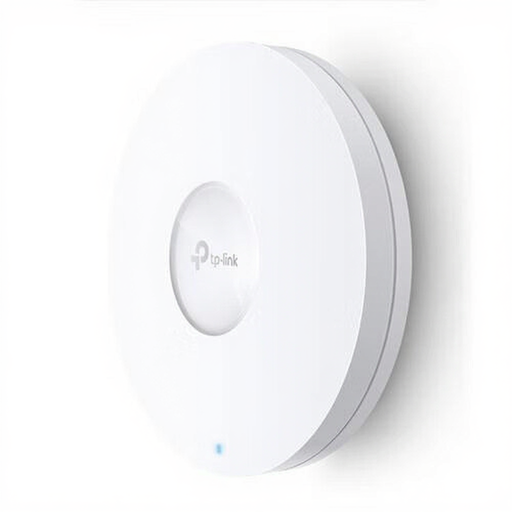
TP-Link Omada EAP620 HD wireless access point
A standalone access point is a good choice if you want to extend Wi-Fi to a fixed location using a network cable. This isn’t a mesh system with several nodes included.
The product name specifies PoE and 1201 Mbit/s; this nominal figure isn’t a measured speed at your desk.
View at Joybuy
 No image available
TP-Link Deco X50, 2-pack
A set of two X50 mesh nodes is an option if you want to extend Wi-Fi to several areas. Test where the second node can still get a reliable connection to the main unit.
The product name specifies dual-band (2.4 GHz/5 GHz) and Wi-Fi 6 (802.11ax).
View at Joybuy
 No image available
TP-Link Deco X50, 3-pack
A three-unit set may be right if your tests show that several locations would work well for placing a node. If you only need coverage for a desk upstairs, a third node may not be necessary.
The product name specifies dual-band (2.4 GHz/5 GHz) and Wi-Fi 6 (802.11ax).
View at Joybuy
Frequently asked questions
Do you need to replace your provider’s modem for better coverage upstairs?
No, that isn’t always necessary: an additional Wi-Fi extender can work alongside your existing router. If you also want to replace the modem, check the connection type and your provider’s settings. ACM ConsuWijzer explains the freedom consumers in the Netherlands have to choose their modem and router equipment.
Where should you place an additional wireless Wi-Fi node?
Place the node somewhere it can still get a reliable connection to the main router, then test the connection again at your desk. Your home’s layout and the positioning of the node will affect the results.
What changes when you set Deco to access point mode?
Your existing router will manage the network, while some gateway features won’t be available in the Deco app. TP-Link lists parental controls and port forwarding among the features that aren’t available in this mode; check whether that suits your needs.
What should you consider for maintenance and use?
Keep your network equipment up to date and check how many units will be switched on all the time, as extra equipment uses electricity. Power consumption depends on the devices and set-up you choose.
Which Dutch regulations should you know about when buying?
The Dutch Authority for Digital Infrastructure (RDI) states that radio equipment placed on the market in the Netherlands must meet the relevant European requirements and carry a CE mark. Check the specific model and follow the installation instructions; a CE mark doesn’t tell you what Wi-Fi coverage you’ll get at home.


