First, check the Wi-Fi signal at both workspaces and try moving your existing router to a more suitable location; walls and other obstacles can weaken the signal, as the Consumentenbond explains. If the connection is still weak in the second room, an extra Wi-Fi access point in a suitable position may help. If you can run a cable between the access points, wired backhaul can carry the connection between them along a wired route through the space in between. If coverage is already good, only then compare a standalone router based on its connections, simultaneous use and compatibility with your provider’s equipment.
Who should consider this Wi-Fi setup?
People working beyond the kitchen
If you lose Wi-Fi coverage at your workspace in the second room, you may want to consider whether moving your router, adding an access point or using a cable could help. The Consumentenbond identifies walls, ceilings and other obstacles as possible causes of signal interference.
Groups with lots of devices
For groups using laptops and phones at the same time when coverage at the workspaces is already reasonable. Check which Wi-Fi versions your devices support too; the Consumentenbond points out that your devices need to support Wi-Fi 6 to use that standard.
Users with a provider-supplied modem
If you want to keep your existing modem and connect your own router or Wi-Fi system to it. ACM ConsuWijzer provides information about choosing your own modem or router; also check which settings your provider requires for the connection.
What should you look for in Wi-Fi between two workspaces?
Start by checking the connection at both workspaces. Then decide whether you need better positioning, a standalone router or extra access points. For a mesh setup, also check the connection between the access points.
| What to consider |
What should you look for? |
Who is this for? |
| Coverage between workspaces |
Check both workspaces; review the positioning and whether the access points can reach each other reliably. |
If I want to work in both rooms at the same time, I need to know whether the signal can get through the kitchen and any obstacles in between. Coverage is the main purchasing concern for around 36% of consumers. |
| Simultaneous use |
Compare the options for connecting multiple devices and check which Wi-Fi versions the laptops and phones support. |
If several group members are working online at the same time, I want the chosen Wi-Fi features to work with their devices too. Around 29% of consumers prioritise simultaneous use. |
| Connecting to existing equipment |
Decide whether you need a router or just extra access points; check the connection mode and provider settings. |
If I want to keep my provider’s modem, I need to know how my own router or an extension will connect to it. This is the main purchasing concern for around 21% of consumers. |
| Guest access and management |
Check which guest access and network security settings the model offers, and what management is required. |
If visitors need temporary Wi-Fi access, I want to know whether guest access suits the way I use my network and which settings I’ll need to manage. Around 14% of consumers prioritise this concern. |
Common mistakes when choosing Wi-Fi
-
Assuming the stated Wi-Fi speed is what you’ll get in the other room
A Wi-Fi version or advertised speed alone won’t tell you how well the connection will perform at a workspace behind walls or other obstacles. The Consumentenbond points out that these obstacles can interfere with the signal.
Check both workspaces and assess positioning and coverage before comparing advertised speeds.
-
Placing a wireless access point where the signal is already weak
An extra access point needs a usable connection to the rest of the network. The Consumentenbond advises positioning access points so they can reach each other; TP-Link also describes a wired connection between Deco access points.
Choose a spot where the connection to the other access point is still usable. If the wireless connection through the rooms in between remains weak and you can run a cable, check whether a wired connection between the access points will work with your setup.
-
Confusing a router with a Wi-Fi extension for your existing modem
Replacing a router and connecting extra Wi-Fi access points are two different options. The connection and settings you need depend on which equipment you plan to keep.
First decide which device you’ll keep, then check the router or access point mode and any provider settings you’ll need.
Brands to consider
TP-Link
The Deco X50 is a Wi-Fi 6 mesh range with multiple access points, while the Archer AX55 is a standalone Wi-Fi 6 router.
- TP-Link says the Deco X50 has three gigabit ports per unit and is available in various packs. The Archer AX55 features OneMesh.
- Check how many access points you need and which expansion method suits your setup. These model features don’t guarantee coverage in the room beyond the kitchen.
ASUS
According to ASUS, the RT-AX52 is a standalone Wi-Fi 6 router that can also work as an access point or AiMesh node.
- ASUS lists three gigabit LAN ports and support for 2.4 and 5 GHz on the RT-AX52.
- ASUS says an AiMesh network requires two AiMesh-compatible routers. The features listed don’t prove that coverage will be sufficient in every home.
FRITZ!
The FRITZ!Box 4050 is designed to be used behind an existing modem; FRITZ! also offers mesh extensions.
- According to FRITZ!, the 4050 has three gigabit LAN ports and a DECT base station.
- You won’t need these extra features for every group project. A router on its own doesn’t tell you whether the Wi-Fi will reach the second workspace.
Joybuy products for a mesh setup
These Joybuy products are mesh systems with multiple access points, for situations where one router can’t provide reliable coverage at the other workspace. The positioning of the access points and the connection between them remain key to your setup.
 Image unavailable
ASUS ZenWiFi BT8 (2-pack), tri-band Wi-Fi 7 (2.4/5/6 GHz), white
A mesh system with two units may suit you if you need Wi-Fi at two workspaces; positioning will affect how well they connect to each other.
Tri-band; Wi-Fi 7 (802.11be); 2.4, 5 and 6 GHz.
View at Joybuy
 Image unavailable
TP-Link Deco X50 (3-pack), dual-band Wi-Fi 6 (802.11ax)
A set of three mesh units may suit you if you want to organise Wi-Fi across several workspaces; first check where the units can reach each other reliably.
Three units; dual-band; 2.4 and 5 GHz.
View at Joybuy
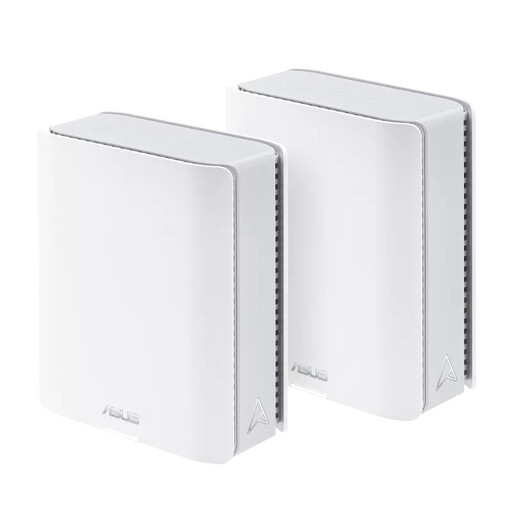 Image unavailable
ASUS ZenWiFi BT10 (2-pack), tri-band Wi-Fi 7 (802.11be), white
A two-point mesh system may be an option if one router can’t provide reliable coverage at the second workspace; bear in mind the connection between the two access points.
Tri-band; Wi-Fi 7 (802.11be); 2.4, 5 and 6 GHz.
View at Joybuy
 Image unavailable
TP-Link Deco X50-POE (2-pack), dual-band Wi-Fi 6 (802.11ax)
A mesh system with two units may suit you if one router can’t provide reliable coverage at the other workspace; check that the connection options work with your setup.
Two units; dual-band; 2.4 and 5 GHz.
View at Joybuy
 Image unavailable
TP-Link Deco XE75 Pro (3-pack), tri-band Wi-Fi 6E (802.11ax)
A set of three mesh units may suit you if you need Wi-Fi in several places; assess the positioning and connection between the units in your home.
Three units; tri-band; 2.4, 5 and 6 GHz.
View at Joybuy
Frequently asked questions
Do you need to buy a new router straight away if the Wi-Fi keeps dropping in the other room?
No. First, check both workspaces and try moving your existing router to a more suitable location. The Consumentenbond identifies walls and other obstacles as possible sources of interference. If moving it doesn’t help enough, consider an extra access point or a wired connection.
Where should you put an extra wireless access point?
Don’t put it somewhere the original signal has almost disappeared. Choose a location with as few obstacles as possible between the access points, then check the connection at your workspace; the Consumentenbond advises positioning them so they can reach each other.
Can you use your own router in the Netherlands, and do you need a licence for Wi-Fi?
According to ACM ConsuWijzer, you can generally choose your own modem or router; check with your provider which settings are needed for the connection. The Netherlands’ Digital Infrastructure Inspectorate (Rijksinspectie Digitale Infrastructuur) states that using Wi-Fi under the applicable conditions does not require an individual licence, notification or registration. Radio equipment offered on the Dutch market must meet the applicable requirements and carry a CE marking; a product listing alone doesn’t show that the version being offered meets them.
What rights do you have if a router bought online doesn’t work properly?
If a product doesn’t meet what you could reasonably expect, you have statutory rights against the seller in the Netherlands. ACM ConsuWijzer explains that this doesn’t simply mean a fixed two-year manufacturer’s warranty. For a standard product bought online, you generally have up to 14 days from delivery to change your mind, subject to statutory exceptions. This right to change your mind is separate from your rights if a product doesn’t meet the terms of the contract.


