
Sharing photos from behind thick walls
You upload from a room where walls or floors weaken the Wi-Fi signal from your existing router. Where you place an extra Wi-Fi point and how it connects are important considerations.


First, measure your upload speed using a network cable, then compare it with Wi-Fi where you send the album: a new router won’t increase the upload speed of your internet package. If the main problem is Wi-Fi behind the walls, first see whether you can reposition the router. A wired access point or mesh system with Ethernet backhaul is an option if you can run a network cable. Wireless mesh can help if cabling isn’t practical, but the extra unit still needs a usable connection to the network.
You upload from a room where walls or floors weaken the Wi-Fi signal from your existing router. Where you place an extra Wi-Fi point and how it connects are important considerations.
You can run a cable to the room or floor and want Wi-Fi there without relying on a wireless connection between Wi-Fi points. Check which devices support Ethernet backhaul.
You want to check first whether your internet connection, rather than the walls, is limiting the transfer. Compare a wired speed test with the Wi-Fi upload speed where you work.
Choose this if: your wired upload speed is good, but Wi-Fi is disappointing where you upload and you can move the router to a better position.
Bear in mind: you may need a longer cable; a different router won’t fix a slow internet connection.
Choose this if: you can run a network cable to a spot beyond the thick walls.
Bear in mind: the cable route, connections, power supply and operating mode all need to suit your setup. ASUS lists Ethernet backhaul for the ZenWiFi XD5 when there are Ethernet ports in the walls.
Choose this if: cabling isn’t practical and there’s a spot where the extra unit can still connect reliably to your existing network.
Bear in mind: the connection between the units also needs to work throughout your home. Placing a unit in a room with virtually no signal won’t automatically solve the problem.
Choose this if: a wired speed test suggests your internet connection’s upload speed could be the bottleneck.
Bear in mind: a faster Wi-Fi router won’t increase the upload speed included in your package. Check the upload speeds stated in your contract before replacing your equipment.
| What to consider | What should you check? | Who is this important for? |
|---|---|---|
| Wi-Fi where you upload | Measure the connection where you upload and see whether you can move the router to a more central position or connect an extra unit there. | If I’m sending photos from behind thick walls, I mainly want to know whether Wi-Fi is usable in that spot. Around 33% of consumers say coverage where they upload is their main concern when buying. |
| Connection between Wi-Fi points | Check whether you can run a cable and have suitable Ethernet ports, or test where a wireless unit can still connect. | If I add an extra unit, I want to know how it communicates with the main router. Around 27% of consumers say the connection between units is their top priority. |
| Upload speed of your internet connection | Run several tests on a wired computer and compare the results with the upload speeds included in your package. | If my album also uploads slowly over a wired connection, I want to check my internet connection before replacing my Wi-Fi equipment. Around 20% of consumers check this first. |
| Compatibility and total cost | Decide whether to replace your router or add Wi-Fi; check the operating mode, number of Wi-Fi points, cables and power supply. | If I want to keep using my current equipment, I want to know which extra connections or components I’ll need. Around 20% of consumers say compatibility and additional requirements are their main concern when buying. |
Your internet connection’s upload speed and your home Wi-Fi can each be a bottleneck. Upgrading your router won’t fix a limited upload speed from your internet connection.
First, compare an upload speed test using a network cable with a test where you use Wi-Fi.
The extra unit also needs to communicate with the network. If it’s placed somewhere that connection barely works, simply adding another unit won’t solve the problem.
Test the connection where you plan to put it, or see whether Ethernet backhaul is possible using a suitable network cable.
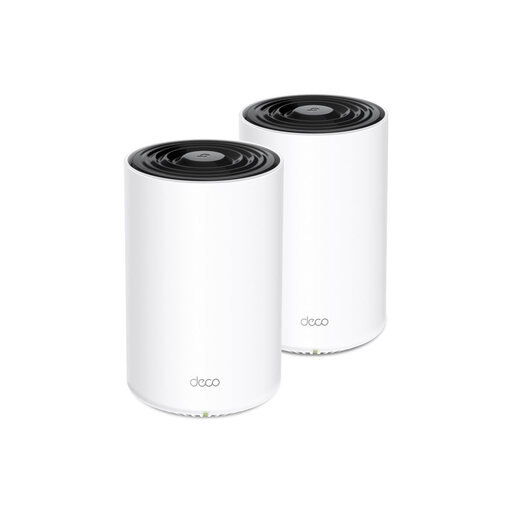
The standard Deco X50 and the X50-PoE differ in areas including power supply, mounting and specified connections. The PoE version isn’t simply interchangeable with the standard X50.
Before ordering, check the full model name, pack size, ports and power supply method.
The Deco X50 range includes mesh kits with multiple Wi-Fi points. The Deco X50-PoE is a different version, designed for PoE power and alternative mounting options, among other things.
The ZenWiFi XD5 is a mesh option if you can connect the Wi-Fi points using Ethernet.
The FRITZ!Repeater 3000 AX is an extension option if you want to keep your existing router.
This selection includes mesh systems and Wi-Fi extenders, including options for Powerline, wired backhaul and multiple Wi-Fi points. Check that the connections, power supply and operating mode of each version suit your existing network.
 No image available
An option if you want to extend Wi-Fi to areas where walls weaken the signal and use the Powerline connection described, which runs over your existing electrical wiring.
Wi-Fi 6 (802.11ax); three gigabit Ethernet ports per unit; Router Mode and Access Point Mode.
 No image available
Suitable for a mesh setup if you can use a wired connection between the units.
Wi-Fi 7 (802.11be); the product description lists wired backhaul.
 No image available
A mesh option if you want to extend Wi-Fi using multiple Deco units and can run an Ethernet cable between them.
Wi-Fi 6; two units; the product description lists Ethernet backhaul.
 No image available
An option for extending Wi-Fi with multiple mesh points; check where you can place the units and how they’ll connect before buying.
Tri-band Wi-Fi 6E (2.4 GHz, 5 GHz and 6 GHz); three units; three gigabit Ethernet ports per unit.
 No image available
Suitable for a setup where you want to power the Wi-Fi points using PoE; check that your network and mounting location are suitable.
Wi-Fi 6 (802.11ax); PoE support; two Ethernet ports per unit.
First, run a test on a computer connected by network cable, then compare the upload speed where you use Wi-Fi. If the wired upload speed is already too low for your needs, check the upload speeds offered by your provider before buying a new router.
Not necessarily: a wireless unit still needs a usable connection to the network. If you have a suitable cable, a supported mesh unit can use Ethernet backhaul, so the connection between the units doesn’t rely on Wi-Fi.
Yes. ACM ConsuWijzer explains that you have router freedom in the Netherlands. A provider may, for example, refuse a device if it’s unsafe; also check which connection details and settings your service requires.
Wireless equipment sold in the Netherlands must meet radio equipment requirements, and compliant equipment must carry a CE mark. Check the marking and product information for the specific version; this article doesn’t establish whether a particular unit meets the requirements.
No. In the Netherlands, consumer purchases are covered by a legal guarantee as well as any manufacturer’s warranty. The seller is responsible if a product used normally doesn’t meet what you could reasonably expect; there isn’t automatically a fixed two-year period.