First, check your internet speed using a wired connection to the router, then test the Wi-Fi where you watch the recording: a new router won’t fix a problem with the internet connection itself. If the main issue is poor coverage between floors, choose a wired access point or mesh with Ethernet backhaul if network cables are available. Without cables, a wireless mesh system may be suitable if the units can reach one another. The number of units you need and the coverage you get depend on your home’s layout and obstacles, not just the stated floor area.
Who is this advice for?
Viewer with weak Wi-Fi upstairs
Does the recording mainly buffer on a different floor from the router? If so, it’s worth checking the router’s position and coverage where you watch first. The Consumers’ Association (Consumentenbond) points out that floors, walls and other obstacles can interfere with the Wi-Fi signal.
Viewer with network cables
If there’s a network cable where you watch, you can check whether a wired access point or mesh with Ethernet backhaul would suit your setup. TP-Link and ASUS describe Ethernet backhaul as an option for their respective mesh products.
Viewer using their provider’s equipment
Want to keep your provider’s modem and just extend your Wi-Fi? Check that the additional device is suitable for this. If you’re replacing a modem, you’ll need to consider your provider’s connection details and settings; ACM ConsuWijzer explains the requirements for using your own equipment.
What should you look for?
First, check that your wired internet connection is fast enough and identify where the Wi-Fi signal drops out. Then choose between repositioning your equipment, adding a wired access point or using mesh, depending on your available cables and the signal strength between floors.
| What to consider |
What to look for when buying |
Who is this important for? |
| Coverage on the viewing floor |
Test the Wi-Fi where you watch and check where an additional unit can receive a strong enough signal. Treat stated coverage areas as product claims, not a guarantee for your home. |
If the recording mainly buffers upstairs, I want to know whether better placement or an additional unit will reach the viewing area. Around 36% of consumers prioritise coverage between floors. |
| Reliable playback |
Check whether there’s a network cable to the viewing floor and whether the system supports Ethernet backhaul. Without a cable, the wireless signal between the units must be strong enough at their chosen locations. |
If I want to watch the recording without interruptions, I look at the connection between the additional unit and the router, not just the Wi-Fi signal by the screen. Around 29% of consumers prioritise a stable connection. |
| Connecting to your existing network |
Decide whether you want to extend your Wi-Fi while keeping your provider’s modem, or replace the modem. If you’re replacing it, check the required connection and settings with your provider. |
If I want to keep my provider’s equipment, I look for a way to extend the Wi-Fi without replacing the modem unnecessarily. Around 21% of consumers make keeping their existing connection their top priority. |
| Purchase, maintenance and security |
Compare how many units you need, which features are included and how to keep the equipment up to date. Also check whether your playback devices can use features from a newer Wi-Fi generation. |
If I only want to buy additional equipment when it will improve the signal where I watch, I take the number of units needed and maintenance into account. Around 14% of consumers prioritise overall costs and maintenance. |
Common buying mistakes
-
Treating the stated coverage area as a guarantee for three floors
Actual coverage also depends on walls, floors, obstacles and where the equipment is placed. A stated coverage area doesn’t automatically tell you whether the signal will reach the viewing area in your home.
Test the signal where you watch and check that the units can reach one another from their intended positions.
-
Assuming a new Wi-Fi label will stop buffering
The Wi-Fi generation alone doesn’t tell you whether the problem lies with the internet connection, local coverage or the connection between Wi-Fi units.
First, check the connection using a cable to the router, then test the Wi-Fi where you watch. Only then choose the technology and number of units.
-
Replacing your modem when you only want to extend your Wi-Fi
Adding an access point or mesh system is different from replacing your provider’s modem. If you replace the modem, you may need connection details and settings from your provider.
Decide in advance whether you’ll keep your modem. If you’re replacing it, ask your provider which connection and settings you’ll need.
Brands to consider
TP-Link
The Deco X50 is a Wi-Fi 6 mesh range available in multi-unit packs, designed to spread coverage across different areas of your home.
- TP-Link describes the X50 as an expandable mesh system with optional Ethernet backhaul. The manufacturer also lists three gigabit ports per unit.
- The coverage TP-Link quotes for a three-pack isn’t a measurement of your home. Check the exact version and where you plan to place the units.
ASUS
ZenWiFi XD5 is a Wi-Fi 6 mesh option to compare if you want to position several units around your home.
- ASUS describes Ethernet backhaul for the XD5 when Ethernet ports are available in the walls.
- Check the version and coverage in your home; a stated range doesn’t guarantee a connection through floors and walls.
Google
Nest Wifi Pro is an expandable Wi-Fi 6E system you could consider alongside your existing Wi-Fi equipment.
- Google states that each router covers up to 120 m² and describes how to extend coverage with additional routers.
- The stated area doesn’t prove that the signal will reach through concrete or other floors that significantly weaken it.
NETGEAR
Orbi 770 RBE773 is a three-unit Wi-Fi 7 mesh system to compare if you also need to consider multiple connected devices or a fast wired connection.
- NETGEAR lists tri-band and an option for 2.5-gigabit Ethernet backhaul.
- The stated speed and coverage are manufacturer claims; the available information doesn’t show that these features are necessary for watching a single theatre recording.
Products at Joybuy
This selection includes routers, mesh systems and an access point for extending or redistributing Wi-Fi coverage around your home. Before buying, check which setup suits your existing provider equipment and the cables available.
 No image available
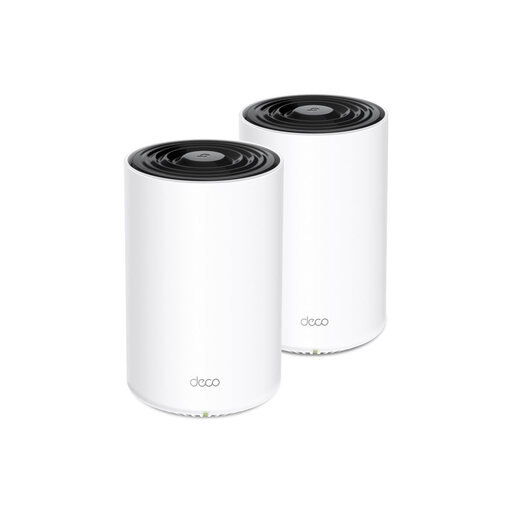
TP-Link Deco PX10 dual-band Wi-Fi 6
Could suit you if you want to extend Wi-Fi across several floors while keeping your provider’s equipment; check that the stated Powerline setup is suitable for your home.
Dual-band, 2.4 GHz and 5 GHz, Wi-Fi 6 (802.11ax), white.
Joybuy
 No image available
ASUS RT-AX52 AX1800 AiMesh Wi-Fi 6 router
Could suit you if a centrally positioned device can reach the viewing area, or if you want the option to expand later with compatible AiMesh routers.
Dual-band, 2.4 GHz and 5 GHz, Wi-Fi 6, gigabit Ethernet.
Joybuy
 No image available
TP-Link Deco X50 Wi-Fi 6 mesh system, 3-pack
Could suit you if you want to position mesh units across several floors; the product description mentions optional Ethernet backhaul if there’s a network cable between the units.
Dual-band, 2.4 GHz and 5 GHz, Wi-Fi 6 (802.11ax), white.
Joybuy
 No image available
TP-Link Deco XE75 Pro tri-band Wi-Fi 6E mesh system, 3-pack
Could suit you if you want to position mesh units across floors and have devices that use Wi-Fi 6E; check which Wi-Fi features your devices support.
Tri-band, 2.4 GHz, 5 GHz and 6 GHz, Wi-Fi 6E (802.11ax).
Joybuy
 No image available
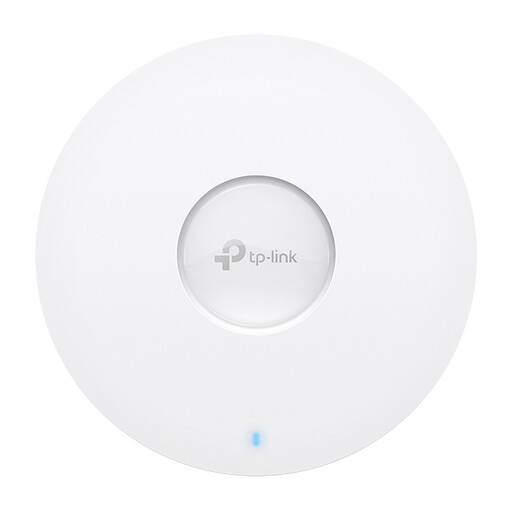
TP-Link Omada EAP613 Wi-Fi 6 access point
Could suit you if there’s a network cable to the viewing floor; check that your network supports the stated PoE power supply and Omada management.
1775 Mbps, Power over Ethernet (PoE), white.
Joybuy
Frequently asked questions
How can I tell whether the problem is with my Wi-Fi or internet connection?
First, check your internet speed using a computer connected to the router with a network cable, then test the Wi-Fi where you watch. If the wired connection also repeatedly falls short, new Wi-Fi equipment alone won’t solve the problem.
Where should I place additional Wi-Fi units?
Don’t put an additional unit somewhere the incoming signal is already almost gone. The Consumers’ Association (Consumentenbond) recommends keeping obstacles between units to a minimum; check the result using a speed test or the setup app.
Can I use my own router in the Netherlands?
Yes. According to ACM ConsuWijzer, you’re free to choose your router. There are also connection requirements for using your own modem; if you’re unsure, ask your provider which technical settings and connection type you need.
What compliance requirements apply to a Wi-Fi router sold in the Netherlands?
According to the Dutch Authority for Digital Infrastructure (Rijksinspectie Digitale Infrastructuur), radio equipment placed on the market in the Netherlands must meet the relevant European requirements and carry a CE marking. Check the marking and exact version; a product listing on its own isn’t an independent assessment of compliance.
Do my rights end when the manufacturer’s warranty expires?
No. ACM ConsuWijzer distinguishes between a manufacturer’s warranty and your statutory rights: you’re entitled to expect a product to work properly for a reasonable length of time under normal use. The retailer is your point of contact for statutory guarantees.


