
Workshop participant behind thick walls
You need reliable Wi-Fi in a fixed location where walls weaken the signal from your current router. The Consumers’ Association notes that walls and ceilings can interfere with the Wi-Fi signal.


First, test your internet connection using an Ethernet cable, then check the Wi-Fi at the workshop location. If the wired connection is good but the Wi-Fi is weak behind thick walls, try moving the router to a better position first. If that doesn’t help, a wired access point offers a straightforward solution, while wireless mesh depends on a good connection between the units. Choose a solution that works with your existing network, and check that it’s the European version and carries the CE mark.
You need reliable Wi-Fi in a fixed location where walls weaken the signal from your current router. The Consumers’ Association notes that walls and ceilings can interfere with the Wi-Fi signal.
You can run a cable to your workspace or an extra access point, and don’t want the connection between access points to rely on a wireless signal passing through the wall. TP-Link and ASUS describe Ethernet backhaul for compatible systems.
You want to improve your coverage without unnecessarily replacing your internet provider’s router or modem. ACM ConsuWijzer explains the freedom to choose your own router in the Netherlands.
Work through the options in this order: first check that your internet connection itself is working well, then see if a better router position is enough, and only then choose between wireless mesh and a wired access point. The Consumers’ Association notes that walls and ceilings can interfere with the signal; Ofcom points out that Wi-Fi can’t be faster than the broadband connection it relies on.
Choose this if: your wired connection is good and you can place the router higher up or in a more central position.
Bear in mind: moving it may require a longer cable, and won’t always solve the problem if a wall significantly weakens the signal.
Choose this if: moving the router doesn’t help enough and you can position the units so they still have a good wireless connection to each other.
Bear in mind: a unit placed where the signal is weakest may not get a strong enough connection itself. The claimed coverage won’t guarantee performance through the walls in your home.
Choose this if: you can run an Ethernet cable to or beyond the problem wall.
Bear in mind: running a cable, and finding a suitable PoE power supply for some access points, can mean extra work or equipment.
Consider this if: your current router is faulty or outdated and you can position the new one more effectively.
Bear in mind: a newer Wi-Fi version won’t automatically overcome signal loss through thick walls, and using your own router may require extra configuration.
| What to consider | What should you check? | Who is this important for? |
|---|---|---|
| Wi-Fi coverage at the workshop location | Test the Wi-Fi where you’ll be attending the workshop, and check where an extra unit can still get a good connection to the previous one. | If I need a reliable connection behind a thick wall, I want to know whether an extra unit will get a signal there itself. Around 33% of consumers prioritise coverage behind walls. |
| Reliable video and audio | Compare a wired speed test with the Wi-Fi at the workshop location; check the Ethernet ports and support for wired backhaul. | If my video and audio need to keep working throughout the workshop, I’d rather not rely on a weak wireless link. Around 33% of consumers give connection reliability top priority. |
| Compatibility with your provider’s network | Check whether the device can work as an access point behind your existing router. If replacing your modem, ask which connection details and network settings you’ll need. | If I want to keep my provider’s router, I’m looking for an extension that works with it without replacing the modem. Around 17% of consumers prioritise this kind of straightforward connection. |
| Purchase and running costs | Check how many access points you’ll need, what’s included in the set and whether an access point requires a suitable PoE power supply. | If I want to find out whether moving the router is enough before buying anything, I also consider extra units, power supplies and cabling. Around 17% of consumers give these costs top priority. |
A new Wi-Fi device won’t make your broadband connection itself any faster. First, run a test on a computer connected with an Ethernet cable; Ofcom points out that Wi-Fi can’t be faster than the broadband connection.
If your wired test results are repeatedly disappointing, contact your internet provider before choosing a new Wi-Fi device.
This helps you avoid buying something that doesn’t solve the problem.
The unit still needs to make a good connection to another one. If there’s no usable signal where you put it, it may not help much.
Try a position with fewer obstacles between the units, and follow the system’s setup guide. If the wall continues to weaken the connection, look into wired backhaul.
Coverage in your home also depends on walls, obstacles and positioning. TP-Link states that actual wireless coverage isn’t guaranteed.
Check the connection at the workshop location and the ports on the exact version you’re considering, rather than relying on the Wi-Fi version shown on the box.
The Deco X50 range consists of mesh Wi-Fi units. TP-Link describes optional Ethernet backhaul for the Deco X50.
The ZenWiFi XD5 is a mesh system. ASUS also describes a wired connection between its units.
The UniFi U6+ is an access point for a setup where you can run an Ethernet cable to a suitable location; it doesn’t replace an internet modem on its own.
Orbi is a mesh system with a router and satellites. NETGEAR also describes Ethernet backhaul for compatible systems.
This selection includes mesh sets for using Wi-Fi in several locations and an access point for anyone who can run an Ethernet cable to the workshop location. Check that the version you choose works with your existing network, and look for the CE mark on the actual device.
 No image available
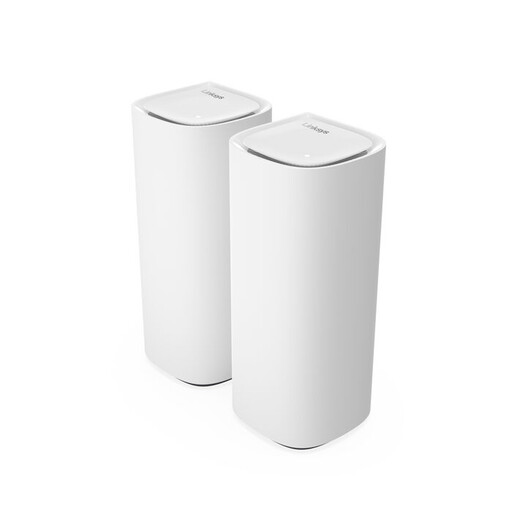
Worth considering if you’re looking for a mesh set with two units to cover several areas of your home.
Set size: 2-pack.
 No image available
A good fit if you’re considering a mesh system with multiple units; check how the set will connect to your existing network first.
Version: 2-pack, tri-band (2.4 GHz/5 GHz/6 GHz), Wi-Fi 7 (802.11be).
 No image available
An access point to consider if you can run an Ethernet cable to the workshop location.
The listing specifies 2976 Mbit/s and Power over Ethernet (PoE). The stated PoE+ power supply requires compatible PoE+ equipment.
 No image available
A mesh option to consider if you want Wi-Fi in several locations; check the connection and positioning requirements for your home.
Version: tri-band (2.4 GHz/5 GHz/6 GHz), Wi-Fi 7 (802.11be).
 No image available
A mesh set to consider if you need several units; check that the set size and positioning suit the coverage you’ve measured.
Version: 3-pack, tri-band (2.4 GHz/5 GHz/6 GHz), Wi-Fi 6E (802.11ax).
No. First, test your internet connection using a computer connected by cable, then compare it with the Wi-Fi at the workshop location. If Wi-Fi is the main problem, try placing your current router higher up and in a more central position first.
Don’t automatically put it in the room with the weakest signal: it still needs to connect to another unit. Reduce obstacles between the units and use the setup guide for your chosen system to check the positioning.
Yes. ACM ConsuWijzer explains the freedom to choose your own router in the Netherlands. If you replace your modem, connection settings and network type may also matter, so check these details before choosing a device.
Check for the CE mark on the device you’re actually buying. The Dutch Authority for Digital Infrastructure states that equipment offered for sale in the Netherlands must meet the applicable European product requirements; CE marking is one of these requirements.
Check whether you need cables or extra access points, and whether an access point requires a suitable PoE power supply. Also check which features are included with the exact version and whether any require a paid subscription.