
A fixed home office behind thick walls
You regularly take calls from one room with a weak signal, and can look into whether it’s possible to run a cable to that room.


Don’t replace your router straight away: first check its position and settings, then test the connection where you take your calls. Running an Ethernet cable to an access point or mesh node means the connection between the units won’t have to pass wirelessly through thick walls. If you can’t run a cable, powerline may be an option if the sockets are suitable. A wireless repeater only works if it’s placed somewhere it can still receive a strong enough Wi-Fi signal.
You regularly take calls from one room with a weak signal, and can look into whether it’s possible to run a cable to that room.
You can’t run Ethernet to your workspace and want to find out whether your home’s electrical wiring or an intermediate Wi-Fi point can provide a reliable connection.
You want to improve your current setup or extend it in a targeted way, and are considering the connections and mesh compatibility you’ll need.
Choose this if: your router’s position or settings could be the problem, or you can connect your work laptop directly using a cable.
The trade-off: this could save you from buying extra Wi-Fi equipment, but connecting your laptop by cable won’t automatically improve Wi-Fi for your other devices.
Choose this if: you can run Ethernet from your existing router to your workspace and need Wi-Fi there.
The trade-off: the connection between the units won’t have to pass wirelessly through the walls. Consider the cable route, ports, operating mode and, if needed, PoE power.
Choose this if: running a network cable isn’t practical and the sockets you plan to use provide a reliable connection.
The trade-off: performance depends on the sockets and whether the equipment is compatible, so test the connection at home.
Choose this if: you can’t run a cable or get a reliable powerline setup, but there’s a place where an extra unit can still receive a strong enough Wi-Fi signal.
The trade-off: thick walls can also weaken the wireless connection to the extra unit. If you’re considering mesh, check that the system is compatible with your router.
First, test the connection where you actually take your calls and improve your existing setup if needed. Then choose an extension based on the available cable route, sockets and compatibility with your router.
| What to consider | What to look for when buying | Who is this important for? |
|---|---|---|
| Connection where you take calls | Test the connection there and check whether you can run Ethernet to an access point or mesh node. | If I take calls behind thick walls, I want to know whether the connection is reliable in that spot. Around 40% of consumers say a reliable connection where they take calls is their top priority. |
| Extending your network without running a new cable | Check that the powerline models work together and that the sockets you plan to use are suitable. Place a wireless unit somewhere it can still receive a reliable Wi-Fi signal. | If I can’t run a cable, I’m looking for an extension that works without a new Ethernet cable. Around 30% of consumers prioritise a solution that doesn’t require a new network cable. |
| Router compatibility | Check your router model, operating mode and required Ethernet ports. Make sure any mesh features apply to your specific combination of devices. | If I want to keep my current router, I want to know in advance whether the extra unit will work with it. Around 20% of consumers say an extension that works with their existing router is their top priority. |
| Everything you need and after-sales support | Check what you’ll need for installation, such as cabling or PoE power, and look into support and warranty cover. | When choosing, I want to consider more than just the device: installation and after-sales support matter too. Around 10% of consumers say everything they need and after-sales support are their top priorities. |
A wireless extension relies on the signal it receives from your existing network.
First, look for a midway spot with a reliable signal. Otherwise, compare a wired unit or a powerline setup that you can test at home.
The Wi-Fi version alone doesn’t determine performance: walls and positioning affect the range too. The Consumers’ Association (Consumentenbond) recommends checking the connection where you’ll actually take calls.
Check how the extra unit connects to your router, then test the connection where you work.
According to TP-Link, the Deco PX50 does not form a powerline backhaul with the Deco PX10, P7 or P9.
Before buying, check the full model numbers and powerline compatibility of the devices you’ve chosen.
If the devices aren’t compatible, you may need different equipment.
Ubiquiti specifies PoE power for the UniFi U6 Pro. So, when choosing an access point, you’ll also need to consider its power supply and wired connection.
Check which PoE power supply and Ethernet cabling you’ll need, and what you already have.
You may need a compatible PoE switch or PoE adapter, and possibly Ethernet cabling.
The Deco X50 offers a mesh setup with the option of an Ethernet connection between units. The Deco PX50 is a separate G.hn powerline option for when running cables isn’t practical.
The FRITZ!Repeater 1200 AX can extend an existing network, especially if you already have a compatible FRITZ!Box.
The UniFi U6 Pro is a wired access point option for a fixed mounting position with Ethernet.
AiMesh lets you extend a network using compatible ASUS routers and nodes, which can also be connected to each other by cable.
The Magic 2 WiFi 6 next Starter Kit is a powerline Wi-Fi option for when there’s no suitable cable route.
This Joybuy selection includes wired access points and mesh systems, plus a wireless repeater for extending Wi-Fi to a fixed workspace. Check the connection, power supply and compatibility requirements for each model against your setup.
 No image available
An option for a fixed access point setup if you can provide the required wired connection and PoE+ power supply.
 No image available
A mesh option if you want to extend your Wi-Fi and are considering a wired connection between units. Check that the setup you have in mind will work with your network.
 No image available
A wireless option for extending an existing Wi-Fi network. Place the repeater somewhere it can still receive a reliable Wi-Fi signal.
 No image available
A fixed access point option for extending Wi-Fi to your workspace. Check that the Ethernet connection and PoE power supply are suitable for your setup.
 No image available
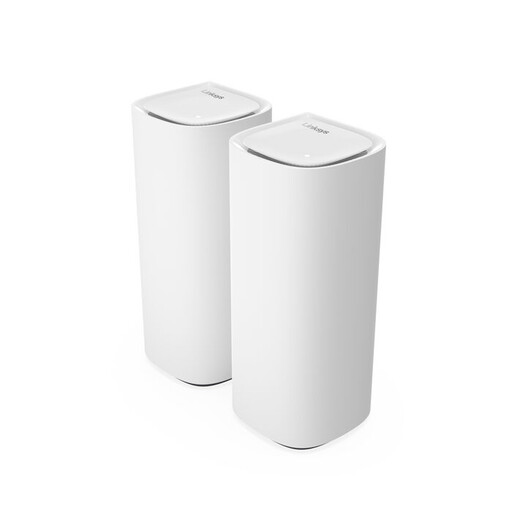
A mesh option for extending Wi-Fi with extra nodes. Check which connections and links between the units will work with your setup.
No. First check your router’s position and settings, then test the connection where you take calls. Walls and distance can interfere with the signal, so adding a unit in a suitable spot or running a cable may be a more targeted solution than replacing your router.
It depends on the mode you’ve set up. For a satellite Deco in router mode, TP-Link says to connect it to the LAN port on the main Deco or to a switch connected to it. In access point mode, it may also be possible to connect it to the main modem or router. Follow the instructions for your chosen mode to avoid creating a network loop.
Not with every model. According to TP-Link, the PX50 doesn’t form a shared powerline backhaul with the PX10, P7 or P9, because those models use a different powerline standard. So, check the full model numbers of your equipment.
Check whether you’ll need Ethernet cabling and whether your access point requires PoE power. A wired setup may also need a suitable switch or adapter. Remember to check the terms for support and warranty cover too.
For online consumer purchases, you’re generally entitled to a 14-day cooling-off period from the day after delivery. ACM ConsuWijzer also states that you have a statutory guarantee if a product doesn’t do what you could reasonably expect it to do. A manufacturer’s warranty doesn’t replace your statutory rights.