What should you look for when choosing?
Move your existing router
Choose this if: your wired upload speed is good and moving the router improves the Wi-Fi signal at your workspace enough.
Bear in mind: you may need a longer cable, or there may be restrictions on moving your provider’s equipment.
Wired access point or mesh system
Choose this if: you have a suitable cable and connections available to your workspace or between mesh points.
Bear in mind: the cable route, available ports and setup with your existing router.
Wireless mesh system
Choose this if: running cables isn’t practical and each planned point can still get a usable connection to the network.
Bear in mind: placement still matters; an extra point behind the same problem wall isn’t guaranteed to improve your upload speed.
Check your internet connection
Choose this if: your wired upload speed is also too slow for sending your files.
Bear in mind: a different router won’t fix a limitation with your connection or broadband package.
The Consumentenbond points out that walls can disrupt the Wi-Fi signal, and that uploading large files requires sufficient upload speed. So compare your wired speed with the speed at your workspace before choosing equipment.
| What to consider |
What to look for when buying |
Who is this important for? |
| Wi-Fi coverage at your workspace |
Compare your wired speed with the speed at your workspace; work out where the router or an additional point could go. |
I want to upload from a room behind thick walls and mainly need Wi-Fi at my workspace. Around 36% of consumers give coverage in that spot top priority. |
| Upload speed |
Measure your speed over a wired connection and Wi-Fi, then compare the results with the upload speed included in your broadband package. |
I send large design files and want to find out whether Wi-Fi or my internet connection is limiting uploads. Around 29% of consumers put file upload speed first. |
| Compatibility with your existing network |
Check cable routes, ports, router or access point mode, and your provider’s connection instructions. |
I want to keep my provider’s router and check that the cables and settings will work with the new setup. Around 21% of consumers give compatibility with their existing network top priority. |
| Buying and managing your setup |
Check how many points are included, which cables and adapters you’ll need, whether security updates are available, and that the specific version has the correct CE marking. |
I want to know in advance which components I’ll need and how to manage the network after installation. Around 14% of consumers put buying and managing their setup first. |
Joybuy products for home Wi-Fi
This selection includes mesh systems and an access point for situations where you want to extend Wi-Fi to a workspace. First, measure your upload speed over a cable and check that your chosen equipment will work with your existing router.
 No image available
ASUS ZenWiFi BD4 Dual-Band Wi-Fi 7
A mesh option to consider if you need Wi-Fi in several places and want to explore wired backhaul.
Dual-band: 2.4 GHz and 5 GHz. Wi-Fi 7 (802.11be).
View at Joybuy
 No image available
TP-Link Omada EAP653 access point
An access point to consider if you have a suitable wired network connection to your workspace.
The product name identifies it as a wireless access point.
View at Joybuy
 No image available
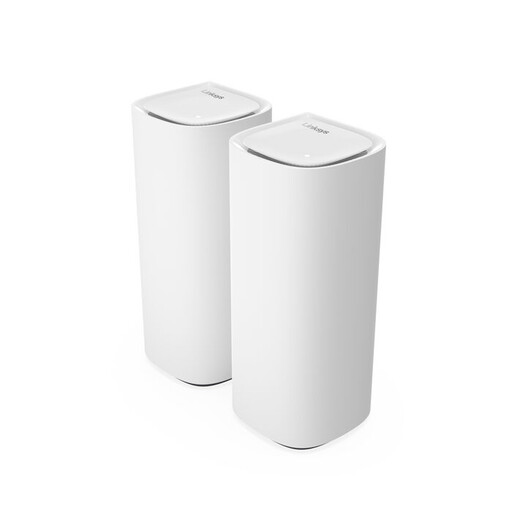
Linksys Velop Pro 7 Tri-Band Wi-Fi 7
A mesh option to consider if you want Wi-Fi in several places and want to factor a wired connection into your choice.
Tri-band: 2.4 GHz, 5 GHz and 6 GHz. Wi-Fi 7 (802.11be).
View at Joybuy
 No image available
TP-Link Deco X50-POE (2-pack)
A mesh system to consider if you need Wi-Fi in several places and want to explore wired placement.
Dual-band: 2.4 GHz and 5 GHz. Wi-Fi 6 (802.11ax).
View at Joybuy
 No image available
TP-Link Deco XE75 Pro (3-pack)
A mesh system to consider if you need Wi-Fi in several places and want to factor Ethernet connections into your setup.
Tri-band: 2.4 GHz, 5 GHz and 6 GHz. Wi-Fi 6E (802.11ax).
View at Joybuy
Frequently asked questions
How can I tell whether a new router will make my uploads faster?
First, measure your speed using a network cable, then measure it over Wi-Fi at your workspace. If your wired upload is also slow, look into your connection or broadband package. If only the Wi-Fi result is poor, consider the router’s placement or adding an access point. The Consumentenbond identifies walls and ceilings as factors that can disrupt the Wi-Fi signal.
Can I use my own router alongside or instead of my provider’s router?
According to ACM ConsuWijzer, you have the right to choose your router, although technical and security requirements may apply when connecting your own equipment. Ask your provider which settings you need. If you keep your provider’s router, check that the system you choose supports the required connections and access point options.
Do I need to maintain my network equipment after installation?
Yes. Keep your equipment up to date and check that the mesh points are still connected using the intended wired or wireless connection. ACM ConsuWijzer highlights the importance of updates for protecting your network and personal data.
Does a router sold in the Netherlands need a CE marking?
Yes. The Rijksinspectie Digitale Infrastructuur states that the correct CE marking must appear on the equipment. Check the marking on the specific version; the product name alone doesn’t confirm which marking is on the device you receive.
How long does the legal guarantee last when you buy something in the Netherlands?
According to the Dutch government, there is no fixed statutory guarantee period in the Netherlands: you’re entitled to a product that works properly for as long as you could reasonably expect it to. If something goes wrong, contact the retailer; a manufacturer’s guarantee is separate from this.


