What should you look for when choosing?
Wired access point or mesh node
A good fit if: you can run Ethernet to your workspace or to a suitable spot in between.
The trade-off: you’ll need to run a cable, but the connection to the extra Wi-Fi point won’t have to pass wirelessly through the wall.
Powerline with Wi-Fi
A good fit if: running cables isn’t practical and there are suitable sockets near both the router and your workspace.
The trade-off: the connection runs through your home’s electrical wiring, so the result will depend in part on the sockets and the electrical environment.
Wireless repeater
A good fit if: there’s a spot before your workspace where the repeater can still receive a usable signal from the router.
The trade-off: the repeater needs to maintain its own connection to the router. Placing it behind a wall where the signal is already weak won’t solve the problem by itself.
For uploads through thick walls, the key considerations are the connection between the router and the extra Wi-Fi point, and the upload speed your internet connection already provides at the router.
| Consideration |
What to look for when buying |
Who should consider this? |
| Upload connection |
Compare upload speeds at your workspace and router; check the upload speed offered by your internet connection. |
I want to find out whether uploads are already slow at the router, so I don’t choose an extra Wi-Fi point to fix a problem it won’t address. Around 33% of consumers say upload performance is their main concern when buying. |
| Placement and cabling |
Check the router signal at a potential repeater location, the sockets for powerline, and whether running a network cable is practical. |
If I can’t run a cable, I want to know in advance whether a repeater location or the sockets will work. Around 27% of consumers prioritise finding a suitable location and connection route. |
| Router compatibility |
Check the exact router model and the requirements for repeater, mesh and access point modes. |
I want to keep my existing router and avoid choosing a mesh feature that doesn’t work with my system. Around 20% of consumers say compatibility with their current router is their main concern. |
| Complete setup |
Check which devices, adapters and cables you’ll need, along with the support and seller terms that apply. |
I want to know which parts I need for the complete setup and what support is available. Around 20% of consumers put the complete setup and support at the top of their list. |
Joybuy product picks
This selection of Joybuy products includes mesh systems and wireless repeaters for extending Wi-Fi around your home. Before choosing, check the connection route, compatibility with your router and whether the listed connections suit your upload needs.
 No image available
TP-Link Deco E4 (3-pack)
A mesh system with three units for spreading Wi-Fi across several rooms.
Wi-Fi 5 (802.11ac), dual-band (2,4 GHz/5 GHz). According to the product description, the Ethernet ports support speeds of up to 100 Mbps.
View at Joybuy
 No image available
ASUS ZenWiFi BD4 Dual-Band
A mesh Wi-Fi system for extending coverage around your home. Before buying, check that the connection you want between the units will work with your setup.
Wi-Fi 7 (802.11be), dual-band (2,4 GHz/5 GHz).
View at Joybuy
 No image available
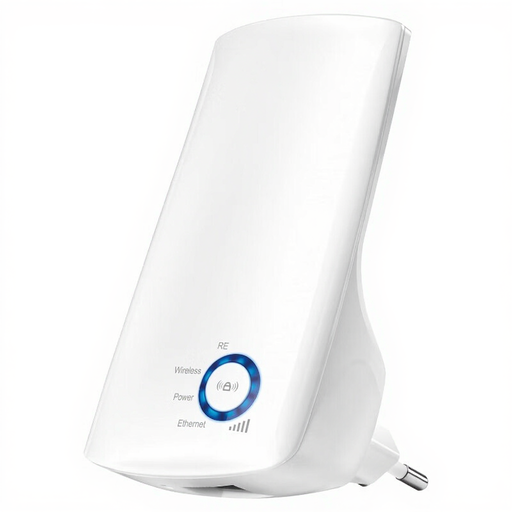
TP-Link TL-WA850RE 300 Mbps Universal
A wireless repeater for extending your existing Wi-Fi coverage. Choose a location only after checking that the repeater can still receive a usable signal there.
The product name lists 300 Mbps; this isn’t a guaranteed upload speed at your workspace.
View at Joybuy
 No image available
TP-Link Deco M4 (3-pack)
A mesh system with three units for spreading Wi-Fi across several rooms. Check which connections and connection mode you need for your router.
Wi-Fi 5 (802.11ac), dual-band (2,4 GHz/5 GHz).
View at Joybuy
 No image available
Wifi Repeater Pro Black
A wireless repeater for extending your Wi-Fi without running cables. It still needs to be placed somewhere it can receive a signal from the router.
View at Joybuy
Frequently asked questions
Will a more powerful Wi-Fi repeater help if uploads are slow even next to the router?
Not necessarily. First compare upload speeds at the router and your workspace, and check your internet connection. An extra Wi-Fi point extends coverage, but it won’t increase the upload speed available from your internet connection.
Where should I place a wireless repeater?
Place it between the router and the room with poor reception, somewhere it can still receive a usable signal from the router. Then test the connection at your workspace.
What should I check when setting up powerline?
Test the sockets you plan to use for the adapters. TP-Link warns that using an extension lead or surge protector can significantly reduce powerline speeds. Electrical appliances with motors can also cause interference.
What are my rights if a device I bought online isn’t suitable or doesn’t work properly?
For online consumer purchases, you generally have a statutory cooling-off period of up to 14 days after delivery, subject to legal exceptions. The seller is responsible for the statutory guarantee; in the Netherlands, there isn’t one fixed guarantee period for every product.
What product requirements apply to Wi-Fi equipment sold in the Netherlands?
Radio equipment placed on the market in the Netherlands must meet the applicable requirements of the Radio Equipment Directive. According to the Dutch Authority for Digital Infrastructure, the manufacturer applies the CE marking when the device meets all the requirements. This alone doesn’t mean that a specific item being offered for sale has been checked.


