Joybuy products for wired Wi-Fi and mesh
These product choices focus on mesh systems and wired access points for anyone looking to bring Wi-Fi closer to their study space. A suitable cable route is important for wired connections. For wireless mesh, check where the points can still receive a good signal from each other.
 No image available
ASUS ZenWiFi BD4, Wi-Fi 7, 2-pack
An option if you’re looking for a mesh system with a wired connection between points.
Dual-band: 2.4 GHz and 5 GHz. The product information mentions wired backhaul and setup via the ASUS Router app.
Joybuy
 No image available
TP-Link Deco X50, Wi-Fi 6, 3-pack
A three-point mesh kit for anyone looking to use multiple Wi-Fi points.
Dual-band: 2.4 GHz and 5 GHz. The product information mentions optional Ethernet backhaul and three gigabit Ethernet ports per point.
Joybuy
 No image available
TP-Link Omada EAP653 wireless access point
A wired access point to consider if you can run an Ethernet cable to your study space.
The product information mentions Ethernet, PoE and wall or ceiling mounting.
Joybuy
 No image available
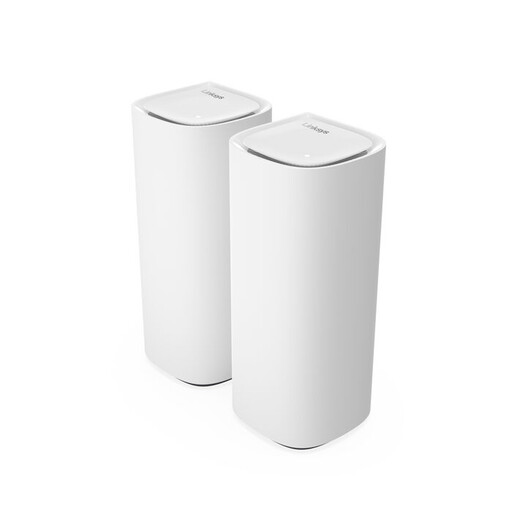
Linksys Velop Pro 7, tri-band Wi-Fi 7, 2-pack
A mesh option if you want to extend Wi-Fi across multiple points and manage it through an app.
Tri-band: 2.4 GHz, 5 GHz and 6 GHz. The product information mentions two mesh points included, the option to add extra compatible points, and setup and management via the Linksys app.
Joybuy
 No image available
TP-Link Deco X50-PoE, Wi-Fi 6, 2-pack
A mesh kit to consider if you’re looking for two points with PoE support.
Dual-band: 2.4 GHz and 5 GHz. The product information mentions two mesh points and PoE support.
Joybuy
Frequently asked questions
Should I buy a new router if only the study portal struggles to load in my study space?
No, not before checking the connection. Compare a wired speed test with Wi-Fi in your study space and try moving the router or adjusting its settings. A problem with the portal alone doesn’t prove that your Wi-Fi is at fault.
Where should I put a wireless mesh point?
Place it somewhere it can still receive a usable signal from the other point, not automatically where the Wi-Fi already drops out. The Consumentenbond recommends keeping obstacles between Wi-Fi points to a minimum.
How do I connect powerline, and what should I check afterwards?
Test the adapters in the sockets you actually plan to use. devolo recommends plugging them directly into a wall socket where possible and notes that nearby electrical appliances may cause interference. Check the connection while using those appliances as normal, too.
What ongoing costs and support should I compare?
Compare how many Wi-Fi points will be switched on all the time and how much energy they use. Check how updates are provided and whether a provider’s point is bought or rented. KPN says that rented SuperWifi points only work with KPN Internet.
Can I use my own router in the Netherlands, and do I need a licence for home Wi-Fi?
According to ACM ConsuWijzer, you have the freedom to choose your router. Additional network and security requirements may apply if you use your own modem, and your provider must make the necessary settings available. According to the Rijksinspectie Digitale Infrastructuur, you don’t need a licence for home Wi-Fi as long as you follow the rules for the designated frequencies and their use. Make sure your router is also set to the correct country.
Does the warranty on a router bought in the Netherlands always end after two years?
No. ACM ConsuWijzer distinguishes between a manufacturer’s or seller’s guarantee and your statutory rights. With normal use, you’re entitled to a product that lasts as long as you could reasonably expect. If the product is faulty, contact the seller.


