
Uploading behind a thick wall
If the Wi-Fi is weak in the room where you upload photos, the connection between that room and the router is what matters most. This is highlighted in information from Consumentenbond, TP-Link and ASUS.


First, compare the upload speed next to your router with the speed where you upload your photo album. If the connection is particularly weak in that room, a wired Wi-Fi access point is a good option if you can run an Ethernet cable to it. Without a cable, powerline may work if your electrical wiring provides a usable connection, while a wireless repeater still needs a good signal from the router. None of these solutions will, on its own, increase the upload speed provided by your internet package.
If the Wi-Fi is weak in the room where you upload photos, the connection between that room and the router is what matters most. This is highlighted in information from Consumentenbond, TP-Link and ASUS.
To get coverage in several areas, you need to decide where to place your Wi-Fi access points and how to connect them. Consumentenbond and Cloudflare cover the placement of access points and how to measure network performance, respectively.
A limited extension may be suitable if you can find a spot where a wireless repeater still has a usable connection to the router. Consumentenbond and NETGEAR highlight placement and connection to the existing network as important considerations.
Choose this if: you want to extend coverage to one room and can place the repeater somewhere with a usable signal from the router.
Bear in mind: the connection to the router still depends on the wireless signal where you place it.
Choose this if: you can run an Ethernet cable to the room where you upload photos; the connection between the access points will not need to travel wirelessly through the wall.
Bear in mind: you will need a cable, compatible ports and a suitable configuration.
Choose this if: running a cable is not practical and the electrical wiring between the sockets you plan to use provides a usable connection.
Bear in mind: performance depends on your electrical wiring and device compatibility.
First, test the upload speed on the same internet connection, both by the router and in the room where you upload photos. Consumentenbond covers where to place Wi-Fi access points, while Cloudflare describes upload speed as part of a network performance test.
| Consideration | What should you check? | Who should consider this? |
|---|---|---|
| Connection through thick walls | Check whether Ethernet backhaul is possible. Otherwise, you could try powerline using the sockets you intend to use, or find out where a repeater can still receive a usable signal from the router. | If the room where I upload photos is behind a thick wall, I mainly want a usable connection to that room. Around 36% of consumers prioritise the connection alongside or through the wall as their main buying concern. |
| Upload speed | Compare the upload speed by the router with the speed in the room where you upload photos, under similar conditions. | If photos upload slowly even next to the router, I first want to find out whether my internet connection is the limiting factor. Around 29% of consumers prioritise checking the available upload capacity. |
| Extending coverage to one room | Find a midway spot with a power socket and a usable signal from the router. Also check that the repeater works with your existing router. | For one room with weak Wi-Fi, I want to extend my existing network where needed, without choosing a larger system unnecessarily. Around 21% of consumers prioritise a limited extension as their main buying concern. |
| Several rooms and usage | Check how many Wi-Fi access points you need, where you can put them, and what connection and management options the setup offers. Also consider energy consumption. | If several rooms need coverage, I want to know how many access points and installation steps will be involved. Around 14% of consumers prioritise extending coverage to several rooms and keeping running costs manageable. |
A wireless repeater needs to maintain its own connection to the router. If you put it somewhere without a usable incoming signal, it will not solve the connection problem between that spot and the router.
Start by placing the repeater somewhere in between where the router signal is still usable. If that is not possible, look into a wired connection or a suitable powerline setup.
A Wi-Fi specification does not measure the entire connection to the online photo service. A Wi-Fi extender will not increase the upload capacity of your internet connection.
Before choosing a solution, compare the upload speed by the router with the speed where you upload your album.
Powerline devices are not automatically interchangeable. Your electrical wiring can also affect the connection between the adapters.
Check that the exact product combination is compatible, then try the devices in the sockets you plan to use. TP-Link recommends plugging Deco powerline products directly into a wall socket.
TP-Link's Deco PX50 product information describes mesh access points that use G.hn powerline to connect to each other.
devolo's Dutch product information describes the Magic 2 WiFi 6 next as a Wi-Fi access point that uses powerline over your mains wiring.
ASUS describes the ZenWiFi XD5 as a mesh system that can use Ethernet backhaul.
The manufacturer's Dutch product page describes the EAX15 as a Wi-Fi 6 extender for expanding an existing wireless network.
FRITZ! describes the Repeater 1200 AX as connecting to a router via Wi-Fi or LAN.
This selection includes mesh systems with wired backhaul, powerline, wired access points and a wireless repeater. Choose based on the connection you can set up to the room where you upload photos, and where you can place the equipment.
 No image available
Suitable for a setup where you can run an Ethernet cable to one or more Wi-Fi access points.
Mesh system with wired and wireless backhaul; three Ethernet ports per unit.
 No image available
Suitable if you want to try a network connection over your existing mains wiring and need Wi-Fi in another room.
The product name indicates that this is a powerline starter kit. The connection depends on your electrical wiring and the sockets you choose.
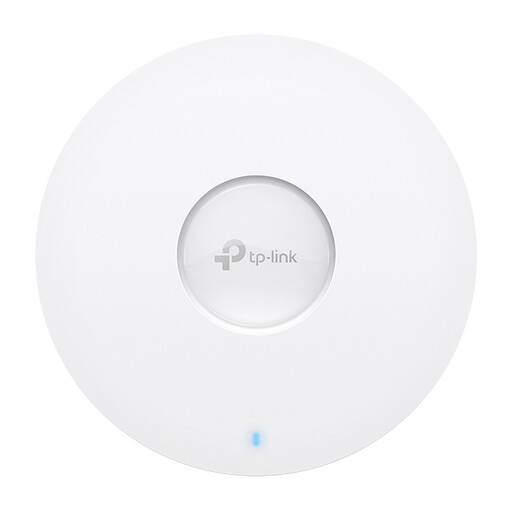 No image available
Suitable for a wired access point setup if Ethernet is available in the room.
Wi-Fi 6, Gigabit Ethernet port and PoE. The product description mentions ceiling or wall mounting and web management.
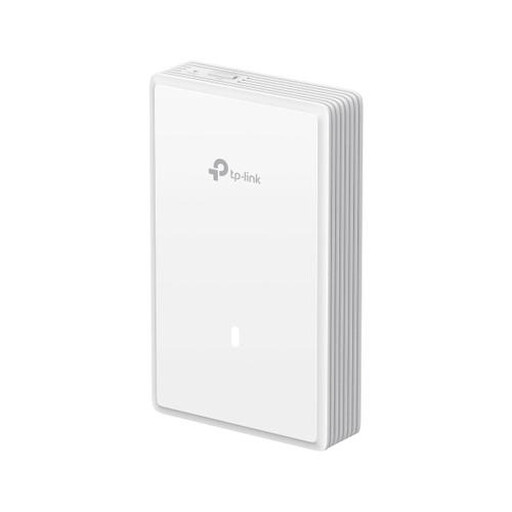 No image available
Suitable for a fixed, wired wall-mounted setup in a room where you can connect Ethernet.
The product description mentions three Ethernet ports, including 2.5G support, and PoE. A wired Ethernet connection to the installation point is required.
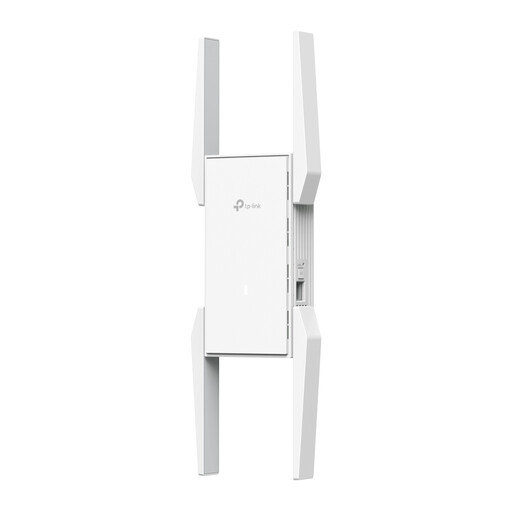 No image available
Suitable for a limited wireless extension if you can place the device within range of your existing network.
The product description mentions dual-band Wi-Fi, an Ethernet port and web management. The repeater needs to be within range of your existing network.
Compare the upload speed next to the router with the speed where you upload your photo album. If uploads are slow even next to the router, check your internet connection first; an extra Wi-Fi access point will not increase its upload capacity.
TP-Link recommends plugging Deco powerline products directly into a wall socket, as some extension leads and converters can filter the signal. Also check whether the manufacturer says the devices can communicate over the electrical wiring you plan to use.
No. According to TP-Link, the PX50 cannot provide powerline backhaul with the PX10, P7 or P9. Standalone powerline adapters will not automatically provide the same Deco backhaul either.
Wi-Fi access points use electricity, so compare the energy consumption of the complete setup. ACM ConsuWijzer explains that the statutory guarantee in the Netherlands does not automatically end after two years: with normal use, it depends in part on how long you can reasonably expect the product to last.
According to the Dutch Digital Infrastructure Inspectorate, radio equipment sold in the Netherlands must meet the applicable European requirements and carry the correct CE marking. Check the specific version you intend to buy; the model name on a product page alone does not confirm that it has this marking.