First, test your internet connection with a cable at the router, then compare it with Wi-Fi where you take your lesson. If the Wi-Fi is particularly weak there, try moving the router to a better position or adding an extra Wi-Fi access point. A wired connection to that point is another option if you can install one. A different router or faster broadband package won’t automatically solve the problem of thick walls.
Who is this solution for?
Learner behind thick walls
You take lessons in a room at the far end of your home and want to check whether the Wi-Fi signal drops out there. The Consumers’ Association (Consumentenbond) points out that walls and other obstacles can interfere with the signal.
Attending a live video lesson
You want to do more than just receive video; you also need to be heard clearly when you respond. For an interactive lesson, the connection where you take it matters, as does your upload connection.
Living somewhere without a cable route
You can’t run an Ethernet cable to your lesson space and want to find out whether there’s a suitable spot for a wireless Wi-Fi access point, or whether powerline adapters that use your mains sockets could be an alternative.
What should you look for in Wi-Fi for a language lesson?
First, compare the connection at the router with the one where you take your lesson. Then choose between repositioning the router, adding a Wi-Fi access point or using a wired connection, depending on what your home and existing equipment allow.
| What you need |
What to look for when buying |
Who is this important for? |
| Coverage where you take your lesson |
Compare a wired test at the router with Wi-Fi where you take your lesson; check whether you can connect an extra access point via Ethernet. |
If I take lessons in a room behind thick walls, I want to know whether Wi-Fi drops out there before adding any equipment. Around 33% of consumers say coverage where they take their lesson is their main concern. |
| A stable connection for a live lesson |
Test the connection where you take your lesson while the lesson app is running, and check the wired connection too if necessary. |
If I need to send video and audio during a live lesson, I pay attention to the connection in both directions. Around 27% of consumers prioritise this two-way connection. |
| Compatibility with your router and home |
Check the connections and operating modes; make sure brand-specific mesh features are compatible with your main router model. |
If I want to keep using my existing router, I want to know whether a new access point will work with it and with the cabling available. Around 20% of consumers prioritise this compatibility. |
| Cost and maintenance |
Check which components and connection materials you’ll need for the complete setup, and look into the device’s support and updates. |
If I want to improve Wi-Fi where I take my lesson without buying unnecessary equipment, I consider both the purchase price and ongoing maintenance. Around 20% of consumers prioritise cost and long-term use. |
Wi-Fi buying pitfalls when you have thick walls
-
Focusing only on the advertised top speed
A stated Wi-Fi speed doesn’t tell you what you’ll get where you take your lesson. Walls can interfere with the signal.
Test the connection where you take your lesson, then decide whether you need an extra access point.
Depending on the setup you choose, you may still need an extra Wi-Fi access point or cable.
-
Putting a repeater somewhere with almost no Wi-Fi
A wireless access point still needs to receive data from the main router so it can extend the connection.
First, find a spot in between where the router’s signal is usable. If you can run a cable, consider a wired access point.
An access point without a usable connection to the router may end up going to waste.
-
Confusing standard repeater operation with mesh compatibility
The TP-Link RE705X can work as an extender, but the manufacturer says OneMesh requires a compatible OneMesh router.
Check standard repeater operation, access point mode and your preferred mesh integration separately.
-
Assuming powerline works the same in every socket
devolo warns that electrical appliances and certain sockets can affect data transmission.
Test a powerline kit in the sockets you actually plan to use.
If the sockets you’ve chosen don’t perform well, you may need to use a different installation spot or connection route.
Brands to compare
TP-Link
The Deco X50 is a mesh system; the RE705X offers another option, as a repeater or wired access point.
- The models mentioned have gigabit ports; with the Deco X50, Ethernet backhaul is one way to connect the units.
- Using OneMesh with the RE705X requires a compatible OneMesh router. Theoretical speeds don’t tell you what coverage you’ll get in your home.
FRITZ!
The FRITZ!Repeater 1200 AX is designed to extend Wi-Fi and can also connect via LAN.
- The manufacturer lists one gigabit LAN port and compatibility with other routers.
- FRITZ! mesh integration depends on having a compatible FRITZ!Box; using it with another router doesn’t guarantee that integration.
ASUS
The RT-AX58U is a standalone Wi-Fi 6 router for anyone looking for router settings or multiple Ethernet ports.
- The Dutch model specifications list router and access point modes, four gigabit LAN ports and AiMesh.
- A standalone router won’t automatically overcome thick walls. Also check which hardware version is on offer.
devolo
Magic 2 WiFi 6 next is a powerline kit with Wi-Fi, for situations where running an Ethernet cable isn’t practical.
- The manufacturer lists Wi-Fi 6 and two gigabit ports on the Wi-Fi adapter.
- Sockets and electrical interference can affect data transmission, so test the connection points you plan to use.
Ubiquiti
The UniFi U6+ is a wired Wi-Fi 6 access point for a fixed installation with compatible UniFi management.
- The manufacturer lists a gigabit network connection.
- You’ll need UniFi Network software to manage it; an access point isn’t a direct replacement for your modem.
Joybuy products for Wi-Fi where you take your lesson
These products offer mesh Wi-Fi or a fixed access point to provide Wi-Fi in different parts of your home. For a mesh kit, check whether you can connect the units with a cable and whether that suits the setup your home allows.
 No image available
TP-Link Deco X50 (3-pack)
A mesh kit with three units for Wi-Fi in different parts of your home. Ethernet backhaul is an option if you can connect the units with cables.
Dual-band Wi-Fi 6; three gigabit ports per unit.
View at Joybuy
 No image available
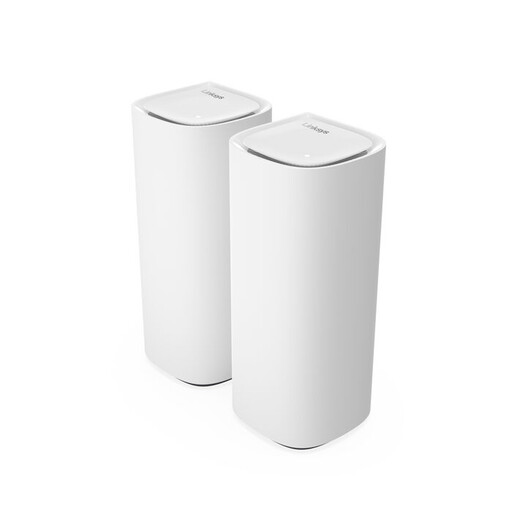
Linksys Velop Pro 7 Tri-Band (5-pack)
An expandable mesh system for Wi-Fi in different parts of your home. The product information says it can be set up and managed using the Linksys app.
Tri-band Wi-Fi 7 with 2.4 GHz, 5 GHz and 6 GHz bands. The Ethernet ports listed include a 2.5-Gbps port.
View at Joybuy
 No image available
TP-Link Deco XE75 Pro (3-pack)
A mesh kit with three units for Wi-Fi in different parts of your home. The units have Ethernet ports for devices or a suitable wired connection between them.
Tri-band Wi-Fi 6E with 2.4 GHz, 5 GHz and 6 GHz bands; three gigabit ports per unit.
View at Joybuy
 No image available
TP-Link Deco X50 (2-pack)
A mesh kit with two units for Wi-Fi in more than one place. Check that the positioning and connection between the units will work in your home.
Dual-band Wi-Fi 6 with 2.4 GHz and 5 GHz bands; three gigabit ports per unit.
View at Joybuy
 No image available
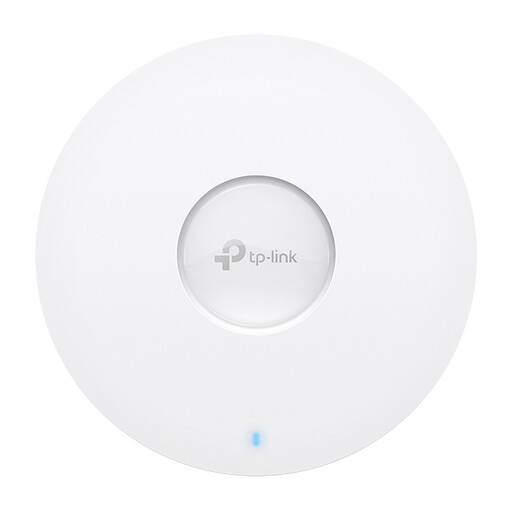
TP-Link Omada EAP613
A fixed access point for a spot where you can install a network connection and suitable power supply.
Wi-Fi 6, dual-band and a gigabit Ethernet port. Supports PoE or DC power and is designed for wall or ceiling mounting.
View at Joybuy
Frequently asked questions
How do I know if I need a new router?
First, test the connection with a network cable at the router, then compare it with the Wi-Fi where you take your lesson. If the Wi-Fi is particularly weak further away, try moving the router or adding a Wi-Fi access point before buying a new router or faster broadband package.
Where should I put a wireless repeater?
Place the repeater somewhere it can still receive a usable signal from the main router, rather than where the signal has already dropped out. Check the result where you take your lesson; if you can run a cable, an access point is another option.
Can I use my own router with my Dutch internet connection?
Yes. ACM ConsuWijzer explains that you’re allowed to choose your own router. You’ll need the right settings, so ask your provider for the necessary details if you need them.
What legal checks apply to a Wi-Fi router in the Netherlands?
Radio equipment must meet the relevant European requirements and carry a CE marking. Check the marking on the device being offered and follow the installation instructions; a mention in an advert doesn’t necessarily identify the version you’ll receive.
What if my router breaks sooner than I could reasonably expect?
According to ACM ConsuWijzer, you have a statutory guarantee as well as any manufacturer’s warranty. If the device develops a fault despite normal use, the seller must put it right free of charge under the applicable terms. A fixed manufacturer’s warranty period doesn’t automatically cover your full statutory entitlement.


