First, decide how the connection will get from your router to the presentation room: use Ethernet if a cable is available, or try powerline if running a cable isn’t practical. A wireless repeater is best suited to a location where it can still receive a good router signal. Also check whether your laptop and screen can communicate using your chosen screen-sharing technology; a good Wi-Fi signal alone doesn’t guarantee this.
Who should consider this choice?
Presenter behind a thick wall
You give presentations in a room where walls or floors weaken the router signal, and need a suitable connection to a Wi-Fi access point. The Consumers’ Association (Consumentenbond) advises taking obstacles and the placement of Wi-Fi access points into account.
User with the option of a cable
You can run a network cable to the presentation room and want to provide Wi-Fi there without relying on a wireless connection through the wall. FRITZ! says that a repeater can be connected to a router via LAN.
Wireless screen sharing
You share content wirelessly from your laptop or phone to a screen. As well as checking the signal, you’ll want to make sure both devices can find each other using your chosen technology. Google and Microsoft outline different requirements for Google Cast and Miracast.
What should you look for when buying?
First, decide how the network will reach the presentation room: via a cable, through your electrical wiring, or wirelessly from a spot with a strong enough signal.
Wired access point
Choose this if: an Ethernet connection is available in or near the presentation room.
Bear in mind: you’ll need a cable, and should check the ports and operating mode of your chosen device.
Powerline with Wi-Fi
Choose this if: running a network cable isn’t practical and you want to try connecting through your electrical wiring.
Bear in mind: performance may depend on your sockets, electrical wiring and any devices that cause interference.
Wireless repeater
Choose this if: you have a spot between the router and presentation room where the repeater can still receive a good router signal.
Bear in mind: a repeater placed where router reception is poor will still be limited by that weak connection.
| Purchasing concern |
What should you check? |
Who is this important for? |
| Connection beyond the wall |
Check whether Ethernet is an option; test powerline using the intended sockets. |
If the wall weakens the connection to my presentation room, I want to know which option works there before choosing a Wi-Fi access point. Around 36% of consumers are mainly concerned about getting a connection beyond a thick wall. |
| Screen sharing |
Check which screen-sharing technology is supported and whether the network settings allow devices to communicate with each other. |
If I want to present from my laptop or phone, the screen must be accessible using the same compatible technology. Around 29% of consumers mainly prioritise being able to share their presentation. |
| Installation without a cable |
Check signal strength at the repeater location, or how many powerline adapters and sockets you’ll need. |
If I can’t run an Ethernet cable to the room, I want to know what locations and connection points are available. Around 21% of consumers are mainly concerned about installing a solution without running a new network cable. |
| Management and use |
Check which security settings and firmware updates are available, and consider how many devices will need a power supply. |
If I add a network access point, I also want to know what maintenance and day-to-day management it involves. Around 14% of consumers mainly consider management, security and ongoing running costs. |
What to watch out for
-
Placing the repeater where the router signal is already dropping out
A wireless Wi-Fi access point needs to stay connected to the existing network. If it’s placed where reception is poor, that weak connection may remain the limiting factor.
Check reception at the intended location between the router and the room before choosing a wireless repeater. Consider Ethernet or try powerline if a wired connection isn’t available.
-
Assuming the stated speed is what you’ll get behind the wall
Product speeds are specifications; they don’t predict the performance you’ll get in your building or electrical installation.
Test the complete connection with your presentation devices in the places where you plan to use them.
-
Confusing wider Wi-Fi coverage with working screen sharing
A stronger signal doesn’t automatically mean your laptop, phone and receiver can communicate using the screen-sharing technology you’re using. With Google Cast, client isolation can prevent this; Miracast requires support on the devices involved.
Check which technology you’re using and test screen sharing with the actual devices before your presentation.
-
Choosing a powerline extension without checking the adapter range
devolo states that Magic 2 WiFi next is not supported with adapters from the dLAN range.
Check the product range and what’s included in the box. You may need a compatible starter kit rather than just an additional adapter.
Relevant brands to compare
TP-Link
The Deco PX50 and PX10 are product ranges that combine Wi-Fi with powerline connections between mesh units. They’re an option when thick walls make wireless connections between access points difficult.
- TP-Link lists G.hn powerline for the PX50 and HomePlug AV2 powerline for the PX10.
- These specifications apply to specific models; don’t assume the powerline products are compatible with each other. Stated speeds aren’t measurements of the connection through your wall.
devolo
Magic powerline kits combine a network connection through your electrical wiring with Wi-Fi in another room, for situations where running an Ethernet cable isn’t practical.
- According to devolo, the Magic 2 WiFi 6 next Starter Kit includes two adapters.
- devolo warns that electrical appliances and the sockets you use can affect data transfer. The product information also states that dLAN adapters aren’t necessarily compatible with Magic products.
FRITZ!
The FRITZ!Repeater 1200 AX can extend your Wi-Fi wirelessly or connect via its gigabit LAN port as an additional Wi-Fi access point.
- The manufacturer describes LAN connectivity and use with routers from other manufacturers.
- Mesh integration may depend on your router and the features you use, so check that they’re compatible. The stated Wi-Fi speed isn’t a measurement of performance through a thick wall.
NETGEAR
The EAX15 is a Wi-Fi 6 mesh extender for expanding an existing wireless network, provided there’s a suitable spot with good router reception.
- NETGEAR lists a gigabit Ethernet port.
- The product information can’t predict whether the wireless connection will remain strong enough in your particular room, behind the thick wall.
Joybuy products for this situation
These products cover powerline with Wi-Fi, wireless extension and wired access points. Check which option suits the connection and ports available in your presentation room.
 Image unavailable
TP-LINK TL-WPA7517 KIT Powerline Adapter Starter kit
An option if you want to extend Wi-Fi to another room using your existing electrical wiring.
The product information lists powerline, Wi-Fi and a Type E plug. Performance may vary depending on your electrical installation and sockets.
View at Joybuy
 Image unavailable
Wifi Repeater Pro Black
A wireless repeater option if you can place it somewhere the router signal is still strong.
The product description lists 2.4 GHz Wi-Fi and two external aerials. The repeater relies on the signal strength at the location you choose.
View at Joybuy
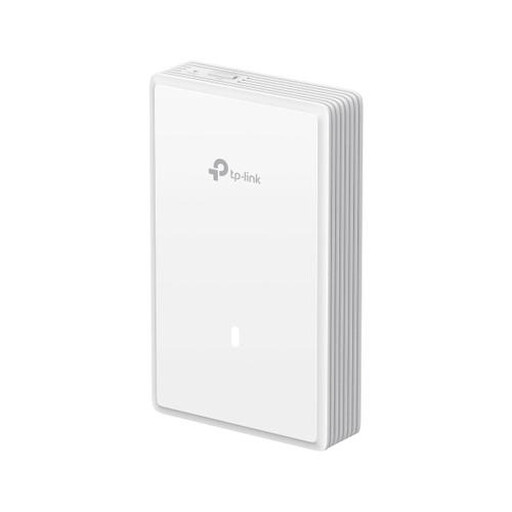 Image unavailable
TP-Link EAP725-Wall, 5012 Mbit/s, White, PoE
A wired access point for a presentation room that can be reached by an Ethernet connection.
The product information lists dual-band Wi-Fi, PoE, wall mounting and three Ethernet ports, including one 2.5G port.
View at Joybuy
 Image unavailable
TP-Link TL-WA801N Wireless Access Point/WiFi Network Extender
An option if you want to use an Ethernet-connected access point, or can use repeater mode somewhere with good router reception.
The product information lists access point mode and range extender mode. The title specifies Wi-Fi speeds of up to 300 Mbps, two aerials, WPS and passive PoE.
View at Joybuy
Frequently asked questions
Will a faster Wi-Fi booster always help if my presentation keeps stalling behind thick walls?
No, not necessarily. First, look at the connection between the router and the additional Wi-Fi access point, and check where it’s placed. If a wireless repeater receives a weak router signal at that location, a wired connection or powerline tested on site may be more relevant than simply choosing a higher stated Wi-Fi speed.
Why can’t my device find the presentation screen even though Wi-Fi is working?
The connection you need depends on the screen-sharing technology. For Google Cast, Google lists requirements including being on the same Wi-Fi network and having AP isolation turned off. For Windows projection via Miracast, both the PC and the screen or adapter must support Miracast. Check which technology you’re using.
How should I set up and maintain Wi-Fi for presentations?
Place a wireless repeater somewhere it can still receive a good signal from the router. Test powerline adapters in the intended wall sockets; devolo recommends avoiding multiway adaptors and extension leads for optimal placement. Also keep your network devices up to date.
Does a stated manufacturer’s warranty cover the full warranty in the Netherlands?
No. When you buy as a consumer, you have a statutory guarantee in addition to any seller’s warranty: the product must do what you could reasonably expect from it under normal use. According to ACM ConsuWijzer, if a product develops a fault too soon, the seller is responsible for providing an appropriate solution at no cost.


