
Teacher with a separate teaching space
You teach from home in a room behind thick internal walls and want to improve reception there first, ideally by placing a Wi-Fi point on the teaching-room side of the walls.


First, check the connection where the lesson takes place. If possible, move your existing router or bring an additional Wi-Fi point closer to the teaching space. If you can run a cable, a wired access point or mesh system with Ethernet backhaul is an alternative. Without a cable, wireless mesh or a repeater may work, as long as the additional unit still has a usable connection to the main router. A higher advertised speed doesn’t guarantee coverage through thick walls.
You teach from home in a room behind thick internal walls and want to improve reception there first, ideally by placing a Wi-Fi point on the teaching-room side of the walls.
You need a reliable connection for calls and participants’ devices during lessons, so you want to assess the connection in the teaching space rather than relying on the advertised maximum speed.
You want to extend your Wi-Fi without replacing your existing modem or network, and need to check how the additional system will work alongside your ISP router.
Suitable when: the teaching space gets sufficient reception by moving the router or changing its channel settings.
Trade-off: the location of your broadband socket and obstacles such as walls and furniture can limit your options.
Suitable when: you can run a network cable to a spot closer to the teacher and students.
Trade-off: cabling requires installation work; a UniFi U6+ also needs PoE power and UniFi management.
Suitable when: cabling isn’t practical and there’s an intermediate spot where the connection to the main router is still usable.
Trade-off: the additional unit relies on a wireless connection to the router; coverage and throughput depend on factors including walls and obstacles.
| Factor | What to look for when buying | Who it matters to |
|---|---|---|
| Coverage in the teaching space | Check reception where the lesson takes place and whether an additional point can be connected there by cable. | If I teach behind thick walls, I first want to know whether Wi-Fi reaches the teaching space; around 36% of consumers prioritise coverage there. |
| Connection during live lessons | Assess the connection where the teacher and participants are; an advertised radio speed isn’t a measurement taken in your home. | For live calls, I want a usable connection during the lesson, even when devices are connected; around 29% of consumers prioritise a reliable connection throughout the lesson. |
| Keeping your existing ISP router | Check the operating mode and which functions the main router will continue to handle, such as DHCP. | If I want to keep using my ISP router, the extension needs to work with it; around 21% of consumers prioritise keeping that router. |
| Access for students | Check whether the guest feature you want is available in the chosen operating mode and how devices are separated. | When students connect their own devices, I want to be able to manage their network access; around 14% of consumers prioritise separate access for students. |
Actual throughput and coverage depend on factors including building materials, obstacles and where the devices are placed.
First, check reception in the teaching space, then decide how many Wi-Fi points you need and what sort of connection should link them.
A wireless repeater still needs a usable connection to the router.
Choose an intermediate spot with reception, or use a network cable to bring the Wi-Fi point closer to the teaching space.
The Ubiquiti UniFi U6+ is an access point with a GbE port and PoE power, not a replacement modem.
Before choosing an access point, check what network equipment and suitable power supply your setup requires.
In access point mode, the main router handles DHCP and some Deco features aren’t available in the app.
Decide in advance which functions your ISP router needs to keep handling, then check that the selected mode is suitable.
The Deco X50 range is available in one-, two- or three-unit sets. It’s designed for setups with multiple Wi-Fi points, which can also be connected using Ethernet backhaul.
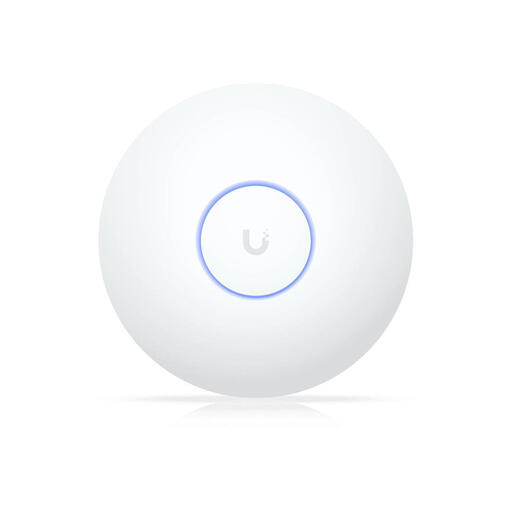
The UniFi U6+ is a standalone wired access point for anyone who can install a Wi-Fi point in or near the teaching space.
The FRITZ!Repeater 1200 AX is designed to extend an existing router’s coverage, either wirelessly or via a LAN bridge.
This selection includes mesh systems and routers for extending Wi-Fi to multiple areas, as well as wired access point options. Check the connection, operating mode and power requirements for each model to make sure they suit your home network.
 No image available
A mesh system with multiple Wi-Fi points may suit you if you want to extend Wi-Fi to more areas; check whether Ethernet backhaul fits your cabling plan.
The product description mentions wired and wireless backhaul.
 No image available
A three-unit mesh system is an option if you want to extend Wi-Fi to several areas; check reception between the units and the connection to the main router.
Dual-band (2.4 GHz/5 GHz); Wi-Fi 5 (802.11ac).
 No image available
An access point may suit you if you want a wired Wi-Fi point in a specific location; check that your setup supports the specified PoE+ power and connection.
The product information mentions wall or ceiling mounting and PoE+; suitable PoE+ power equipment is required.
 No image available
A mesh setup may suit you if you want to extend Wi-Fi across several points; check whether wired backhaul is possible in your home.
Dual-band (2.4 GHz/5 GHz); Wi-Fi 7 (802.11be). The product description mentions wired backhaul.
 No image available
This router may suit you if you’re looking for a model that, according to the product description, can be extended with other AiMesh-compatible routers; check that the devices in your network are compatible.
Dual-band (2.4 GHz/5 GHz); Gigabit Ethernet.
Not necessarily. First, try moving the router to a better spot. If reception is poor mainly in the teaching space, an additional wired Wi-Fi point or an extension behind your existing router may be a better option than replacing the modem.
Yes. TP-Link describes an access point mode for Deco, including with Ethernet backhaul. In this mode, the main router handles DHCP and some advanced features aren’t available in the Deco app.
Place the repeater somewhere it still has a usable connection to the router, rather than in the teaching space if the signal has already dropped out there. If that spot doesn’t help, check whether you can run a cable to a point closer to the teaching space.
Check whether you can run a network cable to the desired location and what power supply the access point needs. According to the manufacturer, the Ubiquiti UniFi U6+ uses PoE, so suitable PoE power and setup are required.
Check that the version being sold has the correct European conformity marking. The Dutch Authority for Digital Infrastructure states that the CE marking must appear on the equipment; a marking on a different version doesn’t prove that the model being sold complies.