
Housemates using screens at the same time
You’re studying or on a call while others are streaming. Consider both your internet connection and your Wi-Fi’s capacity to handle devices that are online at the same time.


Start by identifying where the problem lies. If the connection drops on all your devices, check your internet connection first. If Wi-Fi is poor mainly in certain spots, look at coverage. One Wi-Fi 6 router may be enough if your devices are used within its range, even when several are active at once. If Wi-Fi is weak in different rooms, consider adding more access points. Also check how the router connects to your existing modem and whether the specific product has the correct CE marking.
You’re studying or on a call while others are streaming. Consider both your internet connection and your Wi-Fi’s capacity to handle devices that are online at the same time.
Your connection drops mainly in a study area that’s further from the router. In that case, coverage and the position of your access points matter more than the stated speed alone.
You want to add to or replace your provider’s router. Check the connection type, required settings, update support and CE marking for the specific product.
| What to consider | What to look for | Who is this important for? |
|---|---|---|
| Using devices at the same time | Check your internet connection at busy times and see which Wi-Fi features and WAN connection the router has. | If we study and stream at the same time in the evening, I want to know whether our internet connection can handle it. Around 36% of consumers give simultaneous use top priority. |
| Coverage across several rooms | Compare Wi-Fi in the different study areas and check whether an extra access point can be connected by cable. | When my study area is further from the router, I want a usable connection there too. Around 29% of consumers prioritise coverage in several locations. |
| Connection and installation | Make a note of the modem or router equipment you already have and check the WAN connection and any settings you’ll need. | If I want to keep my current internet set-up, a new router needs to work with it. Around 21% of consumers prioritise a compatible connection. |
| Updates, compliance and running costs | Check what update support is available, whether the specific product has the correct CE marking and what equipment you’ll need. | If you manage your own router, you’ll want to know how updates are handled and whether the product on offer has the correct marking. Around 14% of consumers give management, compliance or costs top priority. |
The quality of your internet connection and the Wi-Fi signal where you use your devices are separate factors. A different router won’t automatically fix a slow internet connection.
Check the connection when several people are online, then work out whether the problem is with coverage or your internet connection.
A router in one location may not provide enough coverage in other rooms.
Identify the areas with a weak signal and compare a single router with extra access points or a mesh system. Your chosen set-up may also require extra equipment or cabling.
The connection and settings you need depend on your provider and existing equipment. A router doesn’t automatically replace your modem.
Before you buy, check whether the router will sit behind your existing modem. If necessary, ask your provider for the connection settings you’ll need.
Product names can be similar even when the versions aren’t identical. The Dutch Authority for Digital Infrastructure states that equipment must have a CE marking. A model name alone doesn’t confirm that the specific item on offer has this marking.
Check the version and the correct CE marking for the specific product before ordering.
TP-Link describes the Archer AX55 as a standalone dual-band Wi-Fi 6 router with OFDMA and gigabit ports, designed for use within the range of a single router.
ASUS lists Wi-Fi 6, OFDMA, a gigabit WAN port, access point mode and AiMesh node mode for the RT-AX58U.
FRITZ! describes the FRITZ!Box 4060 as a tri-band Wi-Fi 6 network router with 2.5-gigabit WAN, mesh features and telephony functions.
This selection includes both a standalone Wi-Fi router for use within the range of one access point and mesh products for Wi-Fi coverage in several locations. Before you buy, check that the specific product has the correct CE marking; the Dutch Authority for Digital Infrastructure states that this marking is mandatory.
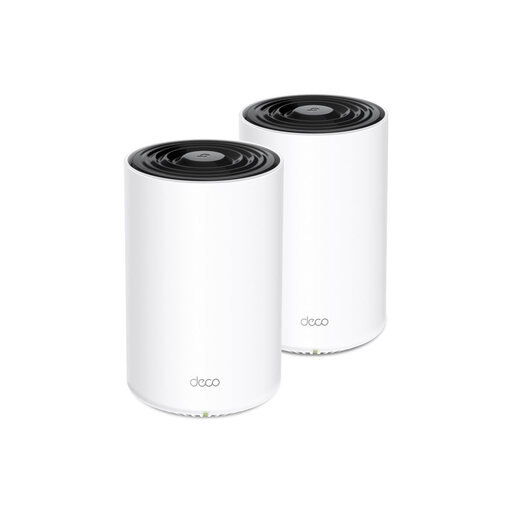 No image available
A mesh option for extending Wi-Fi coverage to several locations.
The product information lists Wi-Fi 6, Powerline and three Gigabit Ethernet ports per unit. Router and access point modes are also listed.
 No image available
A mesh option for anyone who wants to use several network points.
The product information lists Wi-Fi 7 and wired backhaul. Installation via the ASUS Router app and compatibility with other ASUS mesh systems are also mentioned.
 No image available
A standalone router option if your study and streaming areas are within range of a single access point.
The product information lists OFDMA, MU-MIMO, one WAN port and three 1 Gbit/s Ethernet ports. AiMesh expansion is also mentioned.
 No image available
A three-unit mesh system for a set-up with several access points.
The product information lists Wi-Fi 6, OFDMA and MU-MIMO. Each unit has three Gigabit Ethernet ports, according to the product information; Ethernet backhaul is optional.
 No image available
A mesh router for anyone considering a set-up with several access points.
The product name lists Wi-Fi 7 and dual-band.
Check the connection on the devices you use, ideally while other people are online too. Netflix recommends 3 Mbit/s for HD, 5 Mbit/s for Full HD and 15 Mbit/s for 4K UHD. These guidelines apply to Netflix streaming and don’t guarantee that a router has enough capacity for the whole household.
Yes. According to ACM ConsuWijzer, you have the freedom to choose your router. You may need your provider’s settings to connect it, and a provider can refuse an insecure device of your own. If you’re directly replacing a fibre modem, the type of fibre network must also be compatible.
Check the firmware and enable automatic updates if possible. VeiligInternetten also recommends changing the default usernames and passwords and choosing a strong password.
Check that the specific device has the correct CE marking. The Dutch Authority for Digital Infrastructure states that this marking is mandatory; the product name alone doesn’t confirm that the item on offer has the marking.
It depends on your set-up: several access points require extra equipment, and your own router needs to be kept up to date. Check what equipment you’ll need and read the terms and support information for the exact version.