First, check the Wi-Fi signal in both workspaces. If the coverage is good enough, your existing router may do the job. If the signal is weak because of distance or walls, compare a better-positioned router, an extra access point or a mesh system. If you can run a cable, a wired connection to a fixed workspace or between mesh points could also be a good option.
Who should consider these options?
Family with workspaces in separate rooms
If you use a study nook and a workspace in different parts of your home, compare the coverage in both locations. The Consumers’ Association of the Netherlands points out that distance and obstacles such as walls can weaken a Wi-Fi signal.
Household with several people using Wi-Fi at once
If several devices are online at the same time, it’s worth comparing the Wi-Fi support offered by your router and devices. The Consumers’ Association of the Netherlands notes that devices need to support Wi-Fi 6 to benefit from the improvements it brings.
Fixed workspace where you can run a cable
If you can connect a computer or an extra Wi-Fi point by cable, consider the number of Ethernet ports and whether the router offers access point mode. Manufacturers such as TP-Link and ASUS list these connection and network options for each model.
What should you look for?
First, check the connection in your study nook and shared workspace, and try repositioning your current router if needed. Then choose between one central Wi-Fi point, extra mesh points or a cable, depending on the coverage and connections you need.
| What to consider |
What to look for |
Who should prioritise this? |
| Coverage in both spaces |
Check both locations; compare the router’s position with adding extra points, and check how many mesh points are included in a set. |
If the study nook is behind walls, I want reliable coverage there and at the workspace; around 33% of consumers rank coverage in both spaces as their top priority. |
| Using several devices at once |
Check Wi-Fi support on the router and devices, and consider the available internet connection too. |
When housemates are studying and working at the same time, I want to assess the Wi-Fi and internet connection together; around 27% of consumers prioritise simultaneous use. |
| Wired connection |
Check the cable route, the number of Ethernet ports and whether the router you choose supports access point mode. |
For a desktop computer or an extra Wi-Fi point connected by cable, I want the right connections; around 20% of consumers rank a wired connection as their top priority. |
| Security and management |
Check the update options, Wi-Fi encryption and any guest network settings for the exact model. |
If I want to manage access for family members and guests, I look at updates and network settings; around 13% of consumers prioritise security and management. |
| Purchase and running costs |
Try your existing setup first; then compare the equipment, cabling and power consumption you’ll need. |
If you want to keep extra equipment and running costs down, start with your current router and its position; around 7% of consumers prioritise keeping costs down. |
Common pitfalls
-
Buying a new router without checking coverage first
A different position or setting could already make a difference. Extra equipment won’t automatically fix a weak signal in a distant part of your home.
Check the connection in your study nook and workspace, and try moving your existing router to a better position before adding more equipment.
An extra router or Wi-Fi point is usually switched on all the time. The Consumers’ Association of the Netherlands highlights power consumption as something to consider with routers and Wi-Fi extenders.
-
Assuming the advertised Wi-Fi speed is what you’ll get in every workspace
Distance and obstacles such as walls and ceilings can weaken the signal. The Wi-Fi standard supported by connected devices also affects which improvements they can benefit from.
Check the connection where you work, and consider your router and device specifications alongside your internet connection.
-
Treating the Deco X50 and Deco X50-PoE as the same model
TP-Link lists three gigabit ports and optional Ethernet backhaul for the standard Deco X50. For the Deco X50-PoE, the manufacturer lists two 2.5GbE ports and PoE or DC power.
Check the full model name, the number of points in the set, the power supply and the ports before comparing versions.
Brands to compare
TP-Link
The Deco X50 range includes mesh systems for multiple rooms; the Deco X50-PoE is a separate model.
- TP-Link lists three gigabit ports and optional Ethernet backhaul for the standard Deco X50.
- For the X50-PoE, the manufacturer lists two 2.5GbE ports and PoE or DC power.
- Compare the ports, power supply and number of points included with each version. The stated coverage isn’t a measurement of how it will perform in your home.
ASUS
The RT-AX58U is a standalone Wi-Fi 6 router with management options and AiMesh for expanding your network.
- ASUS lists one gigabit WAN port, four gigabit LAN ports, access point mode, a guest network and AiMesh for the RT-AX58U.
- One router doesn’t guarantee coverage in two rooms separated by walls. Check the hardware version too.
FRITZ!
The FRITZ!Box 4060 is a network router for use behind a modem, with Wi-Fi 6 and the option to expand your network with FRITZ! Mesh.
- FRITZ! lists a 2.5-gigabit WAN port and three gigabit LAN ports, as well as telephony and DECT features.
- This model doesn’t replace a built-in DSL, cable or fibre-optic modem. Check whether its extra features suit your setup.
Router and mesh options at Joybuy
This selection includes standalone routers and mesh sets for a study nook and shared workspace. Before buying, check the exact model and applicable CE marking. The Dutch Authority for Digital Infrastructure says that radio equipment placed on the market in the Netherlands must meet the applicable European requirements and carry a CE marking.
 No image available
ASUS RT-AX52 AX1800
A standalone router to consider if you’re comparing Wi-Fi 6 and AiMesh expansion. Coverage in both workspaces needs to be assessed separately.
Dual-band (2.4 GHz and 5 GHz) and Gigabit Ethernet.
The product name mentions AiMesh; check which features are compatible with the other network devices in your home.
View at Joybuy
 No image available
TP-Link Deco X50 (3-pack)
A three-point mesh set for connecting several areas of your home. The position of each point still plays a key role in coverage.
Dual-band Wi-Fi 6; three gigabit Ethernet ports per unit and optional Ethernet backhaul.
View at Joybuy
 No image available
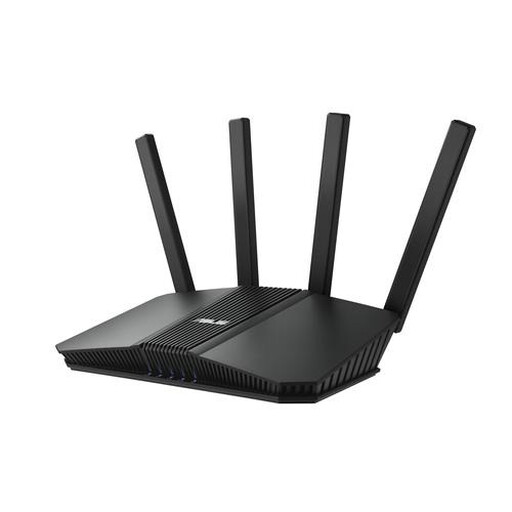
ASUS RT-BE82U BE6500
A standalone router to consider if you’re looking for one central Wi-Fi point and connections for wired devices. Coverage in both workspaces needs to be assessed separately.
Dual-band (2.4 GHz and 5 GHz), Wi-Fi 7, four Ethernet ports and WPA3-Personal.
View at Joybuy
 No image available
ASUS RT-AX52 Pro AX3000
A standalone router to consider if you’re comparing Wi-Fi 6 and AiMesh expansion. Check whether one central point can reach both workspaces.
Dual-band (2.4 GHz and 5 GHz), four Ethernet ports and WPA3-Personal.
View at Joybuy
 No image available
TP-Link Deco X50-PoE (2-pack)
A two-point mesh set to consider if you want to connect several rooms and compare PoE as a power option. Check your cabling and power requirements first.
Dual-band Wi-Fi 6; two Ethernet ports per unit and PoE support.
View at Joybuy
Frequently asked questions
Do I need to replace my provider’s modem to use my own router?
Not always: you can connect a separate router to a modem. ACM ConsuWijzer explains your right to choose your own router; check which connection and mode are compatible with your provider’s equipment.
Where should I put an extra Wi-Fi point for my study nook?
First, check the signal in both workspaces and try moving the router to a better position if needed. Distance, walls and ceilings can weaken Wi-Fi. If you can run a cable, check whether the system you choose supports Ethernet backhaul.
What maintenance does my own router need?
Keep the firmware up to date and check whether automatic updates are available. Also check the Wi-Fi encryption and change the default login details when you set it up. Your provider may manage updates for its own equipment differently from the way you manage updates for a standalone router.
Is the legal guarantee in the Netherlands always exactly two years?
No. ACM ConsuWijzer says Dutch law doesn’t set a fixed period for the legal guarantee; it depends on what you can reasonably expect from the product with normal use. A separate manufacturer’s guarantee doesn’t affect your legal rights.
What product rules apply to a Wi-Fi router in the Netherlands?
The Dutch Authority for Digital Infrastructure says that radio equipment placed on the market in the Netherlands must meet the applicable European requirements and carry a CE marking. The authority also notes that additional cybersecurity requirements apply from 1 August 2025.


