If you can run an Ethernet cable to your study area, a wired access point or mesh system with Ethernet backhaul is a direct way to avoid a wireless connection between the points. Without a cable, powerline and wireless mesh are alternatives, but how well they work depends on the electrical wiring and the signal available where you place the extra point. A new main router won’t automatically solve a weak signal behind thick walls.
Who is this advice for?
Families with a study area that’s hard to reach
If thick internal walls weaken the Wi-Fi, your family may need a connection for schoolwork or video calls. Running an Ethernet cable to an extra access point could be one option. The Consumentenbond and TP-Link Netherlands highlight placement and Ethernet backhaul as important considerations.
Families who can’t run an Ethernet cable
If you can’t run a cable to your study area, you could compare powerline adapters that use your existing electrical wiring with a wireless relay point. In both cases, the actual connection depends on the conditions in your home. Devolo also explains the limitations between its Magic and dLAN ranges.
Families with several people using Wi-Fi at once
If several members of your family are online at the same time, it’s worth comparing how many access points you need and what connections the system offers. The Consumentenbond highlights connections and wireless standards as some of the things to consider when choosing a Wi-Fi extender.
Which connection should you choose?
Wired access point or mesh
Best if: you can run Ethernet to or near your study area.
Bear in mind: you’ll need to run the cable and configure the system to work with your existing router.
Powerline with Wi-Fi access point
Best if: running an Ethernet cable isn’t practical and you want to try using your electrical wiring to carry the connection.
Bear in mind: performance can vary depending on your electrical wiring and sockets.
Wireless mesh
Best if: there’s still a good Wi-Fi signal at an intermediate point.
Bear in mind: the connection between mesh points also needs to get a usable signal through or around the walls.
Repeater with your existing router
Best if: one extra point is enough and there’s still a Wi-Fi signal where you want to put it.
Bear in mind: a wireless repeater can’t restore an incoming signal that’s virtually non-existent.
| What to consider |
What to check before buying |
Who is this important for? |
| Reliable connection behind the wall |
Check whether you can run Ethernet to your study area and whether the system supports Ethernet backhaul or has a suitable LAN port. |
If I do schoolwork or make video calls in my study area, I want to know how the signal gets there and whether it’s practical to run a cable to an extra point. This is a priority for around 33% of consumers. |
| Connecting without running a new Ethernet cable |
Check whether there’s enough Wi-Fi signal at an intermediate point, and try powerline adapters in the sockets you plan to use. |
If I can’t run an Ethernet cable, I want a way to connect to my study area that suits the Wi-Fi signal or electrical wiring in my home. Around 27% of consumers prioritise connecting without a new Ethernet cable. |
| Several family members using Wi-Fi at once |
Compare how many access points you need and the available connections with the devices your family uses. |
When several members of my family use Wi-Fi at once, I want to work out how many points and connections we need in our rooms. Around 20% of consumers prioritise supporting several family members at the same time. |
| Avoiding unnecessary purchases and installation |
First check the placement and settings of your current Wi-Fi. Then consider how many points you need and what update support is available. |
I want to check whether I can adjust my existing Wi-Fi before installing extra equipment. Around 20% of consumers put avoiding unnecessary purchases and installation first. |
Pitfalls when extending your Wi-Fi
-
Choosing a new main router without checking the route to your study area
Adjusting your existing Wi-Fi may help, but thick walls can still make it difficult for the signal to reach your study area from the router.
First check the placement and settings of your current Wi-Fi, then work out how the signal will reach an extra point.
-
Placing a wireless repeater where there’s hardly any Wi-Fi signal
A repeater needs to receive a usable signal itself before it can pass it on.
Choose a spot with good reception. If that isn’t possible, compare a wired connection with powerline.
-
Assuming the advertised powerline speed is what you’ll get at home
Your electrical wiring and the sockets you choose affect the powerline connection.
Test the connection using the sockets you plan to use and see whether it’s suitable for your study area.
-
Assuming mesh versions with almost identical names are the same
Versions can differ in pack size and hardware version. The Consumentenbond warns that model versions can also vary in terms of hardware and support.
Check the full model name, pack size and hardware version in the product listing.
Brands to compare
TP-Link
The Deco X50 and Deco PX50 offer different ways to connect an extra Wi-Fi point: Ethernet backhaul with the X50, and powerline alongside Wi-Fi with the PX50.
- TP-Link Netherlands lists three gigabit ports and Ethernet backhaul support for the Deco X50.
- TP-Link says the Deco PX50 combines Wi-Fi with powerline between the points.
- Actual powerline performance depends on your electrical setup. The manufacturer’s claim that the PX50 is suitable for homes with challenging walls isn’t a measurement of how it will perform in your home.
ASUS
The ZenWiFi AX XT8 is a tri-band system to compare if the connection between Wi-Fi points needs to be wireless.
- ASUS says the second 5GHz band can be set aside for backhaul.
- This configuration option doesn’t tell you how strong the connection will be in a particular home with thick internal walls.
FRITZ!
The FRITZ!Repeater 1200 AX is worth considering if one extra point is enough or you use a FRITZ!Box.
- FRITZ! says the repeater can connect to a FRITZ!Box via LAN and can also be used with other routers.
- With a wireless-only connection, there still needs to be a usable Wi-Fi signal where you place the repeater. If you have a different router, don’t assume you’ll get the same integration as with a FRITZ!Box.
devolo
According to devolo, the Magic 2 WiFi next Starter Kit uses your existing electrical wiring to connect Wi-Fi points.
- devolo lists two gigabit LAN ports on the Wi-Fi adapter and compatibility with the Magic range.
- The manufacturer says that adapters from the older dLAN range aren’t supported. Powerline performance can vary from one socket to another.
Joybuy products for Wi-Fi in your study area
This selection includes mesh systems and access points for an extra Wi-Fi point, as well as a powerline Wi-Fi kit. Check for the CE marking on the specific version before buying; the Dutch Authority for Digital Infrastructure says this marking must appear on radio equipment.
 No image available
TP-Link AX1800 Mesh Wi-Fi 6 system, 2-pack
An option to compare if you want two mesh points and a wired connection to an extra point.
The product description lists Wi-Fi 6, Ethernet backhaul and two Ethernet ports.
Joybuy
 No image available
TP-Link Deco X50, 3-pack, dual-band Wi-Fi 6
A set of three mesh points to consider if you want Wi-Fi in several areas of your home.
The product name lists Wi-Fi 6 and dual-band (2.4 GHz/5 GHz). TP-Link describes Ethernet backhaul for the Deco X50; the manufacturer lists three gigabit ports per point. The specifications don’t determine how well the connection will work in your study area.
Joybuy
 No image available
TP-Link Deco X50-PoE, 2-pack, dual-band Wi-Fi 6
A mesh system to compare if PoE power and wired connections suit your setup.
The product name lists Wi-Fi 6 and dual-band (2.4 GHz/5 GHz). The product description mentions PoE and two Ethernet ports per unit.
Joybuy
 No image available
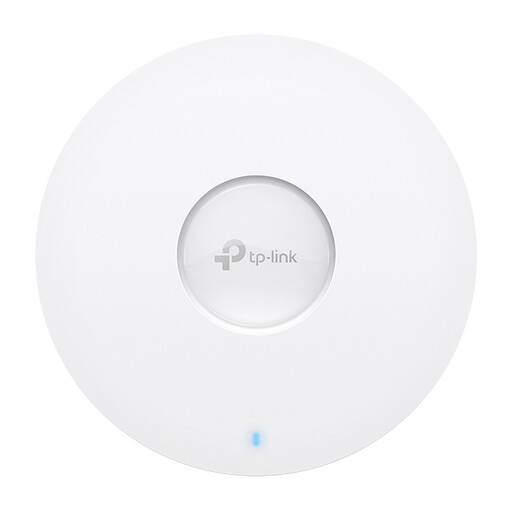
TP-Link Omada EAP613 access point
An access point to consider if you can install an extra wired Wi-Fi point.
The product description lists Wi-Fi 6, PoE or DC power and a gigabit Ethernet port. Mesh and seamless roaming are also mentioned; according to the description, you can configure it using the Omada app or a local controller.
Joybuy
 No image available
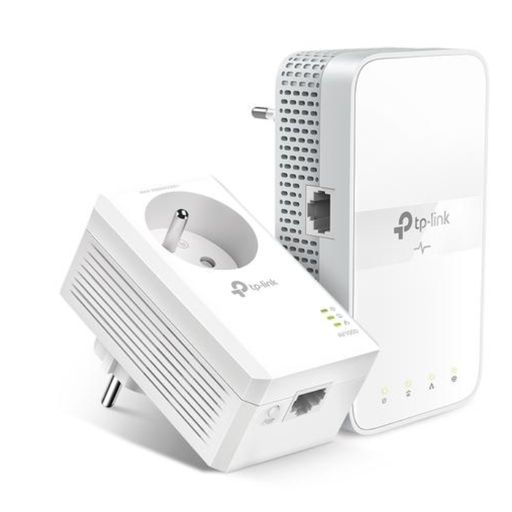
TP-Link TL-WPA7617 powerline Wi-Fi kit
A powerline Wi-Fi kit to compare if you can’t run a new Ethernet cable and want to try using your existing electrical wiring for the connection.
The product name lists 1200 Mbit/s; this doesn’t guarantee the speed you’ll get at home. Actual performance can vary depending on your electrical wiring and sockets.
Joybuy
Frequently asked questions
Do I need to replace my provider’s router?
Not necessarily. First check the placement and settings of your existing Wi-Fi and whether you can connect an extra access point to it. ACM ConsuWijzer explains that, in principle, you can choose your own router in the Netherlands, although this isn’t always possible. Also check which settings you need to connect it to your provider’s network.
Where should I put a wireless extra Wi-Fi point?
Don’t put it somewhere with virtually no Wi-Fi signal: a wireless repeater needs to receive a usable signal before it can pass it on. If that isn’t possible behind the walls, consider a cable or powerline connection to your study area.
Does the advertised Wi-Fi or powerline speed guarantee stable video calls?
No, the advertised speed doesn’t guarantee stable video calls in your study area. The connection to the extra Wi-Fi point and the conditions in your home still matter. TP-Link lists the quality of the electrical environment as a factor for powerline.
What should I know about the rules for Wi-Fi routers in the Netherlands?
Check that the specific version has a CE marking. The Dutch Authority for Digital Infrastructure says that this marking must appear on radio equipment.


