Don’t rush into buying a router: first, use a wired connection to check that your internet service is working properly, then see if you can improve the position of your existing Wi-Fi equipment. If the connection is mainly weak where you study, a single centrally positioned Wi-Fi access point may be enough. Consider adding an access point alongside your provider’s router, or using several mesh points, only if your connection type and coverage measurements indicate that they’re needed.
Who should consider this?
Students working together in the evenings
If you’re using laptops at the same time for assignments, research and video calls, first check whether the bottleneck is your internet connection or your Wi-Fi. The Consumers’ Association recommends running a speed test using a network cable.
Housemates with weak Wi-Fi where they study
Is the signal weak mainly in one spot, perhaps behind walls or far from the router? First, test whether repositioning your existing equipment helps before choosing an additional Wi-Fi access point. The Dutch Authority for Digital Infrastructure notes that 5 GHz has a shorter range than 2.4 GHz.
Tenants who manage their own network
Your own device needs to work with your existing connection, and you’ll need to keep an eye on security updates. ACM ConsuWijzer explains your freedom to choose your own equipment, while Safe Internetting recommends installing available router updates.
What should you look for when buying?
| What to consider |
What should you check? |
Who is this important for? |
| Using devices at the same time |
Test the connection using a cable first; then compare the Wi-Fi standard, bands and features of the exact model. |
If several housemates study or make video calls at the same time, you’ll want to know whether the bottleneck is your internet connection or your Wi-Fi. Around 36% of consumers put simultaneous use first. |
| Coverage where you study |
After repositioning your equipment, test the signal in both study areas; only then consider an access point or mesh system. |
If Wi-Fi drops out in a particular study area, you’ll want a connection there without adding unnecessary equipment. Around 29% of consumers give coverage where they study top priority. |
| Connecting alongside your provider’s router |
Work out whether you need a router or access point, and check the modes supported by the exact model. |
If you want to keep your existing provider equipment, you’ll need to know how an additional device connects to it. Around 21% of consumers prioritise connecting and managing equipment alongside their provider’s router. |
| Updates and maintenance |
Check how updates are provided for the exact hardware version and who manages them. |
If you manage your own network device, you’ll want to know how security updates are handled. Around 14% of consumers prioritise update management and maintenance. |
The Dutch Authority for Digital Infrastructure notes that 5 GHz has a shorter range than 2.4 GHz. Wi-Fi 6 or another specification is not, by itself, proof that the connection will work well in a particular study area.
Common buying mistakes
-
Buying a new Wi-Fi access point without testing your connection
If your wired connection is already slow, Wi-Fi may not be the cause. A new router won’t fix a problem with your internet connection.
First, test the connection using a network cable, then check Wi-Fi in the areas where you study. That’s also the advice of the Consumers’ Association.
You could end up with a purchase that doesn’t solve the real problem.
-
Taking advertised speed or coverage as a guarantee
Where you place your equipment and the obstacles in your home affect signal reception. Product specifications can’t predict how Wi-Fi will perform in your rented home.
First, try finding a better position for your existing equipment. Only add multiple access points if you still have a clearly identified weak spot.
-
Assuming that similarly named versions are identical
Model suffixes and hardware versions can differ. Check the full model name, hardware version and support for the version on offer.
Also check that the specific product has a CE marking and find out how updates are handled.
Managing your own router takes time for installation and maintenance.
Brands to compare
TP-Link
The Archer AX55 is a standalone dual-band Wi-Fi 6 router, while the Deco X50 is a mesh range designed for multiple Wi-Fi access points.
- TP-Link states that the Archer AX55 supports Wi-Fi 6 on 2.4 and 5 GHz.
- TP-Link lists optional Ethernet backhaul for the Deco X50.
- Advertised coverage isn’t a measurement of performance in your rented home. Check the exact version, pack contents and hardware version.
ASUS
The RT-AX57 is a standalone Wi-Fi 6 router to consider if you need router or access point mode and wired connections.
- ASUS lists access point mode, four gigabit LAN ports and a guest network for the RT-AX57.
- These are model specifications, not independent measurements of performance in a particular home.
- The RT-AX57 Go is a different model, so check the full model name.
FRITZ!
According to the manufacturer, the FRITZ!Box 4050 can be used behind an existing DSL, cable or fibre-optic modem.
- FRITZ! lists three gigabit LAN ports, automatic updates and a five-year manufacturer’s warranty for the 4050.
- Telephone features add little if your household doesn’t use them. The manufacturer’s warranty is separate from your statutory rights in the Netherlands.
Joybuy products
This selection includes standalone routers and Wi-Fi systems for shared use, or for situations where you’re considering multiple Wi-Fi access points. Before buying, check how the version you choose will connect to your existing network.
 No image available
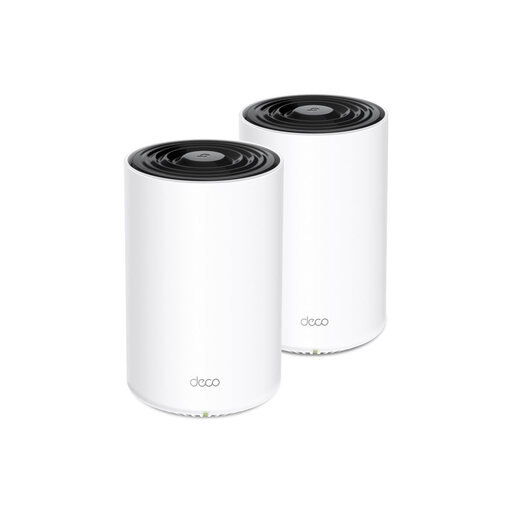
TP-Link Deco PX10 dual-band Wi-Fi 6 router
An option to compare if you’re considering multiple mesh access points for shared use.
Dual-band; Wi-Fi 6 (802.11ax).
View at Joybuy
 No image available
ASUS ZenWiFi BD4 dual-band Wi-Fi 7
Worth comparing if you’re considering a Wi-Fi system for shared use or to extend your Wi-Fi coverage.
Dual-band; Wi-Fi 7 (802.11be).
View at Joybuy
 No image available
ASUS RT-AX52 AX1800 dual-band Wi-Fi 6 router
An option to compare if you’re looking for one centrally positioned Wi-Fi access point for multiple devices.
AX1800; dual-band; Wi-Fi 6.
View at Joybuy
 No image available
TP-Link Deco X50 dual-band Wi-Fi 6 system (3-pack)
Worth comparing if you’re considering a mesh system for shared use or to extend your Wi-Fi coverage.
3-pack; dual-band; Wi-Fi 6 (802.11ax).
View at Joybuy
 No image available
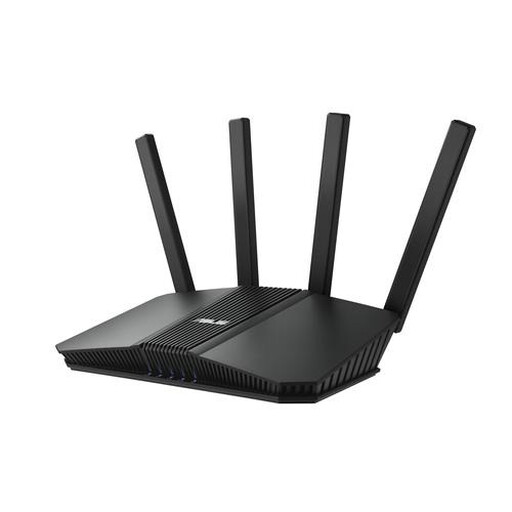
ASUS RT-BE82U BE6500 dual-band Wi-Fi router
Worth comparing for shared Wi-Fi use if you’re also considering a wired connection for a study area.
BE6500; dual-band; Wi-Fi 7.
View at Joybuy
Frequently asked questions
Should you buy a faster internet connection or a router first?
Don’t automatically buy either: first, test the connection using a network cable and compare the result with your broadband package. A new router won’t fix a problem that’s already showing up on your wired connection.
Can you use your own router in the Netherlands?
Yes. ACM ConsuWijzer says you’re free to choose your own router. There are safety requirements for connecting your own equipment. If you replace your provider’s equipment, your provider must make the necessary connection settings available.
How can you keep your own router secure?
Install available firmware updates, enable automatic updates if possible and change the default login details. Check how updates are provided for the exact hardware version.
Which product requirement should you check in the Netherlands?
The Dutch Authority for Digital Infrastructure states that a Wi-Fi router, as a radio device, must have the correct CE marking. Check the marking on the specific product on offer: a brand name or model range doesn’t prove that every version carries it.
Is a manufacturer’s warranty the same as your statutory rights?
No. In the Netherlands, you have statutory rights in addition to any manufacturer’s warranty, covering what you could reasonably expect from the product. If a product is faulty, the retailer is your point of contact.


