Who is this for?

Student in a room far from the router

Does your seminar connection mainly drop out where you study, while Wi-Fi works better closer to the router? If so, the location of an additional Wi-Fi point and its connection back to the router are important considerations. Consumentenbond offers advice on coverage and placement.

Student who can run a network cable

If you can run a cable to your study area or somewhere nearby, you could consider a set-up where the connection between network points is wired rather than wireless. Manufacturers TP-Link and ASUS describe Ethernet backhaul for compatible systems.

FRITZ!Box user

If you mainly want to cover a work area further away without replacing your main router, check which features your FRITZ!Box supports. According to FRITZ!, the FRITZ! Mesh integration described requires a FRITZ!Box running FRITZ!OS 7 or later.

What should you look for in Wi-Fi for a study room far from the router?

Wired access point or mesh point

Choose this if: you can run a cable to or near the study room and the wireless signal is weak along the way.

Bear in mind: you’ll need to consider running the cable, compatible connections and the right network mode.

Wireless mesh system

Choose this if: running a cable isn’t practical and you can place an extra point somewhere the signal is still usable.

Bear in mind: placement and the wireless connection between the points remain key.

Extend your existing FRITZ!Box

Choose this if: you already use a FRITZ!Box and mainly want to reach one work area further away.

Bear in mind: the manufacturer describes FRITZ! Mesh integration with a FRITZ!Box running FRITZ!OS 7 or later; a wireless connection requires a strong enough signal at the repeater.

Consideration What to look for when buying Who should pay particular attention?
Coverage where you attend seminars Check the signal in a possible midway location and how many Wi-Fi points are included in the pack. If I attend seminars in a room with a weak Wi-Fi signal, I want a usable connection there. Around 36% of consumers prioritise coverage where they attend seminars.
Wired connection Check whether the exact devices support Ethernet backhaul, access point mode or LAN bridge mode, and whether you can run a cable. I don’t want to rely on a weak wireless connection between points during calls, and I can consider running a cable. Around 29% of consumers prioritise a wired connection.
Keeping your existing router Make a note of your current router’s model and check mesh compatibility and access point or LAN bridge mode. I want to keep my current router and extend coverage to just the room further away. Around 21% of consumers prioritise keeping their existing router.
Simultaneous use Consider how many points you need, how the system handles multiple devices and the power consumption of the set-up. If other people are using the network while I attend a seminar, I want to know which set-up is right for that shared use. Around 14% of consumers cite simultaneous use and the equipment required as their main consideration.

Common pitfalls when extending your Wi-Fi

  • Placing a repeater where the signal is already almost gone

    An additional wireless point also needs a usable connection to the network. If you put it somewhere with barely any reception, it may not be able to pass the connection on to the study room effectively.

    Try a midway location with fewer obstacles. If that doesn’t work, see whether a wired connection is possible.

    Running a cable or adding another Wi-Fi point involves extra installation.

  • Choosing based on the highest advertised Wi-Fi speed

    Consumentenbond points out that the Wi-Fi version alone doesn’t tell you everything about performance. Manufacturers’ coverage figures aren’t a measure of the range you’ll get in your home.

    First, assess the placement and connection between points, then check whether your laptop supports the Wi-Fi features you need.

  • Confusing a local Wi-Fi problem with an issue with your internet connection

    A strong Wi-Fi signal in your home can’t make up for a shortfall in your provider’s connection.

    If necessary, test with a network cable near the connection point and compare the result with your contract details before choosing Wi-Fi equipment.

  • Choosing a mesh pack without planning where to place the points

    The number of points alone won’t determine whether the study room gets a connection; each wireless point still needs a strong enough signal where it’s placed.

    Plan where to put the points and check which features and network modes you need before buying.

    Your set-up may require extra points or cabling; also consider equipment that needs to stay switched on all the time.

Brands to consider

TP-Link

The Deco X50 is an example of a mesh system with two points for extending coverage to several rooms.

  • TP-Link lists optional Ethernet backhaul and three gigabit ports per point.
  • The stated coverage and combined speeds are manufacturer claims, not a guarantee for a particular study room. Check the pack size and placement.

FRITZ!

The FRITZ!Repeater 1200 AX is worth considering if you want to extend coverage from an existing FRITZ!Box to a specific area.

  • According to FRITZ!, the repeater can be used as an additional access point via LAN.
  • The FRITZ! Mesh integration described requires a FRITZ!Box running FRITZ!OS 7 or later. The repeater is not a standalone replacement for a modem.

ASUS

The ZenWiFi XD5 is a Wi-Fi 6 mesh range designed for multiple points, with the option of a wired connection between them.

  • ASUS describes Ethernet backhaul when wired connections are available and says the system supports older Wi-Fi devices.
  • Manufacturer speed and coverage figures don’t necessarily predict the results you’ll get in a particular home.

NETGEAR

Orbi is a product range you can compare when considering mesh set-ups with a wireless or wired connection between the router and satellite.

  • NETGEAR describes both connection methods for Orbi.
  • The general instruction to update the firmware before setting up Ethernet backhaul doesn’t prove that every kit has the same ports or features.

Products at Joybuy

This selection includes routers, repeaters and a mesh system for extending Wi-Fi to a work area further away. For each exact model, check the connection type, the network mode required and the product’s applicable compliance requirements.
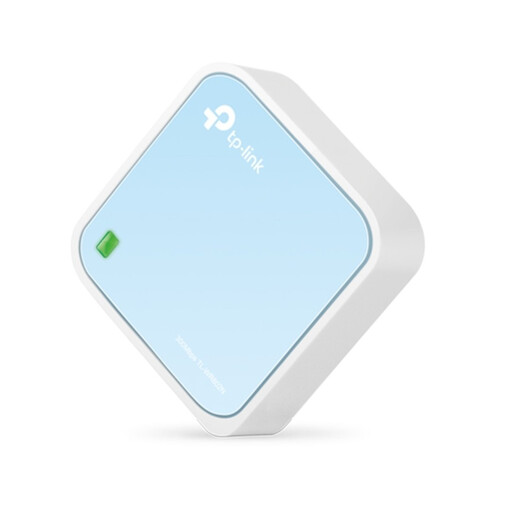
TP-Link TL-WR802N V4 router

TP-Link TL-WR802N V4 router

This is a router; check that its network mode suits the way you want to extend your existing set-up.

Its stated features include Wi-Fi 4 on 2,4 GHz, a maximum speed of 300 Mbit/s and a wired port of up to 100 Mbps.

View at Joybuy
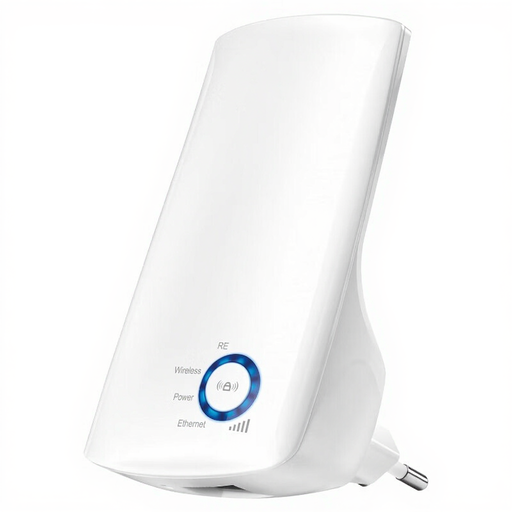
TP-Link TL-WA850RE 300 Mbps universal repeater

TP-Link TL-WA850RE 300 Mbps Universal

This repeater is designed to extend your existing Wi-Fi, provided the signal still reaches the spot where you plan to put it.

The description lists Wi-Fi 4, a maximum speed of 300 Mbps and an Ethernet port.

View at Joybuy

ASUS RT-AX52 AX1800 AiMesh dual-band router

ASUS RT-AX52 AX1800 AiMesh router

This router may suit an existing ASUS AiMesh network; you’ll need an AiMesh-compatible router for this.

Its stated features include Wi-Fi 6, dual-band (2.4 GHz / 5 GHz), OFDMA and MU-MIMO.

View at Joybuy

TP-Link Deco X50 Wi-Fi 6 mesh system, pack of three

TP-Link Deco X50 Wi-Fi 6 (3-Pack)

A mesh pack with three points may be useful if you want to cover several rooms; plan where each point can get a strong enough signal.

The description lists two frequency bands (2.4 GHz / 5 GHz), three Ethernet ports per unit and optional Ethernet backhaul between Deco units.

View at Joybuy

Wi-Fi Repeater Pro Black

Wi-Fi Repeater Pro Black

This repeater is designed to extend an existing wireless network; place it somewhere the existing signal still reaches.

The description lists 2,4 GHz, a maximum speed of 300 Mbps and support for up to 24 devices.

View at Joybuy

Frequently asked questions

Do I need to replace my main router if seminars only drop out in the study room?

Not necessarily. If the connection works well near the router, extending coverage to the study room may be enough. The right set-up depends on whether you can run a cable and how good the signal is between the network points.

Where should I put an additional wireless Wi-Fi point?

Place it somewhere the existing signal is still usable, rather than automatically choosing the spot with the worst reception. Consumentenbond recommends keeping obstacles between the points to a minimum. If Wi-Fi is weak at the back of your home, it suggests starting with a midway location.

What should I check if a call also drops out next to the router?

Before buying Wi-Fi equipment, test your internet connection using a cable near the connection point. ACM ConsuWijzer advises using a computer connected by network cable. Compare the results with your contract details and investigate the connection if it’s also falling short there.

Can I use my own router in the Netherlands?

ACM ConsuWijzer says that, in principle, you can choose your own router. Your provider may refuse an unsafe device and must make the necessary connection settings available, so check which settings your connection requires.

What product rules apply to a Wi-Fi router in the Netherlands?

According to the Dutch Authority for Digital Infrastructure, radio equipment must meet the applicable European requirements; compliant equipment carries a CE mark. Additional cybersecurity requirements apply to wireless equipment placed on the European market under the relevant rules from 1 August 2025. Check that the exact version complies. This date does not mean that older devices are automatically assessed against the same market date retrospectively.
