First, test the connection in your study area and see if moving your existing router to a more suitable spot helps. A new router won’t automatically fix a weak signal at the other end of your home. If you can run an Ethernet cable to your study area, a wired access point may be a good option. Without a cable, a mesh point or repeater may help, provided it can still get a usable connection to the router. Choose based on your internet connection, existing equipment and placement options, not just the advertised Wi-Fi speed: the Consumers’ Association warns that the Wi-Fi standard alone doesn’t determine performance.
Who is this choice relevant to?
Student with an unreliable Wi-Fi connection
Your study area is at the end of the hallway and the connection keeps dropping. Before choosing an extra Wi-Fi point, find out where the signal is weak. The Dutch Authority for Digital Infrastructure recommends taking the router’s location into account, as well as the shorter range of 5 GHz compared with 2.4 GHz.
Student with an existing FRITZ!Box
You want to extend your coverage without replacing your router straight away. Check whether a repeater will still get a signal in the intended spot, whether an Ethernet cable is available and what’s required to connect it to your FRITZ!Box.
Student who can run an Ethernet cable
You can run Ethernet to your study area and are looking for an access point. Consider where you’ll install it and what power supply it needs. For example, the Ubiquiti UniFi U6+ uses PoE, which means it receives power over Ethernet.
What should you consider when choosing?
Start by checking the connection in your study area and what your existing router can do. Then decide whether to move the router, extend coverage wirelessly or install a wired access point.
| What to consider |
What should you check? |
Who is this important for? |
| Coverage in your study area |
Test the connection where you use your study portal and see whether moving the router helps. |
If I lose my connection while studying, I want to know whether moving the router will help before I buy extra equipment. Around 39% of consumers prioritise reliable coverage in their study area. |
| Compatibility with existing equipment |
Make a note of your router model and internet connection type. Also check whether Ethernet is available and what power supply an access point needs. |
If I want to keep my current router, any extension needs to work with my connection and equipment. Around 23% of consumers focus mainly on compatibility. |
| Placement in the hallway |
Check whether there’s a power socket or suitable place to install the device, and whether a wireless point will still get a signal there. |
I want to keep the hallway clear and place the device somewhere it can still receive a signal. Suitable placement is the main consideration for around 23% of consumers. |
| Maintenance and overall costs |
Check how updates are handled and factor in any cables, PoE power supplies and electricity for extra points. |
If I want to limit extra equipment and ongoing maintenance, I need to look beyond the price of the Wi-Fi point itself. Around 15% of consumers prioritise maintenance and overall costs. |
Common buying mistakes
-
Buying a new router without testing the connection in your study area first
A different router won’t automatically fix a problem caused by its placement or poor coverage in a particular area. The Dutch Authority for Digital Infrastructure points out that the router’s location and its surroundings affect Wi-Fi coverage.
Test the connection where you study and, if you can, try moving your existing router first.
This helps you avoid an unnecessary purchase if moving the router solves the problem.
-
Placing a wireless point where the signal has already dropped out
A repeater that connects to the router wirelessly needs to receive a signal itself. FRITZ! lists this as a requirement for using the FRITZ!Repeater 1200 AX wirelessly.
Check the signal in the intended spot. If the wireless connection isn’t usable there, consider using Ethernet.
Depending on your setup, you may need to find another spot, add an extra point or run a cable.
-
Mistaking an access point for a complete modem
An access point and a modem router serve different purposes. The Ubiquiti UniFi U6+ is an access point with one gigabit Ethernet port and PoE power, not a standalone modem.
Before buying, check your router, cabling, power supply and what’s included with the version you’ve chosen.
You may also need a compatible PoE adapter, switch or Ethernet cable.
-
Assuming a high Wi-Fi speed means good coverage in the hallway
An advertised Wi-Fi standard or top speed doesn’t prove that you’ll get a good connection in your study area. The Consumers’ Association makes clear that the Wi-Fi standard alone doesn’t determine performance.
Focus on placement and the connection between your router and extra Wi-Fi point in the areas where you want to use them.
Brands to consider
TP-Link
Deco systems, including the BE25, are mesh options with multiple Wi-Fi points. The BE25 supports wired and wireless backhaul, the connection between the Wi-Fi points.
- According to the official BE25 specifications, each unit has two 2.5Gbps ports.
- Advertised Wi-Fi speeds are product specifications, not measurements taken in your home. Wi-Fi 7 alone doesn’t tell you whether coverage in your study area will be good enough.
FRITZ!
A FRITZ!Repeater 1200 AX may suit you if you want to extend coverage from an existing FRITZ!Box. The FRITZ!Box 7530 AX is a DSL modem router.
- The manufacturer describes both Wi-Fi and LAN connections for the repeater. According to FRITZ!, automatic integration into FRITZ! Mesh requires a FRITZ!Box running FRITZ!OS 7 or later.
- The 7530 AX is designed for DSL, so don’t assume it can replace all provider equipment without checking your connection first.
Ubiquiti
The UniFi U6+ is a wired access point for a location with an Ethernet connection.
- According to the official specifications, it can be mounted on a wall or ceiling. The model has one gigabit Ethernet port and uses PoE.
- It isn’t a standalone modem. Check that the required power supply and management method suit your setup.
Wi-Fi products at Joybuy
This selection includes a router, mesh systems, a repeater and wired access points for extending or adapting your home Wi-Fi.
 No image available
ASUS RT-AX52 AX1800 AiMesh router
An option if you want to replace your modem router and may want to add compatible AiMesh equipment later.
Dual-band (2.4 GHz and 5 GHz); Wi-Fi 6.
Joybuy
 No image available
TP-Link Deco X50 (3-pack)
A mesh system with multiple units, giving you different placement options around your home. Check where the units themselves can get a usable connection.
Dual-band (2.4 GHz and 5 GHz); Wi-Fi 6.
Joybuy
 No image available
Wi-Fi Repeater Pro Black
A repeater for extending an existing Wi-Fi network. The chosen spot must still have a usable connection to the router.
The product information states that it operates on 2.4 GHz.
Joybuy
 No image available
TP-Link Deco X50-PoE (3-pack)
A mesh system for anyone looking to use multiple Wi-Fi points with a PoE-powered setup.
Dual-band (2.4 GHz and 5 GHz); Wi-Fi 6; two Ethernet ports per unit according to the product name.
Check that the required PoE power supply and cabling suit your setup.
Joybuy
 No image available
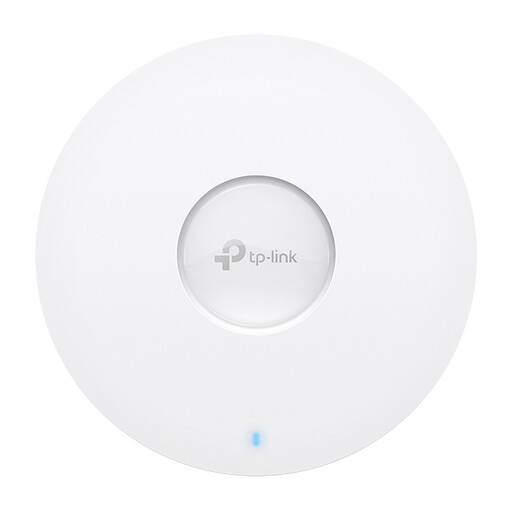
TP-Link Omada EAP613 access point
An access point to consider if you can run Ethernet to the chosen spot and wall or ceiling mounting suits your needs.
The product name specifies Wi-Fi 6, PoE and a stated speed of 1775 Mbps. Check which power supply and cabling you’ll need for your installation.
Joybuy
Frequently asked questions
Do you need a Wi-Fi 7 router straight away to use a study portal?
No. First, check the connection in your study area and see whether moving the router helps. According to the Consumers’ Association, the Wi-Fi standard alone doesn’t determine performance in that spot.
Where should you place a wireless repeater?
Place the repeater somewhere that’s still within range of your existing router. FRITZ! lists this as a requirement for using the FRITZ!Repeater 1200 AX wirelessly. Then check the connection in your study area.
How can you keep your own router secure?
Install firmware updates, enable automatic updates if available and change the default login details. These are general security measures; they don’t guarantee that a particular study portal is secure.
Can you use your own modem or router in the Netherlands?
The ACM states that you can choose your own modem or router in the Netherlands, as long as the device meets safety requirements and doesn’t harm the network. Ask your provider which settings you’ll need to connect it directly. Using an access point behind existing provider equipment is different from replacing the modem.
What extra equipment might you need for a Wi-Fi setup?
Depending on the solution you choose, you may need to run cables, get a suitable PoE power supply and provide power for extra Wi-Fi points. Check what’s included with the exact product version and which components are compatible with your connection.


