Where possible, connect the fixed screen using an ethernet cable, provided the screen and cabling allow it. Then check whether the existing Wi-Fi serves the other users well enough. A standalone Wi-Fi 6 router is a good fit for use in or close to the lounge, while mesh or an extra access point is worth considering if distance and obstacles also affect other areas. Before buying, check the connection to your provider’s equipment, the available LAN ports and how updates are managed.
Who is this choice relevant to?
Person responsible for the shared screen
Wants a stable connection for a screen in a fixed location and can check whether an ethernet cable is an option. Ziggo recommends connecting fixed devices, such as a smart TV, to the internet using a cable wherever possible.
Lounge with lots of people online at once
Wants to connect phones and laptops at the same time and is checking whether another router would suit the way the space is used and the existing Wi-Fi setup. Product information from TP-Link Netherlands and ASUS Netherlands describes features for handling wireless traffic across multiple devices.
Users with weak Wi-Fi outside the lounge
Know that distance, walls or floors can weaken the signal in other areas and want to assess whether an extra Wi-Fi point is needed. The Consumers’ Association describes distance and obstacles as factors that can interfere with Wi-Fi.
What should you look for when choosing?
Keep your existing equipment and connect the screen by cable
A good fit when: the Wi-Fi already meets users’ needs, but the fixed screen can use a wired connection.
Bear in mind: you’ll need a cable route; this won’t fix weak Wi-Fi in other areas.
One standalone Wi-Fi 6 router
A good fit when: users are mainly in or close to the lounge and the Wi-Fi struggles when several people are online at once.
Bear in mind: a higher stated Wi-Fi speed won’t fix a weak internet signal or poor router placement.
Mesh or an extra access point
A good fit when: users also need Wi-Fi outside the lounge and distance or obstacles are causing weak spots there.
Bear in mind: the connection for the main unit and any cabling between Wi-Fi points.
| Purchasing concern |
What to look for |
Who is it most important to? |
| Stable screen connection |
Check the screen’s ethernet port, the cable route and whether there’s a spare LAN port on the router. |
If my main priority is keeping the fixed screen connected, I’ll first check whether a cable is an option. Around 36% of consumers prioritise a stable screen connection. |
| Several users online at once |
Compare the model’s Wi-Fi standard and features with your existing equipment. Stated Wi-Fi speeds are not measured internet speeds in the lounge. |
When phones and laptops are online at the same time, I want to know which features the router lists for handling multiple devices. Around 29% of consumers prioritise several people using wireless connections at once. |
| Coverage outside the lounge |
Find out where the signal gets weaker, then consider moving the router, adding mesh or installing an extra access point. |
If the connection is weak in other seating areas, I mainly want to know whether distance or obstacles are a factor. Around 21% of consumers prioritise coverage in other areas. |
| Installation and management |
Check which settings are needed behind your provider’s equipment and how firmware updates are carried out. |
If you want installation and updates to be easy to manage, check these points before buying. Around 14% of consumers consider suitable and secure management their main concern. |
Common pitfalls
-
Confusing stated Wi-Fi speed with the speed at the screen
Distance from the Wi-Fi point and obstacles such as walls can weaken the connection. A higher stated speed alone won’t tell you how well the connection will perform where the screen is located.
First, check your existing connection and see whether you can connect the fixed screen by cable before choosing another router.
-
Choosing a mesh system without planning the connections
The main unit needs to connect to your existing network, using one of its ports. Other fixed devices may also need a LAN port.
Plan in advance how the modem, main unit, screen and other fixed devices will connect.
If there aren’t enough ports, installation may require extra cables or a network switch.
-
Installing your own router without agreeing who will manage updates
A router needs ongoing attention to security updates, even after installation.
Check how updates are installed for the model you choose and agree who will manage them.
Relevant brands to consider
TP-Link
The Archer AX55 is a standalone Wi-Fi 6 router, while the Deco M4 V2 (2-pack) is a Wi-Fi 5 mesh system designed for a setup with multiple Wi-Fi points.
- According to TP-Link Netherlands’ product information, the Archer AX55 supports OFDMA. The Deco M4 has optional ethernet backhaul.
- The Deco M4 uses Wi-Fi 5. The Archer AX55 is a standalone router and doesn’t include a second Wi-Fi point. These are differences between the models, not an independent performance comparison.
ASUS
The RT-AX58U is a standalone Wi-Fi 6 router to compare if you’re looking for several wired connections or different operating modes.
- ASUS Netherlands lists one gigabit WAN port, four gigabit LAN ports and, among other features, router and access point modes for the RT-AX58U.
- ASUS lists V1 and V2 hardware. Check which version you’re looking at; the connections listed are not an independent measurement of coverage or throughput.
FRITZ!
The FRITZ!Box 4060 is designed to work with an existing cable, DSL or fibre modem. It may be worth considering if you plan to expand your setup with mesh later.
- FRITZ! Netherlands lists one 2.5-gigabit WAN port and three gigabit LAN ports.
- For mesh with other FRITZ! devices, assess the extra Wi-Fi points you’ll need and your internet provider’s settings separately.
Joybuy product picks
These product picks include standalone Wi-Fi 6 routers and mesh systems for a shared lounge. Check each model’s connections for the fixed screen and your existing network.
 No image available
TP-Link Deco BE68 (2-pack)
A mesh system to consider if you’re looking for a setup with multiple mesh units for your lounge.
The product description lists Wi-Fi 7, 10, 2.5 and 1 Gbps WAN/LAN ports per unit, and support for more than 200 devices. One Deco unit needs to connect to the modem.
View at Joybuy
 No image available
ASUS RT-AX52 AX1800
A standalone Wi-Fi 6 router to consider if users are mainly in or near the lounge.
The product description lists Wi-Fi 6, OFDMA, MU-MIMO and gigabit ethernet ports. Check whether the settings you need are compatible with your existing modem.
View at Joybuy
 No image available
TP-Link Deco X50 (3-pack)
A mesh system to consider if you want to use several Wi-Fi points to provide coverage in different areas.
The product description lists Wi-Fi 6, OFDMA and three gigabit ethernet ports per unit. Check which connections you need for the main unit and fixed devices.
View at Joybuy
 No image available
ASUS RT-AX52 Pro AX3000
A standalone router to consider if you want to compare Wi-Fi 6 models for several wireless connections at once.
The product description lists Wi-Fi 6, OFDMA and MU-MIMO. The title lists gigabit ethernet and dual-band (2.4 GHz / 5 GHz); the description mentions expanding the setup with compatible ASUS routers via AiMesh.
View at Joybuy
 No image available
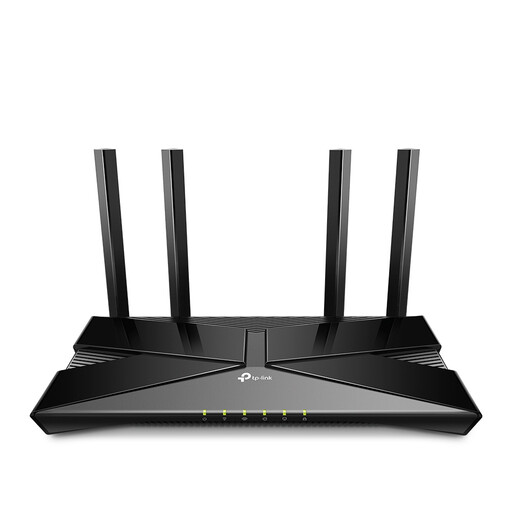
TP-Link Archer AX53
A standalone Wi-Fi 6 router to consider if several devices connect wirelessly in the lounge.
The product description lists Wi-Fi 6, OFDMA and beamforming. The title lists gigabit ethernet and dual-band (2.4 GHz / 5 GHz); the description mentions expanding the setup with compatible mesh Wi-Fi points.
View at Joybuy
Frequently asked questions
Does the shared screen need to connect over Wi-Fi?
No, not if the screen supports ethernet and you can run a cable. Ziggo recommends using an internet cable for fixed devices such as a smart TV; check which connections your screen has.
How do I know if I need a new router?
Compare the connection next to the modem with the connection in the areas where people sit. Distance and obstacles can weaken Wi-Fi, so check the router’s position first. If the connection is mainly weak in other rooms, consider an extra access point or mesh, and whether a wired connection is possible.
Can I use my own router in the Netherlands?
According to ACM ConsuWijzer, you have the right to use your own router, but check the conditions for your connection and device. Ask your internet provider which settings you need before installing the router.
What should I keep doing after installation?
Install security updates for your router. Check whether updates happen automatically or need to be started via the manufacturer’s app or website, and change the default password when you set it up.
What should I look for in a Wi-Fi router sold in the Netherlands?
As radio equipment, a Wi-Fi router is subject to the relevant European requirements. The Dutch Authority for Digital Infrastructure states that products sold in Europe must carry the required CE marking; check the specific model you’re planning to buy.


