Don’t rush to buy a new router: first test the connection at the seminar venue using Ethernet, as a router won’t fix an internet connection problem outside your local Wi-Fi network. Stick with one router if the work areas have good coverage and you mainly need more ports or management features; consider multiple Wi-Fi access points if tests show weak coverage in different rooms. For visitors, it’s also important to have a separate guest network and a practical way to manage security updates.
Who is this choice relevant to?
Organiser of simultaneous seminar calls
You want calls and screen sharing to remain usable while several people share the same connection. VodafoneZiggo has noted that people working from home sometimes move to another spot to get better coverage during video calls. So check both network load and the connection at the work area.
User of work areas in multiple rooms
Your main concern is whether Wi-Fi coverage is strong enough in every place where attendees make calls. The right choice depends on where you can position the equipment, whether you can run cables and whether you need multiple Wi-Fi access points.
Manager of a space used by guests
You want to give visitors internet access without letting them access devices on the local work network. Check how the network is separated and how you’ll manage router updates.
What should you consider when choosing?
Existing router with Ethernet
Choose this when: a fixed seminar workspace is having problems and you want to check whether a wired connection works better there.
Trade-off: you’ll need a suitable cable route and a spare port; a cable won’t solve a lack of internet capacity.
One Wi-Fi router
Choose this when: attendees mainly work in or near the same room and you need more ports, guest access or configurable traffic prioritisation.
Trade-off: check the features and settings of the exact model; a maximum Wi-Fi speed doesn’t guarantee good call quality at a distance.
Mesh with multiple Wi-Fi access points
Choose this when: tests show weak coverage in seminar areas across different rooms and you can’t run Ethernet to those devices.
Trade-off: the access points need to be positioned appropriately; they can only be connected by cable if cabling is available.
Start by testing a wired connection where the calls take place. Then work out whether the remaining problem is to do with coverage, network management or something else.
| What to consider |
What to look for when buying |
Who it matters more to |
| Calls when several people are online |
Test a wired connection too; check the available ports and whether you can configure the traffic prioritisation you need. |
I want calls to remain usable when several people are online at once; around 36% of consumers prioritise stable calls when the network is shared. |
| Coverage across multiple rooms |
Test every seminar area; check whether cabling is possible and how many Wi-Fi access points come with the system you choose. |
If I join calls from different rooms, I want to know whether coverage is strong enough there; around 29% of consumers prioritise coverage across separate work areas. |
| Keeping guest access separate |
Check whether the guest network restricts access to the local network, and test this after installation. |
I want to give visitors internet access without letting them access work devices; around 21% of consumers give top priority to separating guest and work networks. |
| Connections and update management |
Check whether the router will sit behind an existing modem; check your provider’s settings and the update support for the exact version. |
I’m looking for a set-up that suits my connection and that I can keep maintained; around 14% of consumers prioritise connection compatibility and updates. |
Common buying mistakes
-
Assuming a higher Wi-Fi speed rating guarantees better seminar calls
Call quality also depends on the connection beyond your local Wi-Fi network, as well as network latency and packet loss. A router’s traffic prioritisation feature won’t fix an internet connection problem.
Test at the seminar venue and, if you can, compare Wi-Fi with an Ethernet connection.
-
Choosing mesh without checking the number of access points and how they connect
Mesh systems can be sold in different pack sizes. How you position the access points and how they connect to one another will affect how you can use the system in your workspace.
Choose the number of access points based on the seminar areas you’ve tested, and check whether Ethernet backhaul is possible.
A system with more access points means extra devices and may require cabling between them.
-
Assuming every guest Wi-Fi feature keeps the work network separate
For the ASUS RT-AX58U, ASUS states that the guest network provides internet access while restricting access to the local network. Check how this works on other models separately.
Check and test the network separation on the exact router after installation.
Relevant brands and models
TP-Link
The Archer AX55 and Deco X50 show the difference between a standalone router and a mesh set-up with multiple access points.
- TP-Link lists Wi-Fi 6 and OFDMA for the Archer AX55; for the Deco X50, the manufacturer mentions multiple access points and optional Ethernet backhaul.
- These are model specifications, not an independent measure of seminar call quality. Check how many access points are included with the Deco X50.
ASUS
The RT-AX58U is worth considering if configurable QoS, guest access and different operating modes are important to you.
- For the RT-AX58U, ASUS lists Adaptive QoS, guest access that restricts local network access, four Gigabit LAN ports and an access point mode, among other features.
- The manufacturer notes differences between V1 and V2. QoS alone doesn’t prove that every seminar call will improve; check the hardware version being sold.
FRITZ!
The FRITZ!Box 4060 is designed to sit behind a cable, DSL or fibre-optic modem.
- FRITZ! lists a 2.5-gigabit WAN port, three Gigabit LAN ports, mesh features and a five-year warranty for this model.
- Check what equipment you already have and what connection set-up you need. The warranty mentioned doesn’t automatically apply to other FRITZ! products.
Routers and mesh systems on Joybuy
This selection includes standalone Wi-Fi routers and mesh systems for seminar work areas spread across multiple rooms.
 No image available
ASUS RT-AX52 AX1800 dual-band Wi-Fi router
For a seminar workspace where you’re considering a standalone router. The product name lists AX1800, dual-band (2.4 GHz / 5 GHz) and Gigabit Ethernet.
Joybuy
 No image available
TP-Link Deco X50 (3-pack)
For seminar areas across multiple rooms, if a mesh system with three access points suits your needs. The product name lists Wi-Fi 6 (802.11ax) and dual-band (2.4 GHz / 5 GHz); Ethernet backhaul is optional and requires a suitable wired connection between the access points.
Joybuy
 No image available
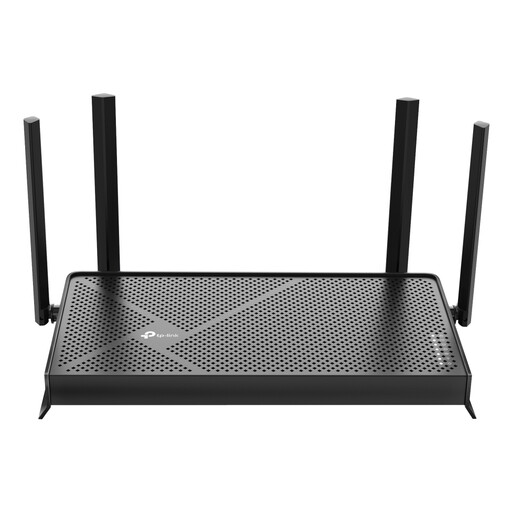
TP-Link Archer BE230 BE3600 dual-band Wi-Fi router
For shared wireless use if you’re considering a standalone router. The product name lists Wi-Fi 7 and dual-band.
Joybuy
 No image available
TP-Link Deco X50-PoE (2-pack)
For work areas across multiple rooms, if a mesh system with two access points and the PoE version suit your set-up. The product name lists Wi-Fi 6 (802.11ax) and dual-band (2.4 GHz / 5 GHz).
Joybuy
 No image available
TP-Link Deco X50 (2-pack)
For seminar areas in more than one room, if a mesh system with two access points suits your needs. The product name lists Wi-Fi 6 (802.11ax) and dual-band (2.4 GHz / 5 GHz); Ethernet backhaul is optional and requires a suitable wired connection between the access points.
Joybuy
Frequently asked questions
Can QoS help if voices keep cutting out during a seminar?
QoS can be useful when network traffic is competing for limited capacity and the feature is configured correctly. Microsoft Learn explains how real-time traffic in Teams can be prioritised, but also check whether the internet connection itself is the bottleneck.
Do I need to replace my provider’s modem to use my own router?
No, not necessarily: you can connect your own router behind the existing modem. The ACM explains that you’re free to choose your own router and, in most cases, your own modem too. Check your provider’s settings before connecting equipment directly or replacing it.
How do I maintain a router I’ve bought myself?
Check how updates are provided for the exact hardware version and enable automatic updates if possible. VeiligInternetten also recommends changing the default login details.
What Dutch product regulations apply to a Wi-Fi router?
Radio equipment placed on the market in the Netherlands must meet the applicable European requirements for radio equipment. The Rijksinspectie Digitale Infrastructuur states that, since 1 August 2025, the applicable digital security requirements under RED 3.3 also apply. Check the requirements for the exact version; a product listing alone doesn’t confirm that it complies.
How do I decide whether a shared workspace needs mesh?
Consider multiple Wi-Fi access points if tests show weak coverage in seminar areas across different rooms and you can’t use Ethernet there. Check how many access points are included and whether a wired connection between them is possible.


