
Household with simultaneous video calls
You want several people to be able to make video calls at the same time, so you’re comparing the shared internet connection with the capacity of your home network.


Not always. First, find out whether the problem is caused by the place where you make calls, simultaneous use or the internet connection itself. A standalone router may be suitable if coverage is already good; mesh can help when you need coverage in several rooms, and Ethernet is worth considering for a permanent workspace. Also check that the router is compatible with your connection and the exact model variant.
You want several people to be able to make video calls at the same time, so you’re comparing the shared internet connection with the capacity of your home network.
Your call tends to freeze in a particular workspace. In that case, improving the router’s position or adding multiple Wi-Fi access points matters more than simply choosing a higher advertised top speed.
You may be able to use a network cable and want to know which router and provider setup would be suitable.
First, work out whether you mainly need capacity, coverage in several places or a connection for a permanent workspace. Then check that the router is compatible with your internet connection.
Choose this if: your workspace already has good coverage, but several devices use the network at the same time.
Bear in mind: a single router won’t automatically fix poor coverage behind walls or on another floor, and it won’t increase the speed of your internet package.
Choose this if: you make video calls in different parts of your home and the signal is weak there.
Bear in mind: placement and the connection between the units still matter. Check how many units are included in the set.
Choose this if: you work from a fixed location and can conveniently connect a network cable.
Bear in mind: the cable needs to reach your workspace; other devices using Wi-Fi will still depend on their coverage and the shared internet connection.
| What to consider | What should you check? | Who should pay particular attention? |
|---|---|---|
| Capacity for simultaneous calls | Compare your connection at busy times and check support for simultaneous network traffic. Distinguish between the advertised Wi-Fi speed and your internet connection. | If several video calls are happening at home at the same time, I want to know whether the connection can handle that usage; around 36% of consumers prioritise capacity for simultaneous use. |
| Coverage in different places where you make calls | Test the places where you actually make calls. For mesh, check the number of units in the set and whether they can be connected via Ethernet. | When a call freezes in a particular room, I want usable coverage there without relying on top speed alone; around 29% of consumers prioritise coverage in multiple places. |
| Permanent workspace | Check whether there’s a spare LAN port and whether a cable from the router or a suitable Wi-Fi access point can reach your workspace. | If you always make calls from the same desk, a cable could be a practical option; around 21% of consumers prioritise a suitable connection for a permanent workspace. |
| Connection and management | Decide whether the router will sit behind your existing modem or whether you also want to replace the modem. If necessary, ask your provider for the connection details you need. | If you want to connect your own equipment, you’ll want to know which setup your provider supports; around 14% of consumers prioritise compatibility and management. |
An advertised Wi-Fi speed is a product specification. Video call quality also depends on your internet connection and the conditions where you make the call.
First, test where and when calls freeze. Then compare a router’s capacity and coverage.
For mesh, how useful it is across multiple rooms partly depends on the number of units and how they connect to each other. The Deco X50-5G or X50-PoE is a different variant from the Deco X50.
Before buying, check the full model name, the number of units in the set and the type of connection you want between them.
If you want to connect the device directly to your broadband connection, your provider’s settings and the type of connection may be important.
Decide in advance which functions the new device needs to take over and, if necessary, ask your provider for the connection details.
The Archer AX55 is a standalone Wi-Fi 6 router, while the Deco X50 is a mesh system with multiple Wi-Fi access points.
The RT-AX58U is a standalone router for those looking for features such as LAN connections and configurable traffic management.
The FRITZ!Box 7690 is a DSL router with telephony features. According to the manufacturer, it can also be used behind a separate fibre or cable modem.
This selection includes standalone Wi-Fi routers and mesh systems to compare for simultaneous use or when you need coverage in multiple places.
 No image available
An option to compare if several devices use Wi-Fi at the same time; the product description lists Wi-Fi 6, OFDMA and MU-MIMO.
Dual-band (2,4 GHz / 5 GHz); Gigabit Ethernet; AiMesh compatibility according to the product description.
 No image available
An option to compare if you need Wi-Fi coverage in several parts of your home; the set includes three mesh units.
Wi-Fi 6; the product description lists OFDMA, MU-MIMO and optional Ethernet backhaul for connecting the units.
 No image available
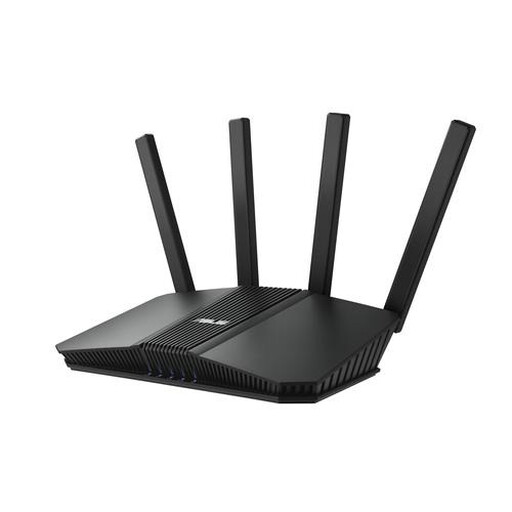
An option to compare if you want a wired connection for a permanent workspace; the product title lists 2,5 Gigabit Ethernet.
Wi-Fi 7; dual-band (2,4 GHz / 5 GHz); the product description lists OFDMA and Ethernet connections.
 No image available
An option to compare if several devices use Wi-Fi at the same time; the product description lists OFDMA and MU-MIMO.
Gigabit Ethernet; dual-band (2,4 GHz / 5 GHz); AiMesh compatibility according to the product description.
 No image available
An option to compare if you need Wi-Fi coverage in several places; the product information describes a mesh set with three units.
Wi-Fi 6E; tri-band (2,4 GHz / 5 GHz / 6 GHz); three Gigabit Ethernet ports per unit according to the product description.
No. Check both the connection where you make calls and the internet connection available when several people are online at once. Zoom publishes bandwidth requirements for different call types and quality settings; a higher advertised Wi-Fi speed won’t increase the speed of your internet package.
Yes. According to ACM ConsuWijzer, you have the right to choose your own router. You’ll need your provider’s settings to connect it directly; if you also choose your own modem, additional connection requirements may apply.
Check update support and whether your chosen setup requires extra Wi-Fi access points or Ethernet cabling. Any manufacturer’s warranty is separate from your statutory rights: according to ACM ConsuWijzer, the seller must provide an appropriate solution free of charge if a product doesn’t perform as you could reasonably expect under normal use.
According to the Dutch Authority for Digital Infrastructure, you can use Wi-Fi without a licence as long as you use the designated frequencies and comply with the conditions of use. Radio equipment sold in the Netherlands must also meet the applicable European requirements, including CE marking.