A new Wi-Fi router is most useful when your fixed internet connection is working well, but the Wi-Fi signal is weak where you watch TV. Test both first, as a router won’t fix a problem with your fixed connection. If a well-positioned router can reach your viewing area, compare its dimensions, connections and modem settings. If the signal is still weak through walls, an extra access point or mesh system could be a good option, provided you have space and a power supply for the additional equipment.
Who is this buying guide for?
Film streamer with a small shelf
You want films to play smoothly where you watch them, but have little room for a router, power adapter and cables. Compare the space available with the signal strength before choosing. The Netflix Help Centre outlines its streaming requirements, while Consumentenbond highlights how walls and other obstacles can interfere with Wi-Fi.
Viewer with walls in the way
Your fixed internet connection works, but the Wi-Fi signal is weak by the television. Test it in that spot and see whether you can reposition your existing access point or make room for an extra one. Consumentenbond notes that walls and ceilings can interfere with the signal.
User with a provider-supplied modem
You want to add your own equipment or use it instead of your provider’s router. Check the required settings, how it connects and how to update the device. ACM ConsuWijzer explains your freedom to choose your own network equipment.
What should you look for when choosing?
First, test your fixed connection and the Wi-Fi signal where you watch TV. Then decide whether to reposition your current equipment, choose a single router or add extra access points. The Netflix Help Centre recommends a stable connection of at least 15 Mbps for its own 4K UHD streams. This isn’t a general router specification, and other streaming services may have different requirements.
| What to consider |
What should you check? |
Who is this important for? |
| Reliable playback |
Test on the playback device and, where possible, compare the Wi-Fi signal with a wired test of your fixed connection. |
I want films to play on my TV without buffering; around 36% of consumers say reliable playback is their main concern when buying. |
| Size and positioning |
Measure the shelf, the space needed for plugs and cables, and the number of LAN ports you need. Also choose a suitable, open position. |
If the shelf is small, I want to know whether the router, power supply and cables will all fit without having to tuck the device away somewhere unsuitable. Around 29% of consumers prioritise a suitable size and position. |
| Range to the TV |
Compare the Wi-Fi signal by the router with the signal where you watch TV. Then decide whether a cable or an extra access point can be installed conveniently. |
The Wi-Fi signal is weak where my television is, and I want to know whether another access point can reach that area. Around 21% of consumers say range to their viewing area is their main concern. |
| Connection and management |
Check the settings for connecting to your modem, the update policy and the correct CE marking for the exact version. The Dutch Authority for Digital Infrastructure outlines the applicable requirements for radio equipment sold in the Netherlands. |
When I want to use my own equipment, I want to know in advance how it will work with my connection and how to manage it. Around 14% of consumers prioritise connection and management. |
Common buying mistakes
-
Assuming a higher stated Wi-Fi speed guarantees a better picture
Your fixed connection speed and the connection where you watch TV are two different measurements. A new router won’t automatically fix a problem with your fixed connection.
Test on the playback device and, where possible, compare it with a wired test before replacing any equipment.
-
Tucking a small router away to save shelf space
A router may fit physically, but distance and obstacles can weaken the Wi-Fi signal where you watch TV.
Measure the space needed for the router, power supply and cables, then find a suitable, open position.
An unsuitable position could mean you need a longer cable or an extra access point later on.
-
Choosing a mesh system without working out how many units you need
A pack with several units doesn’t tell you how far the signal will reach in your home. One well-positioned access point may be enough, while a room further away may need an extra one.
First, test the signal in the places where you use Wi-Fi. Then work out where you can put a unit and a power socket.
Each extra unit needs its own space and power supply; unused units still take up room.
Brands worth comparing
ASUS
The RT-AX57 Go is worth considering if you’re looking for a compact router or need access point mode.
- ASUS lists dimensions of 120 × 120 × 21,5 mm for this model, along with router and access point modes and one gigabit LAN port.
- Allow room for plugs and cables as well as the router itself. Its dimensions alone don’t tell you how well it will receive a signal where you watch TV.
TP-Link
The Deco X50 is worth considering if you want to compare a single access point with a system that uses several.
- TP-Link lists versions with 1, 2 or 3 units, three gigabit ports per X50 unit and optional Ethernet backhaul.
- Several units need suitable locations and power sockets. The coverage quoted by TP-Link doesn’t guarantee reception in your home.
FRITZ!
The FRITZ!Box 4050 is worth comparing if you’re weighing up extra connections or phone features for use behind an existing DSL, cable or fibre modem.
- FRITZ! lists three gigabit LAN ports, mesh capabilities, automatic updates and a five-year manufacturer’s warranty for this model.
- If shelf space is limited and you only stream films, extra features may not be a deciding factor. Check the connection method you need and the space available.
Joybuy product picks
These Joybuy product picks are for anyone comparing their own Wi-Fi router or mesh system for the viewing area. For each model, consider the space it needs, its connections and how it will connect to your existing modem.
 No image available
ASUS ZenWiFi BD4 Dual-Band (2.4 GHz / 5 GHz) Wi-Fi 7, White, 2 Internal
A model to compare if you’re looking for a mesh router with the option to add wired units.
The product details list dimensions of 140 × 140 × 70 mm and two 2.5 Gbps Ethernet ports. ASUS mesh compatibility and wired backhaul options are also listed.
Joybuy
 No image available
ASUS RT-AX52 AX1800 AiMesh dual-band router, Gigabit Ethernet, 2.4 GHz / 5 GHz, Black
Worth comparing if you want to connect your own router behind a modem and have several wired devices.
The product details list Wi-Fi 6, dimensions of 190 × 126 × 45 mm and three Ethernet ports. Installation via a mobile app is also mentioned.
Joybuy
 No image available
Huawei eKit OptiX FG736 BE3600 Dual-Band Wi-Fi 7 mesh router
Worth comparing if you’re considering a mesh system with several units.
The product description mentions a single network name and roaming between units, with setup and management via the HUAWEI SmartLife app.
Joybuy
 No image available
Huawei eKit OptiX FG630 AX3000 Dual-Band Wi-Fi 6 mesh router
A mesh model to compare if you want to extend your home Wi-Fi network.
The product details list mesh, automatic band steering and management via the Huawei AI Life app.
Joybuy
 No image available
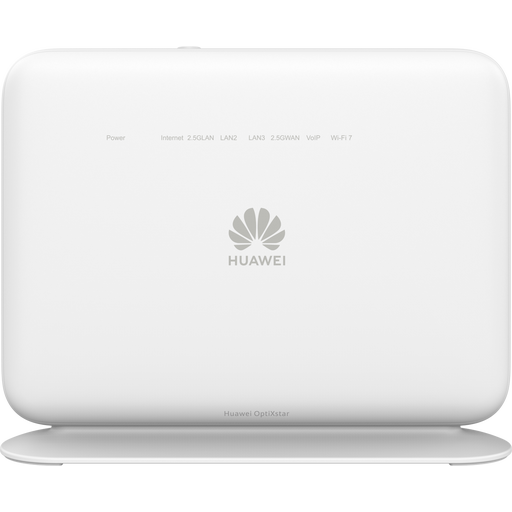
Huawei eKit OptiX LG8245B7N BE3600 Dual-Band Wi-Fi 7 4G Dongle Router
Worth comparing if you’re looking for a router with a mobile backup connection as well as your fixed connection.
The product description mentions 4G backup if your primary broadband connection fails, with automatic switching to mobile data.
Joybuy
Frequently asked questions
Do I definitely need a new router to watch a 4K nature film?
No, not if your existing connection is stable enough where you watch. The Netflix Help Centre recommends at least 15 Mbps for its own 4K UHD streams. Test the connection on your playback device and check your fixed connection separately. Other streaming services may have different requirements.
Where should I put the router if my shelf is small?
Measure the space available, including the power supply, plugs and cables, and find a suitable, open position. Putting a router in an enclosed or unsuitable space can weaken the Wi-Fi signal where you watch TV. Check the positioning instructions for the model you choose, too.
Can I use my own router in the Netherlands?
Yes. ACM ConsuWijzer explains that you’re free to use your own router. Check which settings your provider requires for the connection and keep the device up to date. Security may be a factor in whether your own equipment is accepted.
How do I check the CE marking on a new Wi-Fi router?
Check the marking on the exact version you want to buy. The Dutch Authority for Digital Infrastructure outlines the European requirements for radio equipment sold in the Netherlands. A model name alone doesn’t confirm that a specific version meets them.
Is the manufacturer’s warranty the same as the statutory guarantee?
No. ACM ConsuWijzer distinguishes between a manufacturer’s or seller’s warranty and the statutory guarantee: when used normally, a product must do what you could reasonably expect of it. You can contact the seller to make a claim under the statutory guarantee.


