Don’t rush into buying a new router. First, find out whether the problem is caused mainly by several people using the network at once, poor coverage where you’re taking the seminar or your internet connection. One router may be all you need if the signal is already good. For a workspace in a far-flung corner of your home, mesh or a cable may work better. However, none of these options will increase the limited upload speed included with your internet plan.
Who is this guide for?
Household with several people on video calls
You’re attending or running a seminar while other people at home are also on video calls. You want to know whether your network can handle everyone being online at once. Zoom Technical Library explains how bandwidth requirements depend on a call’s settings.
Seminar attendee with poor coverage in their workspace
Your connection tends to drop out in the room where you’re attending the seminar. VodafoneZiggo notes that people working from home sometimes move to another spot to get a better signal. That’s why the position of your router or mesh units, or the route for a cable, may be worth considering.
Home worker looking to simplify their network setup
You’re considering buying your own router or configuring network traffic, but you also need to factor in your existing modem, your provider’s connection details and equipment updates. ACM ConsuWijzer recommends keeping your own network equipment up to date.
What should you look for?
A standalone Wi-Fi router
Choose this option: if you already get good coverage where you’re taking the seminar and several devices are active at the same time. TP-Link lists OFDMA for the Archer AX55, while ASUS lists Adaptive QoS for the RT-AX58U.
Bear in mind: a new router won’t necessarily fix a weak signal caused by distance or walls. Manufacturer features are no guarantee of uninterrupted calls.
Mesh Wi-Fi with multiple units
Choose this option: if you’re taking the seminar in another room or on another floor and want to improve coverage there. The TP-Link Deco X50 is a mesh system.
Bear in mind: you’ll need to position the units carefully. A wired connection between them requires a suitable cable route. TP-Link describes Ethernet backhaul as an option for Deco units.
Wiring your workspace or keeping your existing equipment
Choose this option: if it’s mainly one seminar connection that needs attention. First, test Ethernet and your existing internet connection while several people are online at once.
Bear in mind: installing a cable takes work and won’t automatically improve Wi-Fi in other areas. It won’t increase the upload speed provided by your internet plan, either.
| What to consider |
What should you check? |
Who is this most relevant to? |
| Simultaneous calls |
Test your usual calls at the same time and check which traffic-prioritisation settings the exact model offers. |
If other people are on video calls while I’m taking my seminar, I want to know whether my home network can handle the load. Around 36% of consumers prioritise simultaneous use. |
| Coverage where you’re taking the seminar |
Test the connection in your workspace and see whether it’s practical to install a cable or place a mesh unit there. |
If the room where I’m taking my seminar has poor coverage, I’m looking for a solution for that specific spot. Around 29% of consumers prioritise coverage there. |
| Upload speed and cabling |
Check the upload speed available during normal simultaneous use and see whether you can connect your workspace by cable. For a 720p HD group call, Zoom Technical Library gives guideline speeds of 2.6 Mbit/s upload and 1.8 Mbit/s download per call. |
If I’m unsure whether my internet connection or the cable route is the limiting factor, I want to find out first. Around 21% of consumers prioritise connections and cabling. |
| Setup and maintenance |
Check which equipment needs to stay in place, which settings your provider requires and how to update the router. |
If I want to connect my own router without a complicated setup, I look at installation and maintenance. Around 14% of consumers prioritise these points. |
Common buying mistakes
-
Assuming the combined Wi-Fi speed guarantees smooth video calls
The advertised Wi-Fi speed doesn’t tell you how much upload speed your internet connection provides, what coverage you’ll get in your workspace or how the network will handle several calls at once.
Test the connection where you’re taking the seminar while others are online, and assess Wi-Fi, upload speed and network load separately.
-
Buying a standalone router without checking coverage
If the problem mainly occurs in a room that’s far away, the position of your workspace may be the deciding factor. A router in one location won’t necessarily solve the problem.
First, test the connection where you’re taking the seminar, then see whether you could move the router, install a cable or add a mesh unit.
-
Thinking a router and modem are the same thing
A standalone router won’t automatically replace your modem or your provider’s connection settings.
Before you buy, work out which equipment needs to stay in place and, if necessary, ask your provider for the connection details you’ll need.
Brands to consider
TP-Link
The Archer AX55 is a standalone Wi-Fi 6 router, while the Deco X50 is a Wi-Fi 6 mesh system. The difference may matter if you use your network in one place or need coverage across several rooms.
- TP-Link lists OFDMA for the Archer AX55 and optional Ethernet backhaul for the Deco X50.
- These model specifications don’t guarantee call quality or coverage in your home.
ASUS
The RT-AX58U may be worth considering if you want to compare access point mode, Adaptive QoS or the possibility of extending your network with AiMesh.
- ASUS lists these features for the RT-AX58U.
- Check the full model name and hardware version: the listed processors differ between V1 and V2. A feature on its own doesn’t prove that your connection will improve.
FRITZ!
According to FRITZ!, the FRITZ!Box 4060 is a tri-band Wi-Fi 6 router that you use with a separate modem.
- The manufacturer lists a 2.5-gigabit WAN port, three gigabit LAN ports and a five-year manufacturer’s warranty for this model.
- According to the product information, the FRITZ!Box 4060 doesn’t have a built-in DSL, cable or fibre modem. Check which equipment from your provider you’ll still need.
Products on Joybuy
This selection includes standalone routers for a network setup in one location and mesh systems for Wi-Fi coverage in several areas of your home. For each model, check that its connections and stated wireless standards are compatible with your equipment and internet plan.
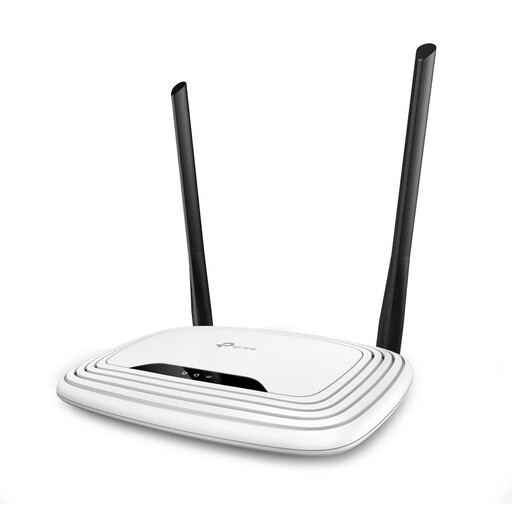 Image unavailable
TP-Link TL-WR841N, single-band router (2.4 GHz)
Consider this model if you’re looking for a standalone router and the stated wireless band suits your needs.
The product name lists a single 2.4GHz band and Fast Ethernet. Check that the connections are compatible with your equipment and internet connection.
View at Joybuy
 Image unavailable
TP-Link Deco E4 (3-pack), dual-band Wi-Fi 5 (802.11ac)
Consider this mesh system if you want Wi-Fi coverage in several areas of your home.
The product name lists dual-band 2.4 GHz and 5 GHz and Wi-Fi 5 (802.11ac). Check that the stated standards and connections suit your network setup.
View at Joybuy
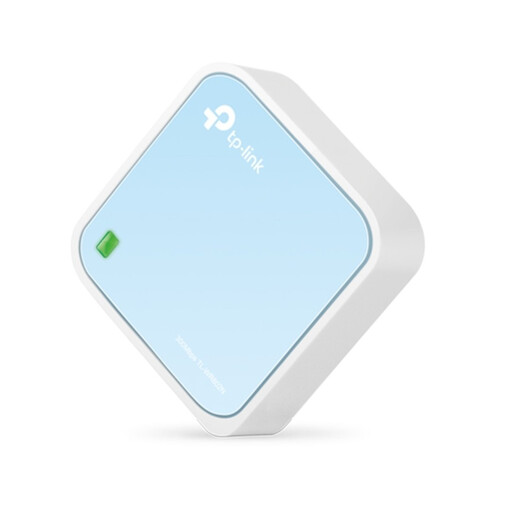 Image unavailable
TP-Link TL-WR802N V4 router
Consider this standalone router if you’re looking for a router for a specific spot.
Before buying, check the specifications and connections of this V4 version and compare them with your existing equipment and internet connection.
View at Joybuy
 Image unavailable
ASUS RT-AX52 AX1800 AiMesh dual-band router
Consider this model if you’re looking for a standalone router and want to keep AiMesh in mind as a possible way to extend your network.
The product name lists dual-band 2.4 GHz and 5 GHz and Gigabit Ethernet. Check that these connections and the AiMesh feature suit your existing network.
View at Joybuy
 Image unavailable
TP-Link Deco X50 (3-pack), dual-band Wi-Fi 6 (802.11ax)
Consider this mesh system if you want to extend Wi-Fi coverage across several areas of your home.
The product name lists dual-band 2.4 GHz and 5 GHz and Wi-Fi 6 (802.11ax). Actual coverage also depends on the positioning of the units and the layout of your home.
View at Joybuy
Frequently asked questions
How can you tell whether the router or your internet connection is the bottleneck?
Test the connection where you’re taking the seminar while the usual number of people are on calls, and compare Wi-Fi with Ethernet if possible. Also check the upload speed of your internet connection. Zoom Technical Library provides bandwidth guidelines for specific settings, but actual usage depends on factors including resolution and video layout.
Can you connect your own router in the Netherlands?
Yes. According to ACM ConsuWijzer, you’re free to choose your router. A provider may refuse an unsafe device, and you may need your provider’s settings to connect it. If you’re replacing a modem, also check which network type your connection uses.
What should you check when buying a Wi-Fi router in the Netherlands?
The Dutch Authority for Digital Infrastructure outlines the relevant European requirements for radio equipment and the stricter safety requirements that have applied since 1 August 2025. Check for the CE mark and the declaration of conformity supplied with the radio equipment. These checks don’t replace an assessment of a specific model.
What about updates and the warranty?
ACM ConsuWijzer recommends keeping your own network equipment updated to protect your network and personal data. Alongside any manufacturer’s warranty, you have statutory rights against the seller if a product is faulty. There isn’t one fixed warranty period for every router.
Do the Cyber Resilience Act requirements already apply in full to routers?
No. According to the timeline from the Dutch Authority for Digital Infrastructure, manufacturers have been required to report incidents since 11 September 2026. The wider product requirements for products with digital elements will apply from 11 December 2027. That later date doesn’t replace the radio equipment requirements that apply now.


