What should you look for?
First, test your existing connection and, if necessary, try moving the router. Only then decide between a single router, several mesh points or an Ethernet cable to the screen.
| What to consider |
What should you check? |
Who should pay particular attention? |
| Being able to reach the screen |
Check that your phone and screen can communicate on the intended network, and whether client isolation is enabled. Google Streaming Help lists network isolation as a possible cause of problems with Google Cast. |
If I want to cast from my phone to the shared screen, I need both devices to be able to find each other. Around 29% of consumers prioritise being able to reach the screen. |
| Coverage by the screen |
Measure the connection by the TV and try moving the router before choosing extra points. Distance and obstacles can weaken the signal, according to the Dutch Consumers’ Association. |
If the TV is in a spot with weak Wi-Fi, I want to know whether moving the router or adding another network point will help. Around 23% of consumers prioritise coverage in such areas. |
| Using several devices at once |
Compare the Wi-Fi features and LAN ports with the devices you actually use. Advertised speeds are not a measurement of your internet speed. |
When several devices are in use at once, I want the features I choose to suit my devices and how I use them. Around 18% of consumers put capacity for simultaneous use first. |
| Compatibility with your provider |
Decide whether to keep or replace your provider’s equipment, and check the connection type and settings you’ll need. ACM ConsuWijzer explains your freedom to choose your own router, but the connection must still suit your situation. |
If I want to keep using my existing connection, I want to know in advance how my own equipment will connect to it. Around 18% of consumers particularly value clear guidance on connecting to their provider’s equipment. |
| Security and maintenance |
Check how firmware updates are handled and what network isolation settings you can configure. If buying a version sold in the Netherlands, also check that it has the correct CE marking. |
If I manage my own network, I want to know how to keep its updates and security settings up to date. Around 12% of consumers prioritise security and maintenance. |
Products on Joybuy
This selection includes mesh systems with multiple points and standalone routers for a shared screen and devices around the home. Choose based on your coverage measurements, the connections you need and the network settings required.
 No image available
TP-Link Deco X50 (3-pack) dual-band Wi-Fi 6
A mesh system for adding multiple network points around the home when measurements show that coverage is poor in several places.
3-pack; dual-band (2,4 GHz and 5 GHz). The product description lists three gigabit ports per unit.
Before buying, check the version and the correct CE marking on the specific device.
View on Joybuy
 No image available
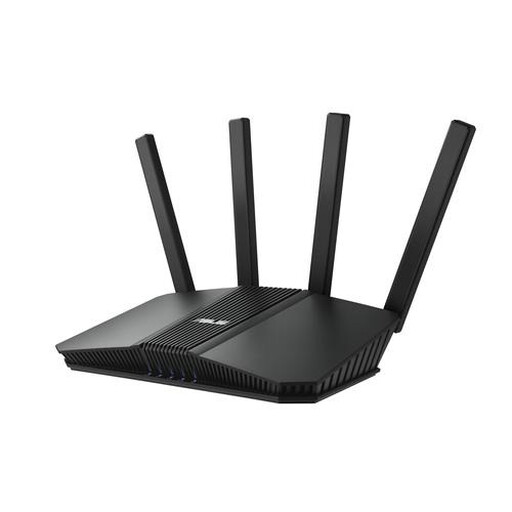
ASUS RT-BE82U BE6500 dual-band Wi-Fi 7
A standalone router to consider if you want to compare the listed Wi-Fi features and wired connections with the devices you use at home.
Dual-band (2,4 GHz and 5 GHz); the product description lists OFDMA and four Ethernet ports, including 2,5 Gigabit Ethernet.
Before buying, check the version and the correct CE marking on the specific device.
View on Joybuy
 No image available
ASUS RT-AX52 Pro AX3000 dual-band Wi-Fi 6
A standalone router to compare if you’re considering Wi-Fi 6 and the listed options for extending your network with multiple points.
Dual-band (2,4 GHz and 5 GHz); the product description lists OFDMA, MU-MIMO and expansion with compatible AiMesh routers.
Before buying, check the version and the correct CE marking on the specific device.
View on Joybuy
 No image available
TP-Link Deco XE75 Pro (3-pack) tri-band Wi-Fi 6E
A mesh system to compare if you need multiple points. Decide where to place them based on the weak spots in your home.
3-pack; tri-band (2,4 GHz, 5 GHz and 6 GHz). The product description lists three Ethernet ports per unit.
Before buying, check the version and the correct CE marking on the specific device.
View on Joybuy
 No image available
TP-Link Deco X50 (2-pack) dual-band Wi-Fi 6
A mesh system with two points to consider when measurements show that coverage is poor in more than one area of your home.
2-pack; dual-band (2,4 GHz and 5 GHz). The product description lists three gigabit ports per unit.
Before buying, check the version and the correct CE marking on the specific device.
View on Joybuy
Frequently asked questions
Why can’t my phone find the shared screen?
With Google Cast, network isolation can prevent your phone and screen from reaching each other. Check that both devices are on the intended network and whether AP or client isolation is enabled. Other screen protocols may have their own requirements.
Do I need a Wi-Fi 7 router for 4K streaming?
Not just because it’s 4K. Netflix recommends a connection of at least 15 Mbps for its 4K UHD streams. That’s a recommendation for that service, not a router speed or a standard for every stream. Measure the connection by the screen.
Can I use my own router with my internet provider?
Yes. ACM ConsuWijzer explains that in the Netherlands you’re free to choose your own router. However, if you’re connecting or replacing equipment, check your provider’s settings and the requirements for your connection.
Do I need a licence or registration for Wi-Fi at home?
According to the Dutch Authority for Digital Infrastructure, no licence, notification or registration is needed for Wi-Fi on the designated licence-exempt frequencies. The conditions for those frequencies still apply. Equipment sold in the Netherlands must also meet product requirements, including having the correct CE marking.
What maintenance does my router need after installation?
Keep your router up to date with firmware updates and check whether automatic updates are available. If you use your own router, find out how updates are handled for that model.


