
Home worker who has video calls
Needs a reliable connection at a fixed workspace and wants to weigh up whether Wi-Fi will do or an Ethernet cable is an option.


For a compact home office in a rented property, one well-positioned router is usually a sensible place to start. A wired connection may work if you can run an Ethernet cable to your workspace. Keep your existing modem at first and check the connection, ports and coverage. Only add mesh points if coverage at your workspace is still poor after positioning the router carefully. Manufacturer speed claims don’t guarantee the speed you’ll get at your desk.
Needs a reliable connection at a fixed workspace and wants to weigh up whether Wi-Fi will do or an Ethernet cable is an option.
Wants to improve coverage at their workspace and assess the position of a single router before adding extra points.
Wants to connect their own Wi-Fi solution without unnecessarily replacing the existing internet equipment, and is mindful of configuration and updates.
First, assess the connection at your workspace, then decide which router and setup will work with your existing connection. The Dutch Authority for Digital Infrastructure states that equipment must carry the CE marking; check this on the specific device.
| What to consider | What should you look for? | Who is this most relevant to? |
|---|---|---|
| Reliable connection at your workspace | Check whether Ethernet is an option; otherwise, assess the router’s position and Wi-Fi signal where you work. | If I rely on a stable connection during video calls, I want to assess coverage at my desk. Around 36% of consumers put reliable coverage at their workspace first. |
| Coverage without unnecessary equipment | Test the router’s position in relation to your workspace, then check which type of extension the model supports. | If my workspace is a distance away or behind obstacles, I want to know whether one router will provide enough coverage before adding extra equipment. Around 29% of consumers say coverage is their main buying concern. |
| Connecting to your existing network | Find out what equipment and connection you already have; check the WAN port and the available operating modes. | If I want to keep my provider’s modem, I’m looking for a setup that works with it and doesn’t require unnecessary replacement. Around 21% of consumers prioritise compatibility with their connection. |
| Security and maintenance | Check the CE marking on the device, its update policy and the security features of the exact model. | If you use your own router, you’ll want to know how updates and network management are handled. Around 14% of consumers say maintenance and security are their main buying concern. |
The stated speeds for 5 GHz and 2.4 GHz don’t show what your laptop will actually achieve at your workspace or what you’ll get from your internet package.
Compare the relevant Wi-Fi and port specifications separately, and assess coverage where you work.
Connecting a router to an existing modem is different from replacing the equipment for a cable, DSL or fibre connection.
Before buying, find out what connection and equipment you have, and check that the router’s chosen mode is suitable. If necessary, ask your provider for the settings.
An unsuitable replacement may still require extra connection equipment or installation work.
Extra points aren’t always necessary; a well-positioned router may provide enough coverage for your workspace.
First assess coverage at your workspace, then check which type of extension the exact model supports.
The Archer AX55 is an example of a standalone dual-band Wi-Fi 6 router for anyone weighing up Wi-Fi and wired connections.
The RT-AX57 is worth considering if you’re looking for a standalone router that can also work as an access point or be used with the stated AiMesh system.
The FRITZ!Box 4050 is designed for anyone who wants to use a router behind an existing modem and weigh up its extra features.
The RAX10 is an example of a dual-band Wi-Fi 6 router with wired ports for a smaller home.
This selection includes routers for a wired workspace and models with mesh in the product name. Before buying, check which connections and settings will work with your existing modem.
 Image unavailable
A good fit if you want a wired connection at a fixed workspace and an option to extend your network.
Dual-band (2.4 GHz and 5 GHz), gigabit Ethernet and AiMesh.
 Image unavailable
A good fit if you’re looking for a mesh router for a network that may need extending.
Wi-Fi 7, dual-band and mesh.
 Image unavailable
A good fit if you’re looking for a router that lists mesh and want to compare Wi-Fi 6 as a product specification.
Wi-Fi 6, AX3000, dual-band and mesh.
 Image unavailable
A good fit if you want to connect a workspace by cable and consider a stated option for extending your network.
Dual-band (2.4 GHz and 5 GHz), gigabit Ethernet and AiMesh compatibility.
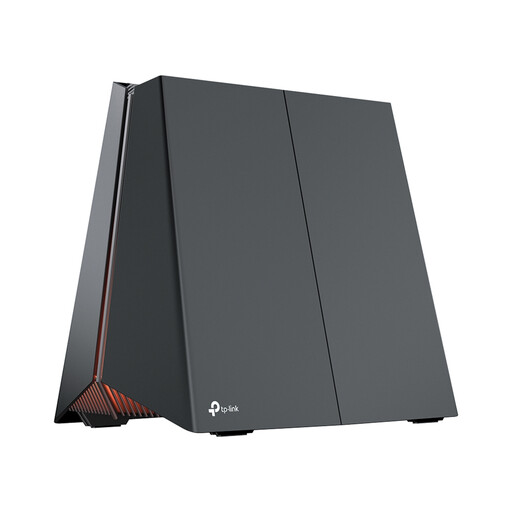 Image unavailable
A good fit if you want to compare a tri-band router with wired Ethernet specifications.
Tri-band (2.4 GHz, 5 GHz and 6 GHz) and 2.5 Gigabit Ethernet.
Yes. Router freedom applies in the Netherlands, but a provider may refuse a customer-owned device in certain circumstances, for example if it’s unsafe. ACM ConsuWijzer also distinguishes between connecting your own router behind the modem and replacing the modem. For a direct connection, you’ll need to know the right settings.
No. First check what type of connection and modem you have, and ask your provider for the settings if necessary. ACM ConsuWijzer specifically points out that a PTP modem isn’t suitable for a PON fibre-optic network. Connecting a standalone router behind your existing modem is a different setup.
Not necessarily. Start with a well-positioned router and assess coverage at your workspace. If the signal is still too weak there, check which extension options the exact model supports.
Install available updates, enable automatic updates if the model offers them, and replace the default login details with a strong password. Before buying, check how the exact model is supported; this doesn’t guarantee that a router will remain secure indefinitely.
You generally don’t need a licence to use Wi-Fi at home if you follow the conditions for the designated frequencies. The Dutch Authority for Digital Infrastructure sets out these conditions; that doesn’t mean any radio settings are permitted.