A compact router may be suitable if you want to share a presentation file locally, provided the exact model supports USB file sharing. A router won’t project an image to a TV or projector by itself, so first check that your laptop and screen support a suitable projection method. Then measure the space available, including room for the power supply and cables.
Who is this choice relevant to?
Presenter who wants to share a screen
You want others to see the presentation on a TV or projector. First check that your laptop and screen support a suitable projection method; then you can consider your router options. Microsoft Support explains how to project wirelessly to a screen that supports Miracast.
Team sharing a file
Participants open the presentation on their own devices. You’re looking for local file sharing and want to control who can access it. TP-Link describes USB file sharing for the TL-WR1502X and secure access for supported routers.
User with a small shelf
You need to make room for the router, power supply and cables. Compare the dimensions and connections of the exact model you’re considering. ASUS and GL.iNet publish dimensions for the RT-AX57 Go and Beryl AX respectively.
What should you look for?
Sharing a presentation file
Choose this option if: participants need to open the file on their own devices. Check that the exact router model supports USB storage sharing.
Bear in mind: having a USB port doesn’t necessarily mean file sharing is supported. You’ll also need to consider storage and access settings.
Showing a presentation on a screen
Choose this option if: your audience needs to see the presentation on a TV or projector. First check that your laptop and screen are compatible with the projection method.
Bear in mind: a router can’t make up for a lack of projection support; you may need a suitable adapter.
| Priority |
What to look for when buying |
Who should consider this most? |
| Showing a presentation on a screen |
Check that your laptop and screen use the same supported projection method. Microsoft Support explains how to project from Windows 11 to a screen that supports Miracast. |
If I want to show my presentation on a TV or projector, I’ll first check that both devices are compatible. Around 27% of consumers prioritise screen projection. |
| Making a file accessible |
Check that the exact model supports local USB file sharing and find out how to restrict access. TP-Link recommends Secure Sharing for supported routers. |
When participants need to open the file on their own devices, storage sharing and access permissions matter. Around 27% of consumers say file sharing is their main priority. |
| Space on the shelf |
Compare the dimensions of the exact model and allow extra room for the power supply, cables and any USB storage. |
If shelf space is limited, I want to know whether the whole setup will fit, not just the router itself. Around 20% of consumers prioritise the space available. |
| Connecting to your existing network |
Check that the router mode is suitable for your modem or connection. FRITZ!, for example, describes the FRITZ!Box 4050 as suitable for use behind a modem. |
If I want to connect the router to an existing connection, its selected mode needs to suit that setup. Around 13% of consumers say network connectivity is their main priority. |
| Securing access and updates |
Check whether you can restrict access to shared storage and how to install firmware updates. FRITZ! explains that NAS access requires a user account. |
If not everyone should have access to the presentation files, I want to be able to restrict and manage access. Around 13% of consumers prioritise secure access. |
Common buying mistakes
-
Confusing file sharing with screen projection
A router that shares files over USB won’t automatically send an image to a projector.
First decide whether participants need to open a file or view your screen. For projection, check that your equipment is compatible; you may need a suitable screen adapter.
-
Measuring only the router
The power supply, cables and any storage also take up space. With some setups, the storage device’s power requirements may also be important.
Measure the available space with the complete setup in mind, and check the storage device’s power requirements. If needed, a separately powered USB hub will take up extra room.
-
Assuming every USB port supports file sharing
A USB connection doesn’t guarantee that the model supports network storage or the feature you want. GL.iNet warns that not every model with a storage port supports network storage.
Before buying, look for explicit file-sharing support for the exact model and, where relevant, the firmware version.
Brands to compare
TP-Link
According to TP-Link Netherlands, the TL-WR1502X is a compact travel router with several network modes.
- TP-Link describes USB file sharing for this model.
- Check the power supply, storage and access settings for your intended setup; file sharing isn’t the same as screen projection.
ASUS
According to ASUS, the RT-AX57 Go is a portable router with router, access point and public Wi-Fi modes.
- ASUS lists the dimensions of this model as 120 × 120 × 21,5 mm.
- Check separately whether the USB connection is suitable for the feature you need.
GL.iNet
According to the manufacturer’s data sheet, the Beryl AX (GL-MT3000) is a travel router measuring 120 × 83 × 34 mm, with a USB 3.0 port for external storage.
- The published dimensions give you specific measurements to compare with your shelf.
- GL.iNet states that network storage isn’t supported on every model with a storage port; check the exact model and firmware.
FRITZ!
FRITZ! describes the FRITZ!Box 4050 as a home router for use behind an existing modem.
- FRITZ! documents access to connected USB storage and three gigabit LAN ports.
- According to FRITZ!, NAS access requires, among other things, a user account. Also allow space for the complete setup.
Joybuy products
These Joybuy products are routers for a portable Wi-Fi connection or for use with an existing network connection. Check separately whether your presentation requires file sharing or screen projection: a router doesn’t replace this check.
 No image available
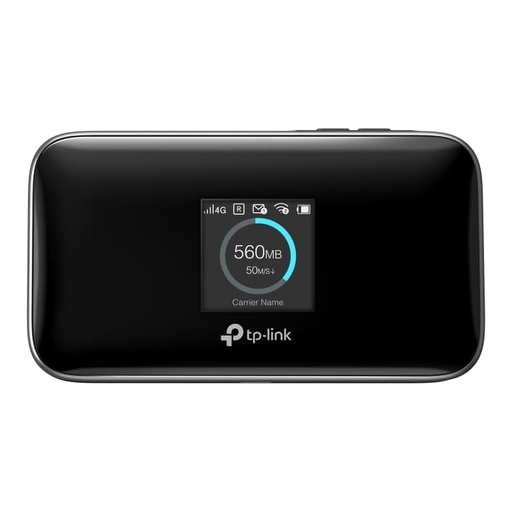
TP-Link M7750 mobile router
For a portable Wi-Fi connection; the product description lists 2,4 and 5 GHz Wi-Fi.
The stated maximum speed is 600 Mbps.
View at Joybuy
 No image available
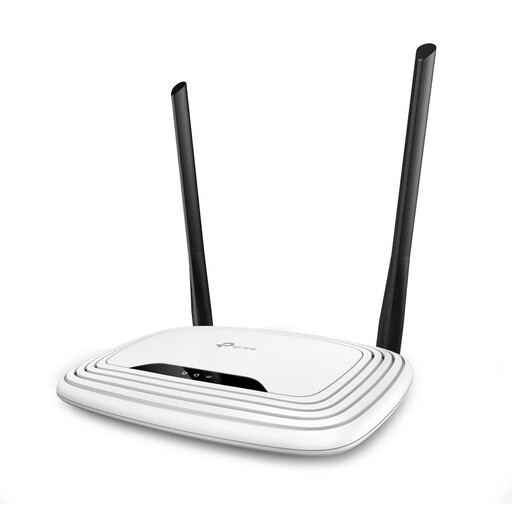
TP-Link TL-WR841N, 2,4 GHz, white
For an existing network setup where you need a Wi-Fi router with wired connections.
Listed features include 2,4 GHz Wi-Fi, one Ethernet WAN port and four Fast Ethernet LAN ports.
The product information lists dimensions of 173 × 118 × 33 mm; remember to allow space for the power supply and cables too.
View at Joybuy
 No image available
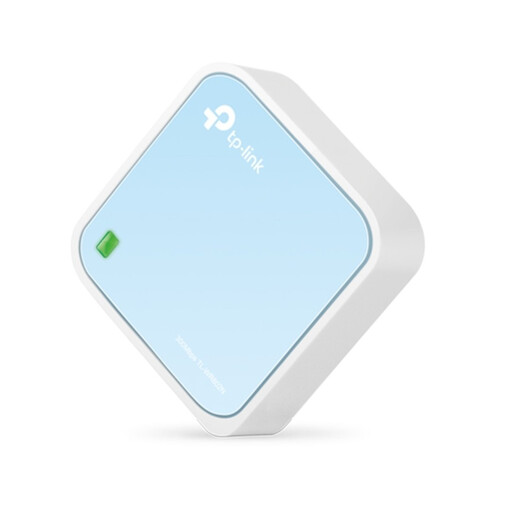
TP-Link TL-WR802N V4
A compact router to consider if space is limited.
The description lists Wi-Fi 4 on 2,4 GHz and a maximum wireless speed of 300 Mbit/s.
View at Joybuy
 No image available
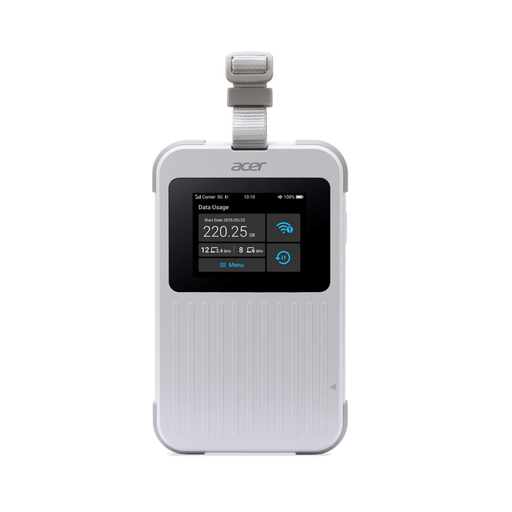
Acer Connect M6E portable MiFi router, 5G, WiFi 6E
For a portable Wi-Fi network; the product information describes a mobile hotspot with 5G and WiFi 6E.
The description mentions a touchscreen and a Nano SIM. Check that this type of mobile connection suits your needs.
View at Joybuy
 No image available
ASUS RT-AX52 AX1800 dual-band router
For an existing modem setup if you’re looking for a dual-band router with wired connections.
The product information lists 2,4 and 5 GHz Wi-Fi and gigabit Ethernet ports.
View at Joybuy
Frequently asked questions
Can I show my presentation on a projector using just a Wi-Fi router?
No, not with the router alone. For the wireless projection described by Microsoft Support, the screen needs to support Miracast; also check whether your laptop supports this projection method. You may need a suitable adapter.
How can I share a presentation file without making it available to everyone?
First check that the exact router model supports local storage sharing, then set up access security. TP-Link recommends Secure Sharing for supported routers; FRITZ! describes using user accounts to access NAS storage.
What do I need to maintain after installation?
Check for firmware updates and change the default login details. If you share storage, also check who has access to the files. VeiligInternetten recommends changing the default login details and choosing a strong password.
Can I use my own router in the Netherlands?
According to ACM ConsuWijzer, you’re free to choose your router, but if you connect it directly to the provider’s network, the device must meet the applicable safety requirements. Your provider can supply the necessary settings and may refuse an unsafe device.
What about the warranty on a router?
The Dutch government states that there is no fixed statutory warranty period in the Netherlands. You’re entitled to a product that meets what you could reasonably expect; if there’s a problem, contact the retailer.


