
Student working beyond the router’s range
You’re attending a live lecture and working online at the same time, somewhere with a weak Wi-Fi signal. In this situation, router placement and coverage matter more than a high advertised speed.


First, use a wired connection to check that your broadband connection is working well enough, then test the Wi-Fi where you study. A new router won’t fix a problem with your broadband package. If the connection works well near the router but coverage is weak in several places, consider mesh Wi-Fi. For a single fixed workspace, a standalone router or a cable may be a better choice. Before buying, check the connection to your provider’s equipment, the available ports, software updates and the CE marking on the specific device.
You’re attending a live lecture and working online at the same time, somewhere with a weak Wi-Fi signal. In this situation, router placement and coverage matter more than a high advertised speed.
You share your connection with housemates while attending a lecture and want to check whether your broadband connection, router and connected devices can handle simultaneous use.
You want a reliable connection for lectures and shared documents at one desk, and may be able to use an Ethernet cable.
Start with a wired speed test to distinguish a problem with your broadband connection from weak Wi-Fi. Then consider where you study and which devices are online at the same time.
| What to consider | What should you check? | Which consumers? |
|---|---|---|
| Wi-Fi at your workspace | Test the connection where you attend lectures. Work out whether one router is enough or whether you need Wi-Fi points in several places. If you’re considering mesh, check whether Ethernet backhaul is possible. | If the signal is weak where I study, I want to know whether better router placement will be enough or whether I need more Wi-Fi points. Around 36% of consumers say coverage in that spot is their top priority. |
| Simultaneous use | Test the connection while lectures, shared work and other devices are all active. If necessary, compare a wired test with Wi-Fi. | When my housemates and online work are using the connection at the same time, I want to know whether the broadband connection and router can cope. Around 29% of consumers prioritise simultaneous use. |
| Wired laptop | Check whether you can run a cable to your workspace and still have a spare LAN port for your laptop. | If my laptop usually stays at one desk, an Ethernet cable can bypass Wi-Fi. Around 21% of consumers say a suitable wired workspace is their top priority. |
| Management and connection | Check the connection settings required by your provider, available firmware updates and the CE marking on the specific device. | If you want to manage your home network yourself, you’ll need to consider settings and updates. Around 14% of consumers prioritise managing their own network. |
Your broadband connection, distance from the router and device capabilities still matter. A stated Wi-Fi speed doesn’t guarantee a better experience during a live lecture or in a shared workspace.
First, test the connection over Ethernet and then at your workspace. Only buy new equipment once you know where the connection is falling short.
According to the independent Tweakers guide, entry-level systems without a wired connection can slow down under heavy use.
Before deciding how many points you need, consider where they can go and whether you can connect them using Ethernet.
Extra points also need space and a power supply.
FRITZ! describes the FRITZ!Box 4060 as a router that connects to a modem. Using your own equipment may also require you to change settings with your provider.
Before buying, check which device is your current modem, where the router needs to connect and which settings your provider requires.
The range includes both the standalone Archer AX55 router and the expandable Deco X50 mesh system. This difference may matter if you need Wi-Fi in one workspace rather than in several places.
The RT-AX53U is a standalone router with, among other features, an access point mode. The ZenWiFi BD4 is a mesh product line designed for multiple Wi-Fi points.
The FRITZ!Box 4060 is a standalone Wi-Fi 6 router that, according to FRITZ!, connects to a suitable modem and supports mesh within the FRITZ! system.
This selection includes standalone routers for a fixed workspace and mesh options for Wi-Fi in several places. Compare the connections and features listed with your own set-up.
 Image unavailable
A standalone router to consider for a fixed workspace; the description says it needs to connect to a modem.
Wi-Fi 6, dual-band (2.4 GHz and 5 GHz), three gigabit Ethernet ports and AiMesh compatibility.
The description also mentions OFDMA and MU-MIMO for connecting multiple devices.
 Image unavailable
A mesh system with three points to consider if you need Wi-Fi in several places.
Wi-Fi 6; Ethernet backhaul is an option. The description lists three gigabit Ethernet ports per unit.
The description also mentions OFDMA and MU-MIMO for connecting multiple devices.
 Image unavailable
A mesh router to compare if you’re considering a mesh set-up.
The product name lists dual-band Wi-Fi 7 and mesh functionality. Check which units and connections are included with this version.
 Image unavailable
A mesh router to compare if you need Wi-Fi in different places and use multiple devices.
The product description lists Wi-Fi 6, two bands (2.4 GHz and 5 GHz), roaming and app-based network management.
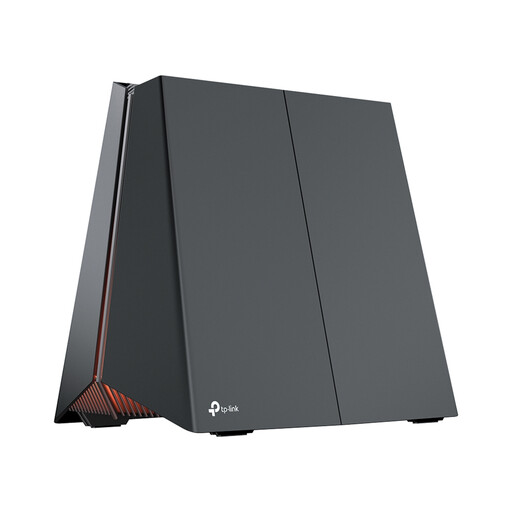 Image unavailable
A standalone router to compare if you want to connect a fixed, wired workspace.
The product description lists a 5 Gbps WAN port and three 2.5 Gbps LAN ports.
It also mentions tri-band Wi-Fi 7, OFDMA and QoS. Check that the ports are suitable for your modem and connected devices.
Not if your broadband connection itself is the limiting factor. First, test it using an Ethernet cable and compare the result with Wi-Fi at your workspace. Then check the router’s position before replacing any equipment.
Yes. According to ACM ConsuWijzer, you have the freedom to choose your own router. Check which settings your provider requires for the connection, and keep your device’s firmware up to date.
Position the points so they can communicate well with each other, then check the connection where you study. If you can run a cable, the independent Tweakers guide describes wired backhaul as the most stable way to connect mesh points.
No. According to ACM ConsuWijzer, the statutory guarantee in the Netherlands doesn’t have a fixed term of exactly two years. What you can expect depends, among other things, on the product. Any manufacturer’s warranty is separate.
Radio equipment placed on the market in the Netherlands must meet the applicable requirements of the Radio Equipment Directive. The Dutch Authority for Digital Infrastructure states that, following a conformity assessment, the manufacturer applies the mandatory CE marking. Check the device’s marking and product documentation.